
Your customer has just paid, and for a few seconds they're looking at one screen with one question in mind. Did it work? If that screen answers clearly, they leave calm. If it doesn't, they reload, check email, or contact support. That's why an order confirmation screen isn't decoration. It's a control surface where you confirm the purchase, set delivery expectations, and show only the actions that are still allowed.
Table of Contents
- Why the Confirmation Screen Is Part of Checkout
- The Information Hierarchy Every Confirmation Screen Needs
- Tracking Status and Delivery Expectations
- Self-Service Edits and Who Can Make Them
- Cross-Sells and Up-Sells That Don't Block Confirmation
- Support Links and Fallback Paths for Failed Actions
- Copy-Ready Confirmation Screen Templates
- Test Your Confirmation Screen Before You Launch
Why the Confirmation Screen Is Part of Checkout
The payment is complete, but the customer still needs clear proof of what happened. A confirmation screen that shows the order and explains what comes next can help set expectations and give customers a place to check before contacting support. It works like a boarding pass: beyond confirming the transaction, it shows the traveler what to do next.
Treat the screen as a transactional control surface, not just a thank-you page with a logo and friendly line. Put the essentials first, then show only self-service actions that are available for that order. If an edit or cancellation is not allowed, make that clear rather than offering an action that will fail.
Baymard Institute's checkout usability research examines checkout experiences, but cart-abandonment figures describe the checkout process, not what a post-payment screen can fix. The confirmation screen has a different job: support confidence after payment and make order details and next steps easy to find. A clear status and a usable route to help give customers a place to turn before opening a support request.
The screen has three jobs: confirm the purchase, set fulfillment and delivery expectations, and point to the right next action, such as tracking, an eligible edit, or support. Sequence matters. Establish what has happened and what the customer can expect before showing optional offers. That order supports retention strategies for D2C and marketplace brands, because the post-purchase experience continues after the transaction.
Start by checking whether your screen explains the order's state and gives customers a suitable next step. Shopify mechanics appear later, but the control-surface principle applies to any store.
The Information Hierarchy Every Confirmation Screen Needs
| Position | Block | Must show | Why it sits here |
|---|---|---|---|
| 1 | Success statement | Order placed and payment received | Ends the uncertainty that triggers the first reload |
| 2 | Order number | Order number, date, confirmation email status | Becomes the reference for every later support contact |
| 3 | Purchase summary | Items, variants, quantities, total paid, currency | Lets the customer catch a mistake while still on the page |
| 4 | Delivery expectation | Fulfillment stage, delivery window, change deadline | Answers the next question, when does it arrive |
| 5 | Self-service actions | Only the edits and cancellations allowed for this order | Shown after payment success is clear, never before |
| 6 | Support and help links | Contact route, FAQ, returns policy | Reachable by every visitor, but never the lead element |
| 7 | Auxiliary offers | Account creation, product guidance, relevant cross-sells | Last, so they never block confirmation |
The table looks simple, but the order is the point. A customer gives this screen a few seconds, often on a phone, often while doing something else. If they have to hunt for proof that payment worked, you've already created work for them.
Baymard's benchmark of 945 annotated order-confirmation screenshots from 344 ecommerce sites found recurring failures in purchase verification, including shoppers waiting on the page for the confirmation email before feeling safe to leave Baymard order confirmation page research. That behavior tells you what the first viewport must do. It should state success plainly, show the order number, list what was bought, show the total paid, give a delivery estimate, and say whether the confirmation email has been sent.
Why Success Comes Before Everything Else
Put the success statement and order number at the top because they become the reference for everything that follows. Every later email, refund request, and support chat will point back to that number. If the customer screenshots one thing, it should be that block.
Don't make the headline clever at the expense of clarity. "You're all set" is friendly, but it's vague. "Order placed" or "Payment received, order confirmed" answers the actual question. You can add warmth in the next line.
Next comes the purchase summary. It is the point where a wrong size, wrong variant, or wrong quantity gets caught while the customer still has the page open and can act. Show item names as the customer recognizes them, not internal SKUs. Show variants in plain language, such as size and color. Show quantities and the total in the currency the customer paid, which matters if you sell in multiple currencies. A total that suddenly appears in a different currency creates doubt even when the amount is correct.
Five-second test: Open the screen on a phone and look away after five seconds. If you can't recall the order number, the total, and the delivery line, the hierarchy needs work.
Why Actions Wait Their Turn
Delivery expectations come after the summary because they answer the question that naturally follows. First, did it work and what did I buy? Then, when will it arrive? Reversing that order forces customers to read logistics before they've confirmed they bought the right thing.
Self-service actions appear only after those essentials. That sequence matters. A customer should understand that payment succeeded before they see an option to change size or quantity. Otherwise an edit button can read as a sign that something is incomplete. When an edit later changes quantity, variant, shipping, or price, the screen can then show a clean state change from confirmed to updated or payment required.
Support links should be easy to find for every visitor, but they shouldn't lead the page. If "Contact us" is the most prominent element, you're implying something may be wrong. Place help where a worried customer can reach it in one scan, near the order number and delivery information, without competing with the success statement.
Auxiliary offers come last for the same reason. Account creation, product guidance, surveys, and relevant cross-sells can all be useful after the transaction is fully explained. Baymard treats these as appropriate secondary actions, but they shouldn't replace the confirmation function. If an offer pushes the delivery line below the fold on mobile, the offer is in the wrong place.
Here's a practical way to review your own screen:
- Check the first viewport: Confirm success, order number, items, total, and email status are visible without scrolling on a phone.
- Check the summary: Verify variants, quantities, and paid currency match what the customer selected at checkout.
- Check the order of actions: Make sure edits, support, and offers appear only after confirmation and delivery are clear.
When in doubt, remove a block and ask whether the screen got clearer. If it did, that block was either in the wrong position or didn't belong on this screen at all.
Tracking Status and Delivery Expectations
Follow one order through its week and you'll see what status copy has to do. On Monday morning, Maya orders a jacket. She doesn't need marketing copy. She needs to know the order was received, when it will leave, and how long she has if she typed the wrong address.
On Monday, the screen says Order received and gives an estimated dispatch date. It doesn't promise a delivery date yet, because the parcel hasn't left. On Tuesday, the label changes to Being prepared, with a dispatch window. On Wednesday, it becomes On its way, with the carrier name and tracking number. Later it moves to out for delivery, then delivered. Each label answers the question she has at that moment, in words she'd use herself.
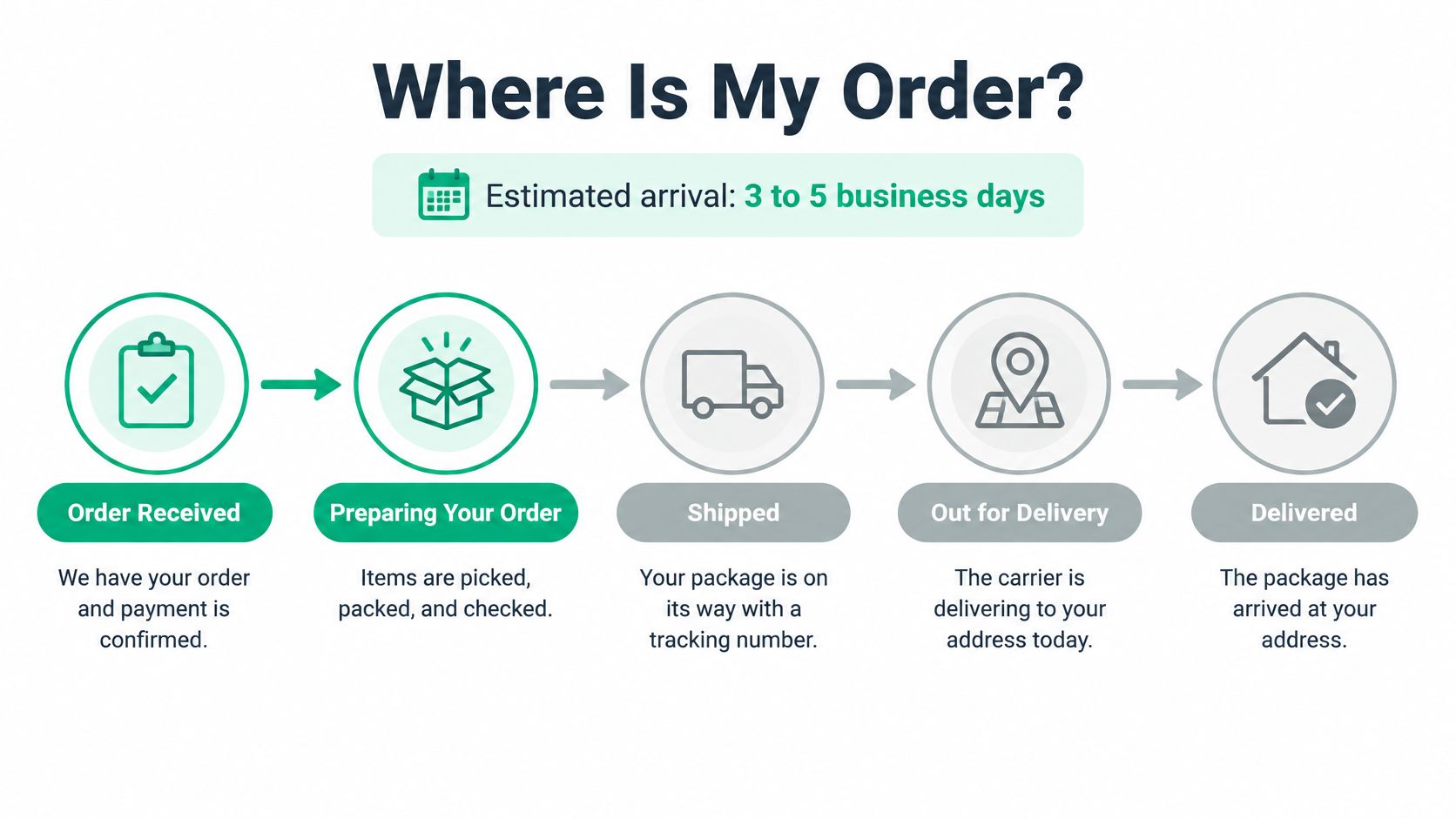
That's the core principle. Customers don't only ask whether the order was placed. They ask where it is, when it'll arrive, what happens if that date moves, and which actions are still possible before shipment. A 2025 evaluation of 57 U.S. retailers found universal order-confirmation and shipping-confirmation emails, yet 93% of retailers asked customers to provide a return reason and only 51% offered free returns parcelLab eCommerce shipping experience study 2025. Confirmation content therefore has to set expectations about delivery, returns, fees, and support, not merely display a number.
| Stage | Plain-language label | Delivery line to show | Watch-out |
|---|---|---|---|
| Order received | Order received | Estimated dispatch date | Do not promise a delivery date before dispatch |
| Payment review | Payment being confirmed | Hold message until payment clears | Avoid implying the order is final |
| Preparing | Being prepared | Dispatch window, for example 2-3 business days | Update the window if stock or production slips |
| Dispatched | On its way | Carrier name and tracking number | Show the tracking link, not a fixed arrival promise |
| Delivered | Delivered | Delivery date and location | Switch the self-service area to returns and exchanges |
| Delayed | Running late | New window and the reason | Give a support route in the same panel |
Use Windows, Not Single Promises
Pair every stage with a delivery window rather than a single date you don't control. A window gives you room for carrier variation and gives the customer a realistic range to plan around. Once dispatch happens, show the carrier and tracking number and let the carrier page handle live movement. Your screen should link to tracking, not pretend to be the carrier.
If you're setting this up on Shopify, it helps to understand how the confirmation view connects to the customer-facing status experience described in Shopify order status page guidance. The labels you choose should stay consistent across the screen, the email, and the status page, so customers don't have to translate between three vocabularies.
Show the Change Deadline and the Delay State
State what happens if the window moves. A delayed state with a reason and a new window produces fewer anxious contacts than silence, because the customer can see you've noticed and have a plan. Put a support route in the same panel. Don't make a customer with a late parcel search the footer.
Also show the change deadline while changes are still possible. If the screen says the order can be changed until a specific time, the customer knows the action has an end and doesn't assume she can return next week to fix an address. When that deadline passes, change the copy. The panel should switch from editing actions to tracking, returns, or exchanges, depending on the stage.
Expectation control comes before upselling. A promotion shown before delivery uncertainty is resolved may get a click, but it leaves the customer's main question unanswered.
Maya's Monday to Wednesday timeline is ordinary, which is exactly why it's a useful test. Walk your own screen through those days. If the label, delivery line, and available actions don't change as the order moves, your screen is a static receipt. It should be a live status surface.
Self-Service Edits and Who Can Make Them
"Can I still change my order?" is often the first real question after checkout. The honest answer isn't yes or no. It's, it depends on who you are, where the order is, and whether payment for any difference can be settled.
The illustration below maps that decision from request to resolution, including what happens when payment needs attention.
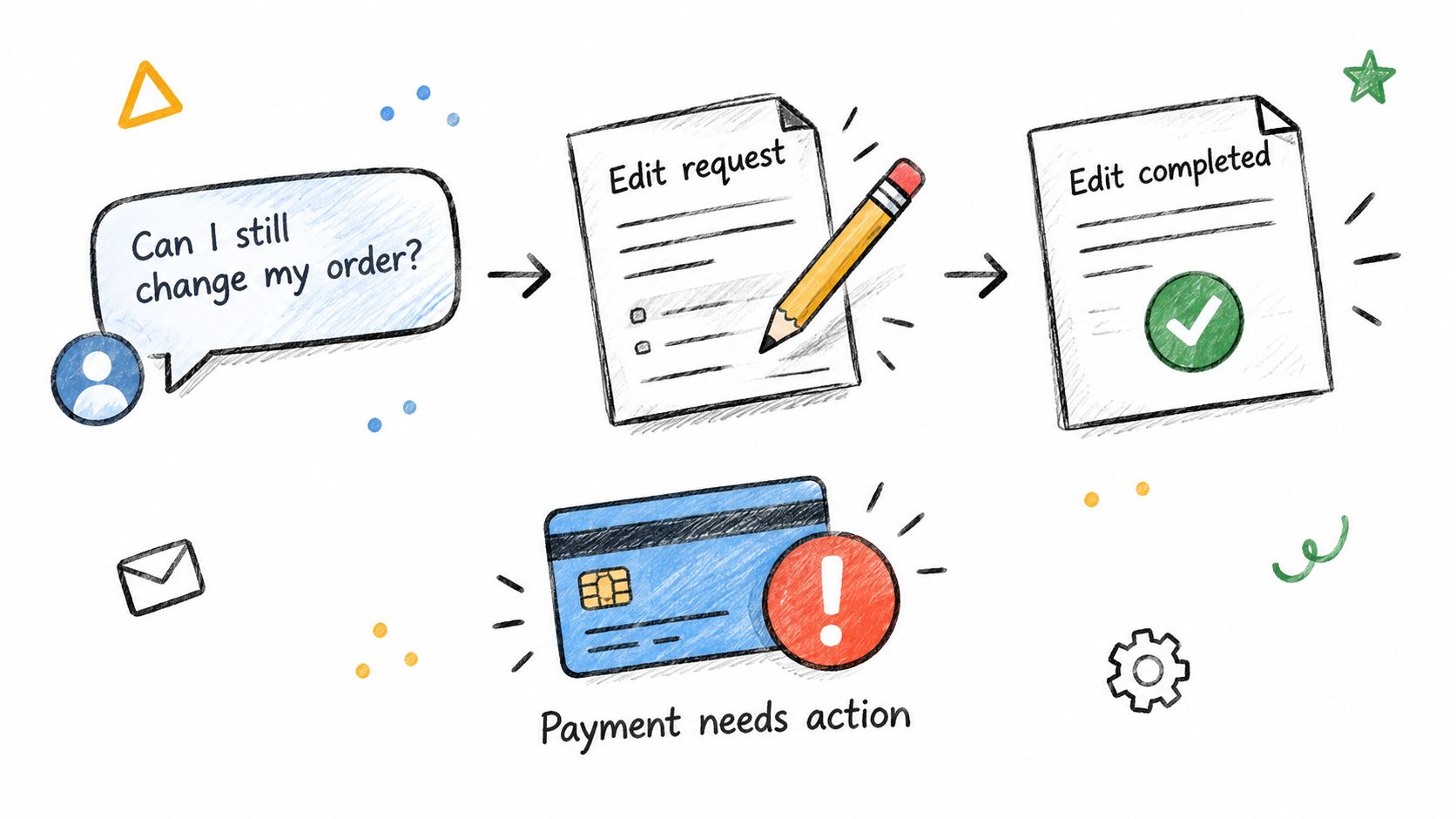
Start by separating three states your customers often blur together. An edit request means the customer asked for a change. A completed edit means the order, inventory, and payment all reflect the change. Payment required means the change can't finish until an extra amount is collected or a refund is processed. Your screen should name the state it's in. If a larger size costs more, show the extra charge before submission. If removing an item creates a partial refund, say so before the customer confirms. The change counts as complete only after payment reconciles, not when the button is clicked.
Who Sees Which Controls
On Shopify, access isn't one simple logged in or logged out switch. Shopify distinguishes unauthenticated visitors, who can see only public data such as items, order status, and total, notification links that provide partial authentication through a token, and fully authenticated customers with unrestricted access for extensions Shopify order status page documentation. Pre-authenticated access from notifications is limited to three weeks in the same browser session, two weeks across different sessions, and at most five browser sessions.
Those limits should shape your design. Authorization needs to be checked on every request, and the interface should fail closed when a token is expired, the customer isn't authenticated, or the order is no longer eligible.
| Visitor or order state | What the screen shows | Edit controls |
|---|---|---|
| Unauthenticated visitor | Items, order status and total only | Hidden |
| Notification link with partial access | Read-only summary and a sign-in prompt | Hidden until full authentication |
| Authenticated customer inside the window | Full order with editable items | Shown, limited to merchant rules |
| Authenticated customer after the window closes | Order details and the reason edits closed | Hidden |
| Expired link or session | Message asking the customer to sign in again | Hidden, fails closed |
| Order not eligible for edits, such as a non-editable product type | Order details and the reason | Hidden |
Read the table from simplest to most restricted and the pattern is clear. Everyone can verify the order. Only the right person, at the right time, for an eligible order, can change it. A stale confirmation link should never become an unintended order management permission.
This short walkthrough shows how an edit flow looks when those states are handled in the interface.
Address changes deserve the same care, which is why it helps to review how customers edit a shipping address after checkout before you decide which fields to open up. An address isn't just text. It can affect shipping cost, tax, and delivery promise.
Edge Cases That Change More Than Price
Some orders look simple and aren't. Subscriptions, bundles, preorders, international orders, and gifts can change taxes, delivery dates, or eligibility when a customer adjusts quantity or address. A bundle edit may break a bundle condition. An international address change may alter duties. A gift edit must not expose prices to the recipient.
The rule to remember is simple. Never offer an edit your rules or the platform would reject. It's kinder to hide a control and explain why than to show it, let the customer invest effort, and then refuse at the final step.
Cross-Sells and Up-Sells That Don't Block Confirmation
Treat an offer as a second conversation. It starts only after the first conversation, confirmation, is finished. If the customer is still checking whether payment worked, they aren't ready to consider another product.
The governing rule is relevance. Offer something that completes the purchase, such as an accessory that fits the item just bought or a bundle the customer was likely to need, rather than a random bestseller. Name the reason in plain language. "Pairs with your jacket" helps the customer judge the suggestion. Urgency language doesn't. It turns a helpful suggestion into pressure at the exact moment you're trying to build trust.
Placement decides whether relevance gets a chance. An offer below the order summary sits beside the purchase without competing with the order number. An offer above the order number competes with confirmation itself, so don't put it there. Beside the delivery panel, only a bundle that could replace a likely second order makes sense, because anything else pulls attention from dates the customer is trying to read. This placement discipline is central to a healthy Shopify upsell funnel, where timing and context matter more than volume.
Inside the self-service edit area, a size or variant alternative fits only when the customer is already changing the order. In that moment a relevant suggestion is part of the task. Outside that moment, it interrupts. An account creation card suits a guest checkout, since the customer can save details for next time. For an existing account holder, that same card is just a wall. A loyalty or referral prompt belongs below the help section, where friction stays low even if immediate revenue is modest.
Suppress offers entirely for gift orders, final-sale items, and custom or preorder products. A second purchase in those contexts can confuse the customer about what's already been bought, what's final, or when something will ship. Also cap how often an offer appears. A repeat buyer shouldn't see the identical card on every visit.
If removing the offer would make the screen clearer, the offer is in the wrong place.
Restraint isn't anti-revenue. It's sequencing. Confirm first, explain delivery second, offer third. A customer who trusts the confirmation is in a better frame of mind to consider a genuinely useful addition.
Support Links and Fallback Paths for Failed Actions
Place a visible help route beside the order number and delivery line, not buried in the footer. When something looks wrong, the customer is already looking at those two pieces of information. Meet them there.
Use specific labels instead of a generic "Help." Change delivery address and Contact us about this order tell the customer what will happen next and tell your team what the message is about. Where your contact form lets customers pick an order, pre-fill the order number so an agent doesn't have to ask for it. That small step saves a round trip for everyone.
Post-purchase expectations make this clarity more important, not less. FedEx's 2025 consumer research reported that 87% of respondents valued easy and convenient return options, alongside proactive delivery updates and immediate issue resolution FedEx 2025 ecommerce trends report. A generic manage order link doesn't meet that expectation. The screen should show what's permitted for this order, what it'll cost or refund, and what happens if something fails.
What to Show When an Action Fails
Document each failure state before you launch, and write the screen copy for it.
- Payment fails during an edit: Revert the change and state clearly that the original order stands. Don't leave the order in a half-edited state.
- Stock runs out after a size change: Offer an alternative size or a clear refund path. Don't substitute without telling the customer.
- Shipping recalculation changes the cost: Show the new cost and give a choice to accept or cancel the edit.
- Address looks wrong: Provide a direct exception path. A wrong address caught on the confirmation screen is far cheaper to fix than one caught after dispatch.
Each fallback should state what happens next and give a timeframe you can meet, such as confirming within one business day. Don't promise a timeframe your team can't keep. A vague "we'll be in touch" leaves the customer guessing and often prompts a second message.
Keep the boundaries clean. Who can see edit controls belongs in your access rules. Return policy details belong in the help area, stated once, clearly. The fallback panel has one job, to tell a customer whose action didn't work exactly where they stand and what you'll do next.
Copy-Ready Confirmation Screen Templates
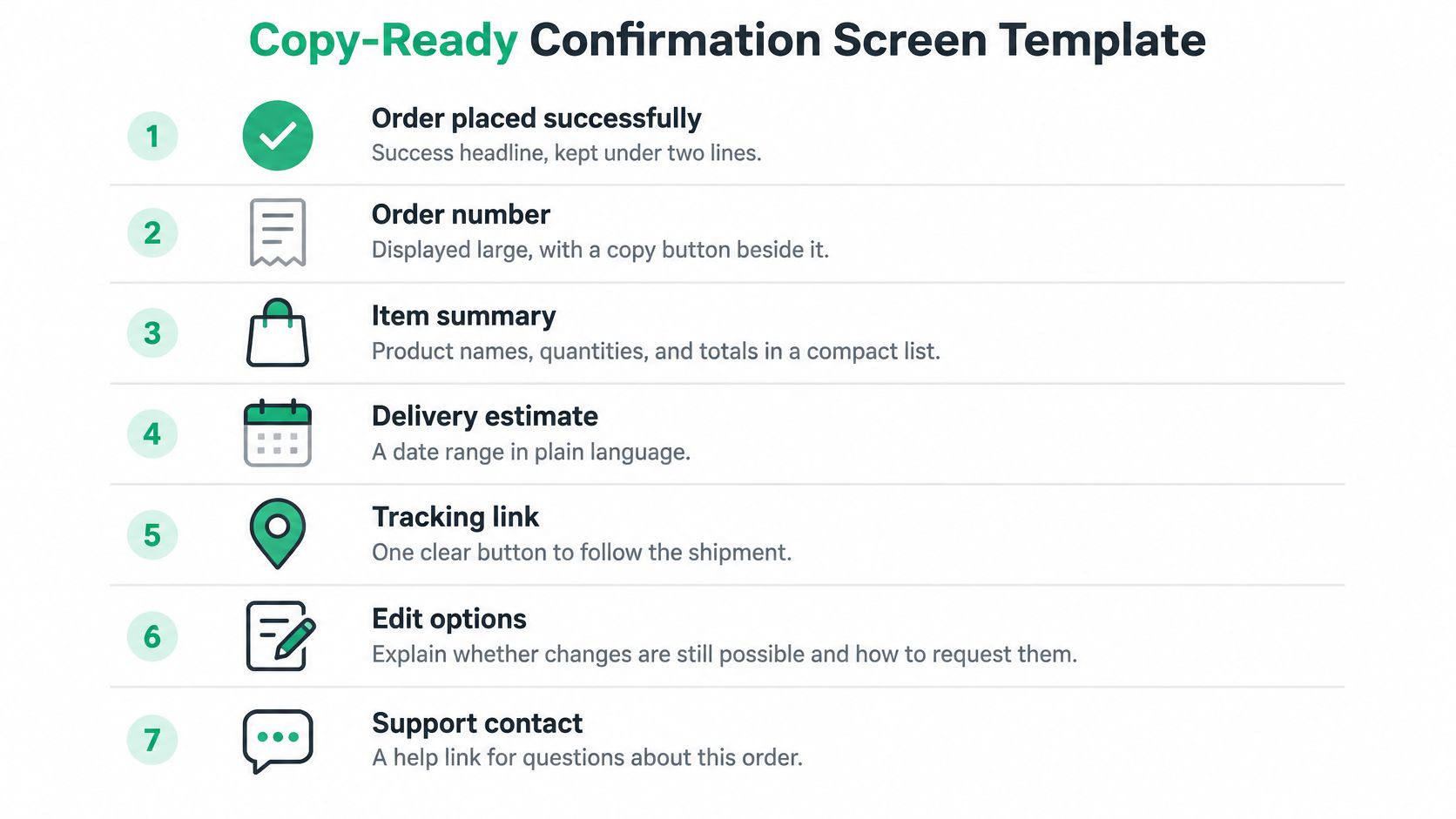
A usable template isn't a screenshot to copy pixel for pixel. It's a sequence of blocks in the right order, with copy you can adapt. Build it once, keep the block order identical across order types, and customers learn the layout the first time they see it.
The Block Sequence
Start at the top and work down:
- Success headline: Keep it under two lines. State the outcome first, then the next event.
- Order number: Put it on its own line, large enough to screenshot, with the order date and confirmation email status nearby.
- Purchase summary: List items, variants, quantities, and the total paid in the paid currency.
- Delivery panel: Show the current stage, a delivery or dispatch window, the change deadline if one applies, and a tracking link once available.
- Self-service area: Show this only when authentication and your rules allow it. If edits aren't available, say why in one sentence.
- Help row: Offer two or three labelled links, such as contact about this order, delivery questions, and returns.
- Optional offer: Add at most one, at the bottom, and only if it's relevant to what was bought.
For the headline, use a simple formula. State the outcome in five words or fewer, then name the next event. "Order placed. We're preparing it" does both jobs. "Thanks for shopping with us" does neither, because it doesn't confirm the transaction or say what happens next. Put gratitude in the supporting line if you want it, after the facts.
How Copy Shifts by Order Type
The structure stays the same. The wording changes because the customer's situation changes. A preorder customer hasn't bought something that ships tomorrow. A gift buyer needs recipient-safe language. An international buyer needs to understand duties before the parcel arrives.
| Order type | Headline | Delivery line | Secondary action |
|---|---|---|---|
| Standard physical order | Thanks, your order is in | Estimated delivery window by date | Track your order |
| Pre-order | Your pre-order is reserved | Ships on the announced date | Add a note or update the address before release |
| Gift order | Your gift is on its way | Delivery window with recipient-safe wording | Add a gift message; prices hidden |
| International order | Your order has been received | Delivery window plus a duties and tax note | Review shipping and tax details |
| Subscription | Your first box is confirmed | Next renewal date | Manage subscription |
| Custom-made product | Your order is being made for you | Production time range | Contact us about specifications |
Notice what each row protects. The preorder says reserved, not shipped, so the customer doesn't expect tracking this week. The gift row hides prices and lets the sender add a message. The international row puts duties and tax where the customer will see them before delivery, not as a surprise at the door. The subscription row leads with the next renewal date, because that's the date the customer will want to control. The custom-made row gives a production range, since the honest answer is a range.
Keep the block order identical across types. Change the words, not the layout, so returning customers don't have to relearn the screen.
Adaptation Checklist
Before you treat a template as finished, work through these steps:
- Replace every placeholder: Use real delivery windows, real deadlines, and your actual returns terms. Generic filler copy will mislead someone.
- Test with a live order: Place an order for each type you sell, including a gift and an international order if you offer them, and read the screen as a customer.
- Check mobile and desktop: Confirm the order number, total, and delivery line are visible without scrolling on a phone, and that tables or panels don't break on a narrow screen.
A template earns its keep when a new team member can use it without asking where things go. If someone has to guess whether tracking sits above or below the summary, the template isn't finished yet.
Test Your Confirmation Screen Before You Launch
Place a real test order and check the screen on a phone first, since much confirmation traffic is mobile. Confirm the order number, total, and delivery line appear without scrolling. If you have to scroll to find proof of purchase, fix the hierarchy before anything else.
Then open the status link in a private window. An unauthenticated visitor should see only read-only details, with no edit controls exposed. Compare the screen with the confirmation email side by side. Items, totals, currency, and dates must match exactly. A mismatch between the two is a trust problem, even when the underlying order is correct.
Test Every Edit Path You Plan to Offer
Don't test only the happy path. Work through each action a customer might take:
- Add an item: Confirm the new total and any extra payment are shown before submission.
- Change a size or variant: Check that inventory is rechecked and the summary updates to the new state.
- Change an address: Verify shipping and tax are recalculated and explained.
- Cancel inside the window: Confirm the cancellation completes and the screen states what happens to payment.
- Attempt an edit after the window closes: Check that controls are hidden and the reason is stated, rather than the action failing at the last step.
Only edits your rules allow should ever appear. If you want that flow automated, SelfServe lets customers edit their Shopify orders after checkout from their order status page, and its editing window engine lets you define the precise circumstances under which editing is allowed. When a customer edit changes the order total, it automatically collects the difference or issues a partial refund, and the Shopify order, inventory, shipping, and tags update accordingly.
Use your test results to adjust the rules before launch, not after real customers find the gaps. If an edit window closes too early for your fulfillment pace, widen it. If a product type creates tax or eligibility problems when edited, exclude it and say why on the screen. A short testing pass now is much cheaper than a week of support tickets explaining a confusing screen.
If you're ready to turn your confirmation screen into a clear, self-service control surface, ServeApps offers Shopify-native tools that let customers make permitted order changes from the order status page while you keep control of the rules, windows, and payment settlement. Visit us to see how SelfServe fits your store and start giving customers a calmer, clearer post-purchase experience.

Best Up Sell App Picks for Shopify in 2026
Compare 10 Shopify up sell app options for 2026, with features, pricing, placements, and honest limitations to help you choose the right fit.
Read more →
Best Checkout Page: 7 Examples That Convert in 2026
Discover 7 best checkout page tools and examples for Shopify with pros, cons, and conversion tips to boost AOV without rebuilding checkout.
Read more →
Shopify Checkout Customization: Options Compared
Compare Shopify checkout customization options: Checkout Extensibility, checkout.liquid, and apps. Learn plan limits and which approach fits your store.
Read more →