
The most popular advice about a Shopify theme app extension is also the most misleading. It says you install an app, drag a block anywhere, and you're done with code forever. That story skips the part that breaks launches, which is placement. Some features belong inside a product section, others follow the shopper around the store, and others can't live in a theme at all. Get that choice wrong and a store can look correctly installed while the feature never renders where your customer needs it.
Table of Contents
- What a Shopify Theme App Extension Is
- Which Extension Fits Each Page
- How App Blocks Differ from App Embeds
- Why Extensions Avoid Layout Shift
- Cart and Post-Purchase Examples
- Themes Where Extensions Still Break
- Enable the Right Extension on Your Store
What a Shopify Theme App Extension Is
Say you run a clothing store and install a reviews app. In the old days, that app might wire itself straight into your theme, and you'd only discover the wiring when a theme update broke the product page or the reviews vanished after an uninstall.
Think of the newer model as a wall socket, not spliced wiring.
A Shopify theme app extension is a versioned bundle Shopify hosts. The app plugs into a supported section or a theme setting, so merchants can add or remove it without an app rewriting their theme files.
Shopify introduced Theme App Extensions at Shopify Unite 2021 as part of the Online Store 2.0 launch, according to the Shopify Partners Blog announcement on theme app extensions. Before that model, integrations commonly injected JavaScript through ScriptTags or edited Liquid files and theme assets through APIs. Those approaches could create conflicts, complicate updates, and leave merchants responsible for cleanup.
What's Inside the Bundle
The bundle isn't one widget. It packages the storefront parts an app needs into a standardized format:
- App blocks: Visible, position-specific UI such as reviews, forms, or merchandising components.
- App embed blocks: Global or floating behavior that's enabled sitewide.
- Assets: CSS and JavaScript files for the feature.
- Snippets: Reusable Liquid components the blocks can share.
That structure lets one integration be versioned, hosted through Shopify's infrastructure, and deployed across many stores. The app team maintains one version instead of writing a different installation note for every theme.
Who Gains From the Socket
Merchants gain control they can see. You can add, remove, reorder, and configure a block in Shopify's visual theme editor instead of calling a developer to patch Liquid.
Theme developers gain a cleaner boundary. They stop maintaining one-off edits for every app a merchant installs, and merchants stop losing app code when they update a theme.
There's a limit built into the socket, though. Ordinary app blocks require compatible JSON-template themes and sections that support the @app block type, while embeds can work with both vintage and Online Store 2.0 themes. For cart, upsell, or other storefront elements, that means the feature only appears where a merchant enables it, not everywhere by default.
Use this rule as your first filter. If the merchant must choose a spot on a page, think block. If the behavior should follow the shopper, think embed. Checkout and order status are exceptions, and they need their own map.
Which Extension Fits Each Page
Choose the extension surface by asking where the feature must appear. A theme app extension is not a universal install: product sections, cart behavior, checkout, and post-purchase editing have different placement limits. Use the table to match each job to the surface that can support it.
| Page or job | Use this | Theme requirement | Who controls it |
|---|---|---|---|
| Product or collection inline UI | App block | Online Store 2.0 JSON section with @app | Add, move, and remove in the theme editor |
| Cart drawer or inline cart offer | App block if the section is fixed; app embed if sitewide | Block needs OS 2.0; embed also works on vintage | Theme editor or theme settings |
| Floating or global behavior | App embed block | Vintage and Online Store 2.0 | Toggle in theme settings; off by default |
| Checkout contact, shipping, or payment | Not a theme app block | Checkout UI extensions | Checkout settings; Plus for some in-checkout upsells |
| Order status page | Not an ordinary app block | Order status or customer account extension | Rules live with the order, not a product section |
| Thank-you page | Not a standard product app block | Thank-you and checkout extensibility surface | Plan as its own extension |
Product and Collection Pages
Use an app block when a product, collection, or content feature needs a specific position on the page. The theme must use an Online Store 2.0 JSON template, and the section where the block goes must allow @app.
The merchant chooses the placement in the theme editor. For example, reviews might sit under the product title or below the description, and the merchant can leave them off a template. A section without an app block slot cannot host that feature, even if the app supports blocks elsewhere in the theme.
Cart and Sitewide Behavior
For cart features, first decide whether placement or availability across the store matters more. An app block suits an offer that belongs in a particular cart section. An app embed suits a cart drawer that shoppers need to open from different templates, because the drawer must be available beyond one specific section.
Floating widgets and other global behavior also fit an embed. It sits outside individual sections, so it can work with vintage themes as well as Online Store 2.0 themes. The merchant turns it on or off with a theme settings toggle rather than dragging it into a page. An embed is therefore useful for sitewide behavior, but it does not provide the same section-by-section placement control as a block.
Checkout, Thank-You, and Order Status
Checkout and post-purchase features need their own surfaces. Theme app blocks cannot render on checkout step pages, including contact information, shipping, and payment. Shopify's theme app extension configuration docs describe these placement limits. Checkout features belong in checkout UI extensions. On Shopify Plus, some upsells can also appear in checkout.
For the separate checkout surface and its extension options, see this guide to how Shopify checkout extensibility works. Order-status editing belongs on an order-status or customer-account extension, not in a product-page block. The merchant's order rules govern that experience, rather than the placement settings for a product section. Plan thank-you content separately too, using the extension surface and settings intended for that page.
These distinctions matter because checkout and customer-account experiences have platform constraints that product pages do not share. A feature can be correctly built as a theme app extension and still be the wrong fit for checkout or order status. Map each feature to its actual destination before choosing the extension type.
ScriptTag-based integrations are being phased out, so treat the table as a migration plan, not just a vocabulary lesson. Identify where each existing feature appears, then choose whether it belongs in a block, an embed, or a non-theme extension surface. That gives merchants and developers a practical starting point for replacing older integrations without assuming one method can cover every page.
How App Blocks Differ from App Embeds
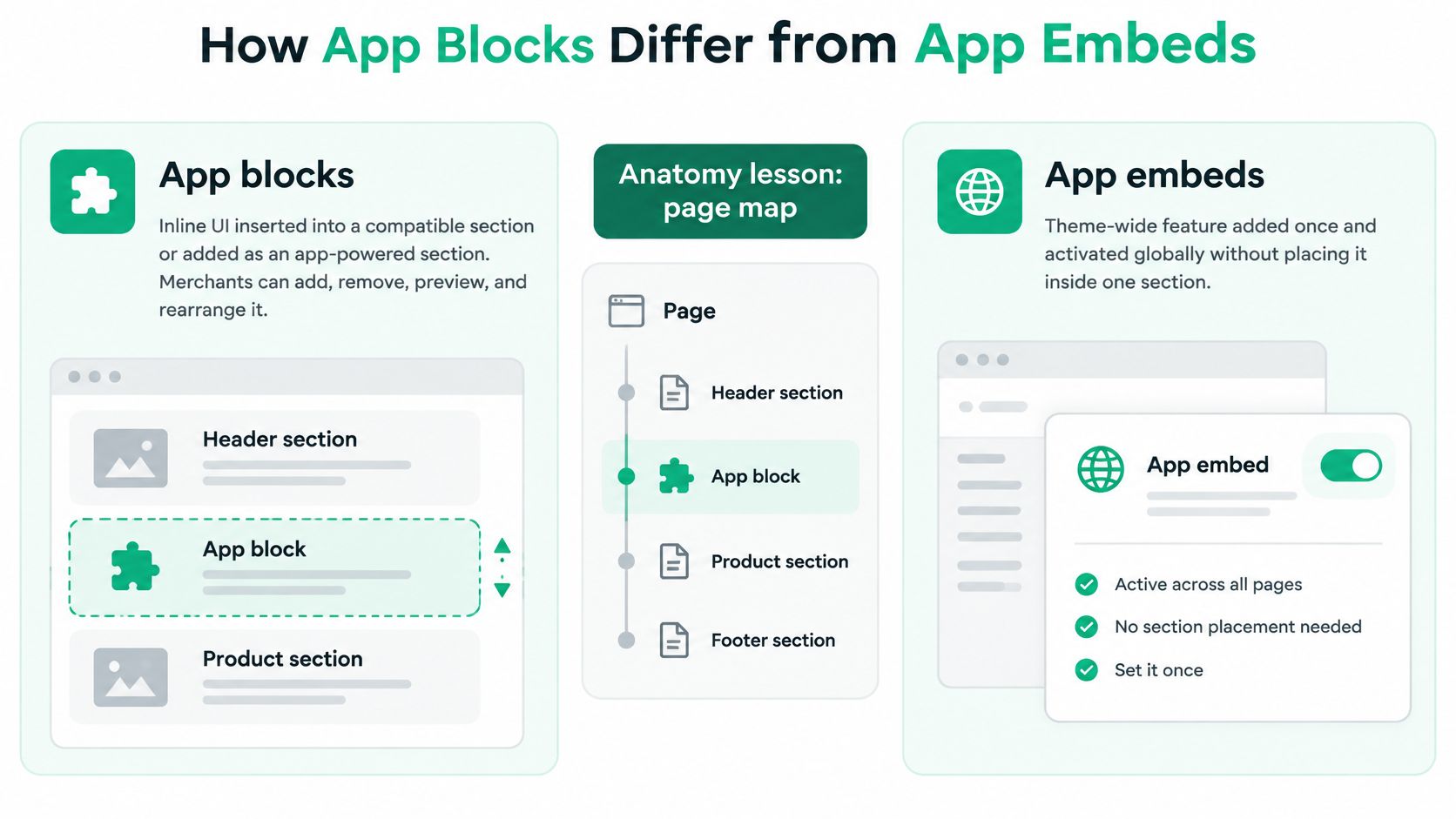
Placement is the difference you feel first. An app block is inline UI the merchant inserts into a compatible section, or adds as an app-powered section. An app embed is switched on for the whole theme and renders as global or floating behavior outside any one section.
The comparison below shows how the two surfaces line up in practice.
| Trait | App block | App embed |
|---|---|---|
| Where it renders | Inside a compatible section or as an app section | Near the document head or body, not in a section |
| Theme support | Online Store 2.0 JSON templates with @app | Vintage themes and Online Store 2.0 |
| Merchant control | Add, remove, reorder, and preview in the editor | Enable from theme settings |
| Default after install | Merchant places each instance | Deactivated until turned on |
| Data and Liquid | Can reference dynamic sources | Global Liquid only; no dynamic sources |
| Best fit | Reviews, forms, inline offers | Drawers, floating widgets, sitewide logic |
What Merchants Control
Merchants can add, remove, preview, reposition, and customize app blocks without editing theme code, as Shopify's app blocks documentation explains. Each instance keeps its own configuration in that page's JSON template.
That per-instance setup is easy to miss. Say a merchant moves a reviews block under the product title on a product template and uses different settings on a collection template. Both instances belong to the same app, but each placement keeps its own choices because those choices live with the template.
An embed works differently. It's enabled from the theme's settings, doesn't depend on sections or JSON templates, and stays deactivated by default after install. A cart drawer available from every template is a good embed example, but it won't run until someone turns that toggle on. Good onboarding deep-links straight to that setting.
What Developers Ship and Test
The package structure is consistent across both surfaces. Blocks provide the Liquid entry points, assets hold CSS and JavaScript, and snippets provide reusable Liquid components.
The data limits differ. App blocks can be configured to reference dynamic sources, so they can pull context tied to the page or product. Embeds stay in global Liquid scope and can't use dynamic sources, which limits how personalized a sitewide feature can be from that surface alone.
Test those boundaries separately. A theme can support an embed perfectly while a specific section lacks the required @app schema, or a block can render while the embed is still switched off. Exposing a component as a merchant-configurable module only works if you've checked both the socket and the switch.
Why Extensions Avoid Layout Shift
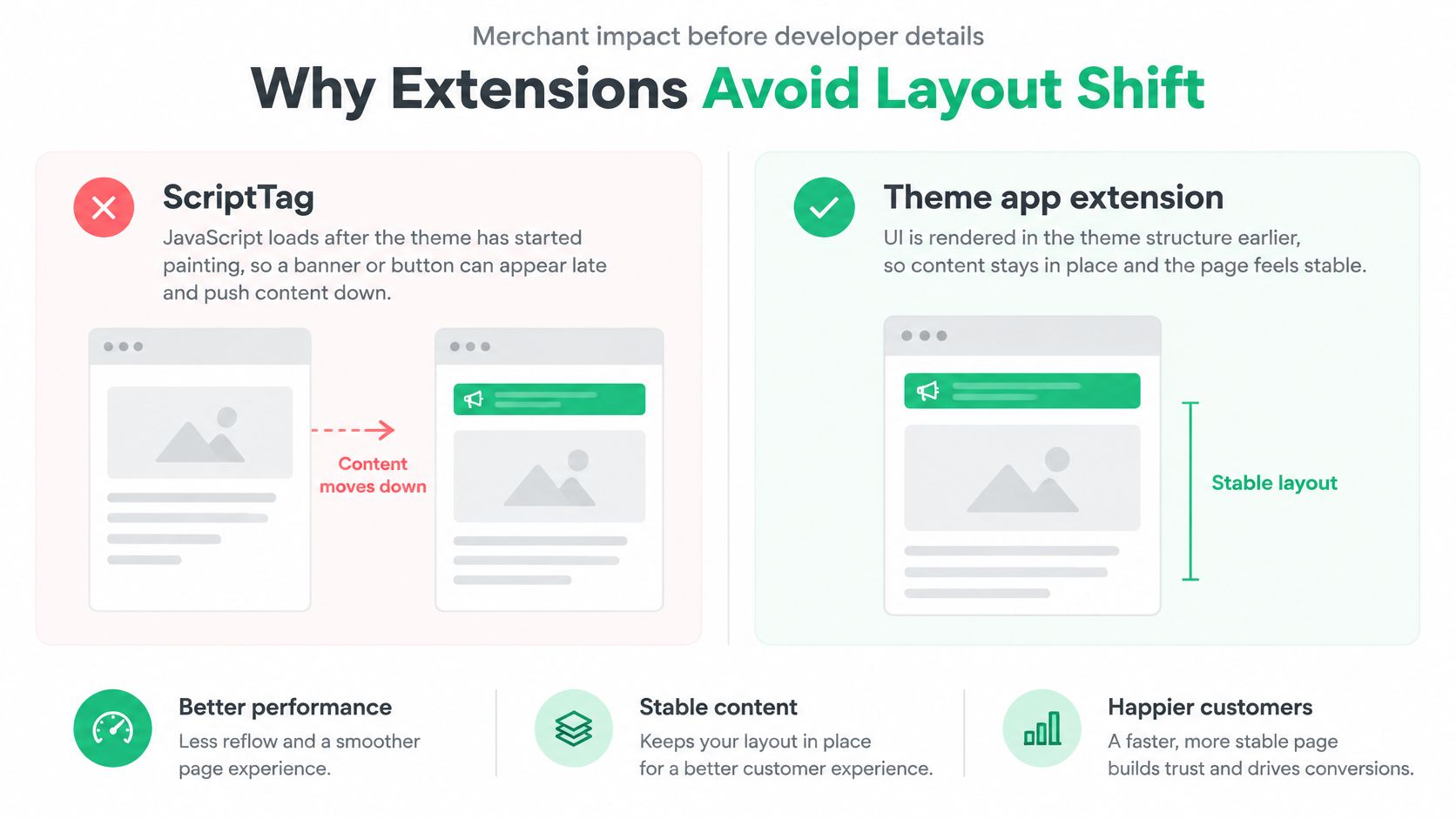
You've probably seen the old failure on a product page. The page loads, you start reading, then a banner or button pops in late and shoves everything down a few centimeters. That's layout shift, and shoppers feel it as a page they can't trust under their thumb.
A ScriptTag causes that pattern because it injects JavaScript after the theme has started painting. The theme doesn't know the feature is coming, so it doesn't reserve space for it. The script also does extra work on pages that never use the feature, because it's loaded broadly rather than placed deliberately.
The Reserved Spot
Think of a stage mark taped to the floor before the show. The actor walks into a marked position instead of pushing the rest of the cast aside mid-scene. An app block works that way because its space is part of the section the merchant placed.
Shopify serves the extension's CSS and JavaScript as part of that theme integration instead of leaving a third-party tag to fight the theme after the fact. And nothing from that extension needs to load on templates where the merchant didn't add the block or enable the embed. Our walkthrough on speeding up a Shopify store to lift conversions covers why removing that unused weight matters beyond a single page test.
The page stays stable when the layout knows what's coming before it paints.
The architecture behind that stability is placement, as Shopify's Online Store 2.0 overview describes. App blocks inject merchant-positioned, inline UI into compatible sections, while app embed blocks are intended for global or floating functionality and are rendered near the document head or body.
Three Practical Implications
- Cleaner updates for merchants: There's no leftover script hiding in a theme file to slow pages after an uninstall or break during an update.
- No second loader for developers: Don't add a document-write snippet or tag manager workaround beside the extension. That recreates the late injection you moved away from.
- No cost while off: Reviewers and merchants can confirm an embed stays off until it's enabled, so stores that don't use it don't pay for it.
One limit still shapes design. Because embeds can't use dynamic sources, a personalized offer that needs product context belongs in an app block or another surface, not in a global embed.
Our own apps follow this model. They're built as lightweight theme app extensions with no render-blocking scripts and no layout shift, and nothing loads on pages that do not use them. Verify any app the same way in a theme preview. Space should be reserved, content shouldn't jump late, and an unused template shouldn't request the app at all.
Cart and Post-Purchase Examples
Three common store jobs look similar in a planning doc, but each one lands on a different row of the placement map. Walking them in shopper order shows why.
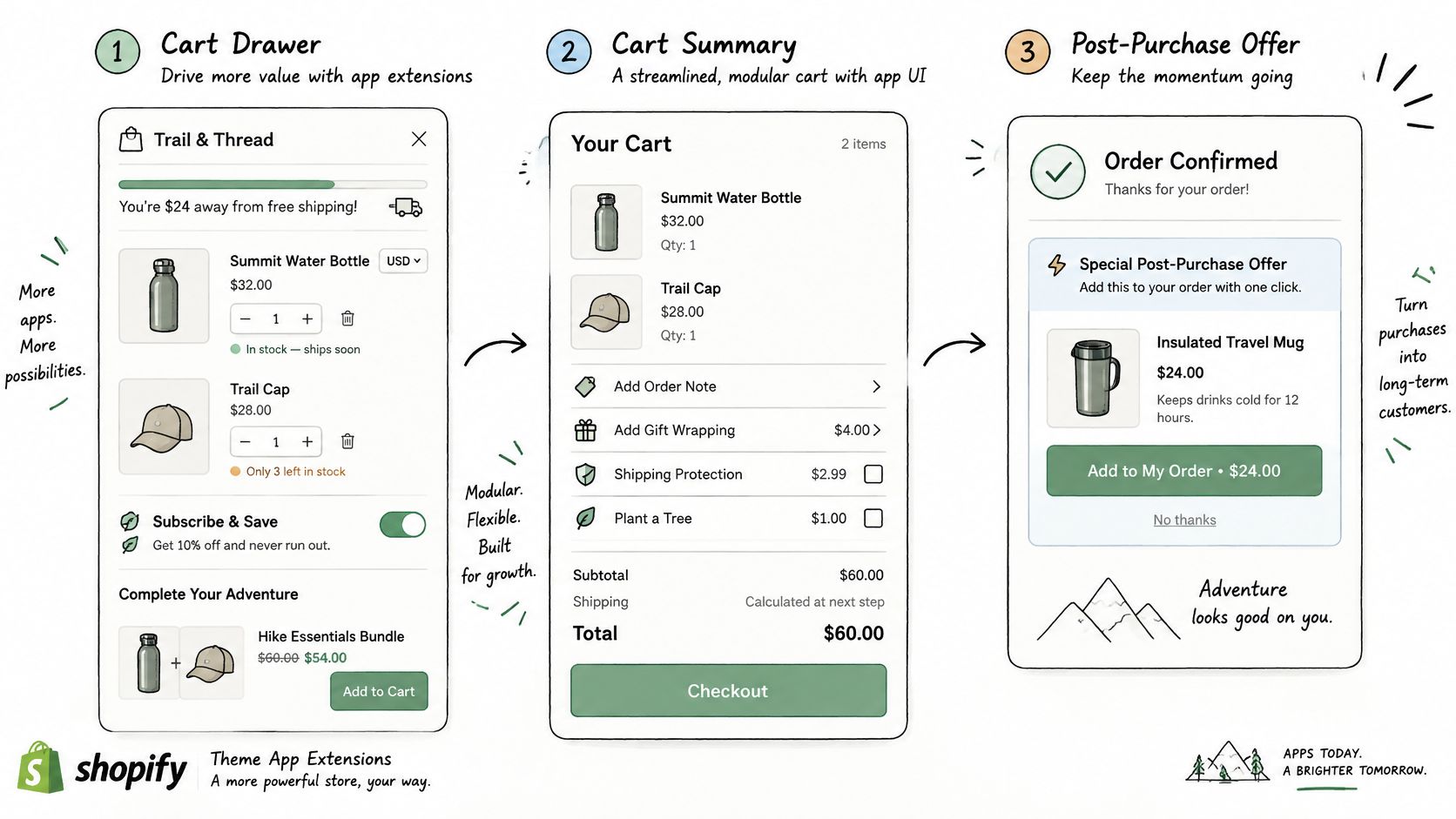
The flow below traces that journey from cart through to after purchase.
A Cart Drawer That Opens Anywhere
Say a merchant wants a branded cart drawer with free-shipping progress, currency, stock, subscriptions, and bundles, and they don't want a developer rebuilding the cart in Liquid. The shopper might open that drawer from a product page, a collection, or the homepage.
That's a natural app embed when it must open from any template. It becomes an app block instead when a specific cart section should host the trigger or the offer inside the drawer.
CartServe illustrates the embed-leaning version. It's a configurable cart drawer app for Shopify stores, installed from the Shopify App Store and edited with blocks rather than theme surgery. If you're comparing drawer patterns, our breakdown of what makes a good Shopify cart drawer goes deeper on the merchant-facing choices.
An Upsell at Add to Cart
An inline offer sitting under the add-to-cart button is an app block the merchant can move up or down the product template. A popup that can appear wherever a shopper adds an item behaves more like an embed, because the trigger isn't tied to one section.
UpServe covers the popup side, with per-offer impressions, conversions, and revenue, plus design controls down to the pixel for colors, corners, shadows, and spacing, or a template to start from. On Shopify Plus, upsells can also appear in checkout through checkout extensibility, which is separate from a theme app block.
One merchant who tested small post-checkout add-ons put it plainly.
"I threw a couple of our smaller items up as post-checkout 'add-ons' just to test it... and people are actually buying them! It's wild.", Shopify App Store
The walkthrough below shows how that kind of offer is set up and where it appears.
Order Editing After Purchase
Now change the job completely. A customer needs to swap a size, change an address, or cancel inside rules the merchant defined. Ordinary app blocks don't render on the order status page, so putting that tool in a product-page block puts it on a page the customer may never revisit.
SelfServe illustrates the other surface. The editing portal sits on the existing order status page, customers fix the order themselves within the merchant's rules, and Shopify stays in sync. We offer three apps in total, SelfServe, CartServe for the cart drawer, and UpServe for popup upsells, and they can be used alone or together.
So ask which of the three jobs you have. A drawer that follows the shopper, an offer tied to a button, and an edit tied to an order each pick a different row, and only one of them belongs in an ordinary storefront block.
Themes Where Extensions Still Break
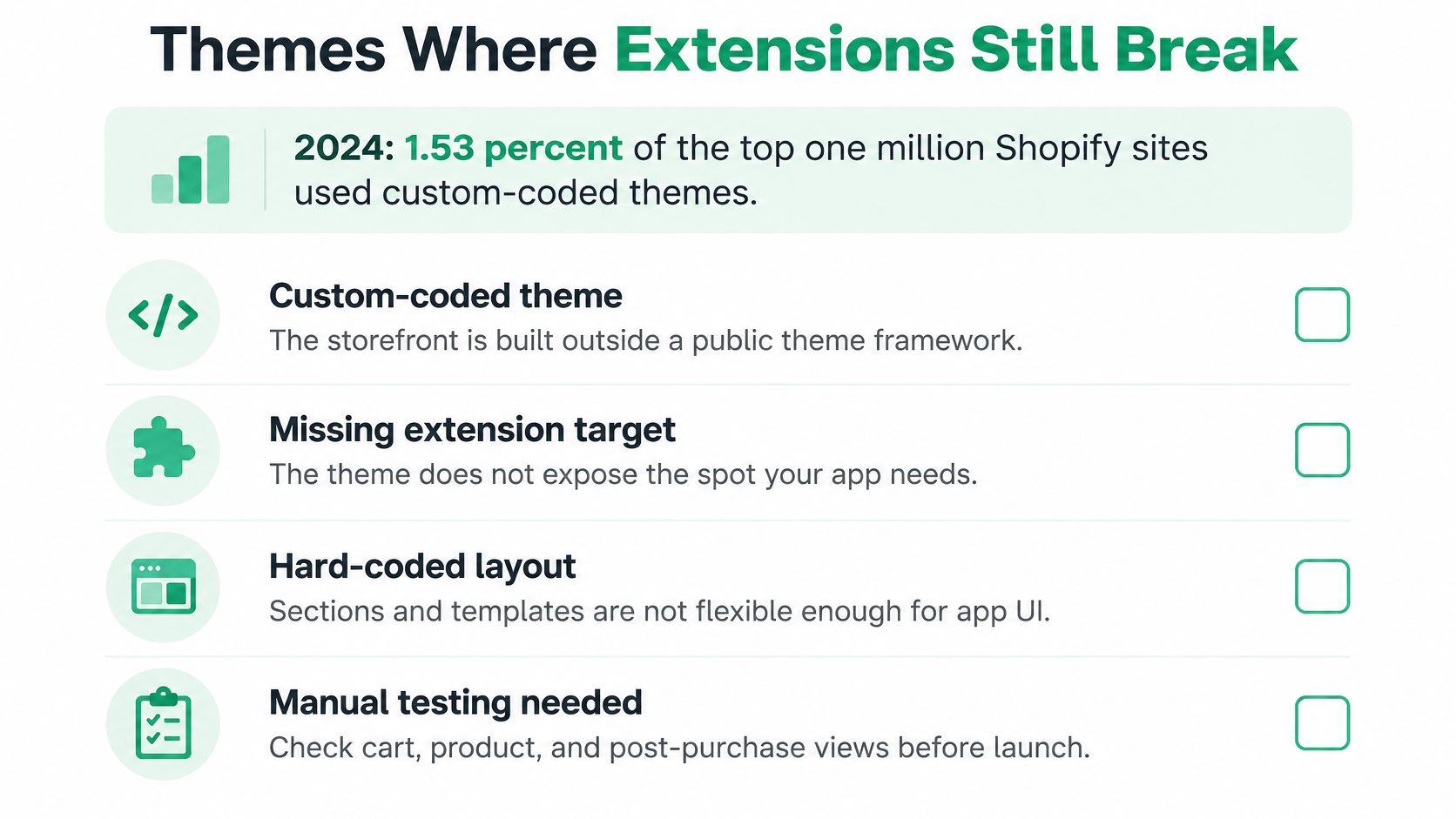
Most stores won't hit the worst compatibility problems, and the numbers help size the risk. In 2024, custom-coded themes represented 1.53% of the top one million Shopify sites, according to Shopify Theme Detector's theme statistics. The stores that do break are often the heavily edited ones, where a section was renamed or its schema was stripped down for a bespoke layout.
A Five Step Preview Test
Run these checks on an unpublished copy of your theme before you blame the app.
- Identify the theme type: In Online Store, confirm whether the published theme is vintage or Online Store 2.0.
- Try adding the block: Open the target template and add an app block. If there's no app block slot in the section list, that section's schema doesn't allow @app.
- Check the embed toggle: Open Theme settings, find the app embed, and confirm it's off until you enable it.
- Preview an unused template: Open a page that shouldn't show the feature and confirm the app doesn't load there.
- Repeat on another template: Test a second market or translated template if your store uses them, because JSON settings can differ by template.
What Each Failure Means
A missing @app slot doesn't mean the feature is impossible. Move it to an embed, choose a different section that accepts app blocks, or ask your theme developer for a small schema addition. That's a targeted fix, not a theme rebuild.
A vintage theme draws a firmer line. It can run embeds but not ordinary app blocks, so inline product features need a theme upgrade or a different placement strategy.
Customized Online Store 2.0 themes usually need no code at all. They break when a custom section never declared support for app blocks, which is exactly what step two catches in the editor without opening a single file.
Checkout and order status failures are different again. Those are platform limits, not a bad install, so no amount of theme troubleshooting will make a product block render there. Send those jobs to the correct extension surface instead.
For support tickets: Record the theme name, the template you tested, and whether the failure is a missing @app slot or the wrong surface entirely. That's the note a support team can actually act on.
Agencies should keep that record per client store. It turns a vague report that an app doesn't work into a specific compatibility finding you can reuse on the next install.
Enable the Right Extension on Your Store
You don't need to enable everything to learn how this works. Pick one feature and run it through a short decision path.
- Name the page: Decide where the shopper should see it, whether that's product, cart, checkout, thank-you, or order status.
- Read that row: Write down app block, app embed, or a non-theme surface before you install anything.
- Confirm the theme can host it: Use the preview checks on your live theme's copy, especially the @app slot test.
- Enable the right control: Add the block in the theme editor, or switch on the embed in theme settings, since an embed stays off until that toggle.
- Test and reverse it: Place a test order or add a test product, confirm the UI doesn't jump, then uninstall from Shopify admin once to prove your theme returns to its prior state.
If your job is a cart drawer, an add-to-cart or post-checkout upsell, or self-service order edits, we already ship those as Shopify apps. CartServe, UpServe, and SelfServe can be installed from the Shopify App Store, and they work alone or together. You can reach our support through the chat bubble inside any of our apps in your Shopify admin.
One merchant reported, "The setup was surprisingly easy, and we had the customer-facing order editing live in under 15 minutes." SelfServe is free for up to 25 orders a month, which is enough to test the order-status flow before moving to a paid tier. If you're still mapping the wider app stack around that first feature, Skup's guide on how to grow your store with Shopify apps is a useful next read.
Developers building their own app should start from the same row. Don't reach for a ScriptTag, and don't put an order-status tool inside a product block. Pick one row and enable only that surface.
Ready to put the right surface to work on your store? ServeApps offers CartServe for a configurable cart drawer, UpServe for add-to-cart and post-checkout upsells, and SelfServe for customer order editing on the order status page, all built as lightweight Shopify-native extensions. Pick the one job your store needs first, install it from the Shopify App Store, and enable only that surface today.
Shopify Store Credits: Issuing, Redeeming and Accounting
Learn what Shopify store credits are, how they differ from gift cards and refunds, and how to issue, redeem and account for them.
Read more →
Can You Have Multiple Stores on Shopify? Plans and Limits
Can you have multiple stores on Shopify? Yes, through organizations or Plus expansion stores. Compare plan limits, eligibility and setup tips.
Read more →
Product Customizer App Shopify: Choosing the Right Tool
Compare native and third-party product customizer app shopify options on speed, theme support, variant mapping and SKUs before you install one.
Read more →