
You published a theme update last night. This morning a customer sends a screenshot: the engraving box is gone, the product page still says $48, and the cart shows $42. The order went through anyway. Nobody touched the customizer settings.
That failure shows up after a theme publish, an app update, or a variant edit, not on install day. A long feature list will not catch it. A test you can rerun will.
A product customizer is the storefront layer that lets a shopper add text, pick options, or upload a file before the item reaches the cart. The Shopify product customizer app worth keeping is the one that still writes the right price, SKU, and customer choices into the order after the store changes around it.
Table of Contents
- Native Extensions and Third-Party Apps Side by Side
- How Customizer Scripts Affect Page Speed
- Evaluation Criteria Worth Testing Before You Install
- Variant, Price and SKU Handling Compared
- Which Customizer Setup Fits Your Store
- How to Test a Customizer After Every Theme Update
- Confirm Your Shortlist Before You Install
Native Extensions and Third-Party Apps Side by Side
A product customizer is a configurator. Shoppers personalize a product with text, options, or uploads, then add that exact configuration to the cart.
Judge the loading method before you judge the option types. Four approaches show up in real stores, and they do not age the same way.
| Approach | Theme compatibility | Placement control | Render-blocking risk | Setup effort |
|---|---|---|---|---|
| Theme app block | Online Store 2.0 themes with @app support | Precise, inside the product form | Low when assets are scoped | Merchant adds block in theme editor |
| Theme app embed | Broad, including older themes | Global or conditional, not form-specific | Low when enabled only on needed templates | Merchant enables embed in theme editor |
| Third-party app using legacy ScriptTag or Asset API | Any theme | Injected site-wide | High, loads on every page | Developer edits theme files; residue may remain after uninstall |
| Hand-coded theme customization | Only the theme it was built for | Full control | High unless scripts are deferred | Developer time for every change |
Theme app block. This is the cleanest fit when the configurator has to sit inside the product form, next to quantity and the native add-to-cart button. It only works on Online Store 2.0 themes whose JSON templates accept the generic @app block. You add, move, and remove it in the theme editor, so a later theme upgrade does not require a developer to paste Liquid back in.
Theme app embed. Coverage is wider, including older themes, but the embed stays off until someone enables it in the editor. The app cannot switch it on for you. Use it when the customizer needs a global or conditional behavior and does not have to inherit the product-form section.
Legacy ScriptTag or Asset API injection. The script is pushed onto every page, including pages that never offer customization. Uninstall often leaves leftover code in the theme. That residue keeps loading after the app is gone, which is how a "removed" customizer still slows the homepage.
Hand-coded theme customization. You get exact markup and full placement control, but only on the theme the code was written for. Every seasonal theme, market theme, or section redesign becomes a paid change. Stores that sell from digital designs to handcrafted shoes feel this quickly, because option sets and preview rules change more often than the theme does.
Practical rule: Start the shortlist with apps built as theme app extensions, then confirm the block or embed on a copy of the live theme before you touch production.
The block-versus-embed decision is a placement decision. Pick a block when the UI must sit in the product form and pick up the section's type and colors. Pick an embed when you need one switch that can appear on several templates without a form-specific slot. If you want the loading model in more detail, the notes on Shopify theme app extensions walk through how blocks and embeds attach without rewriting theme files.
How Customizer Scripts Affect Page Speed
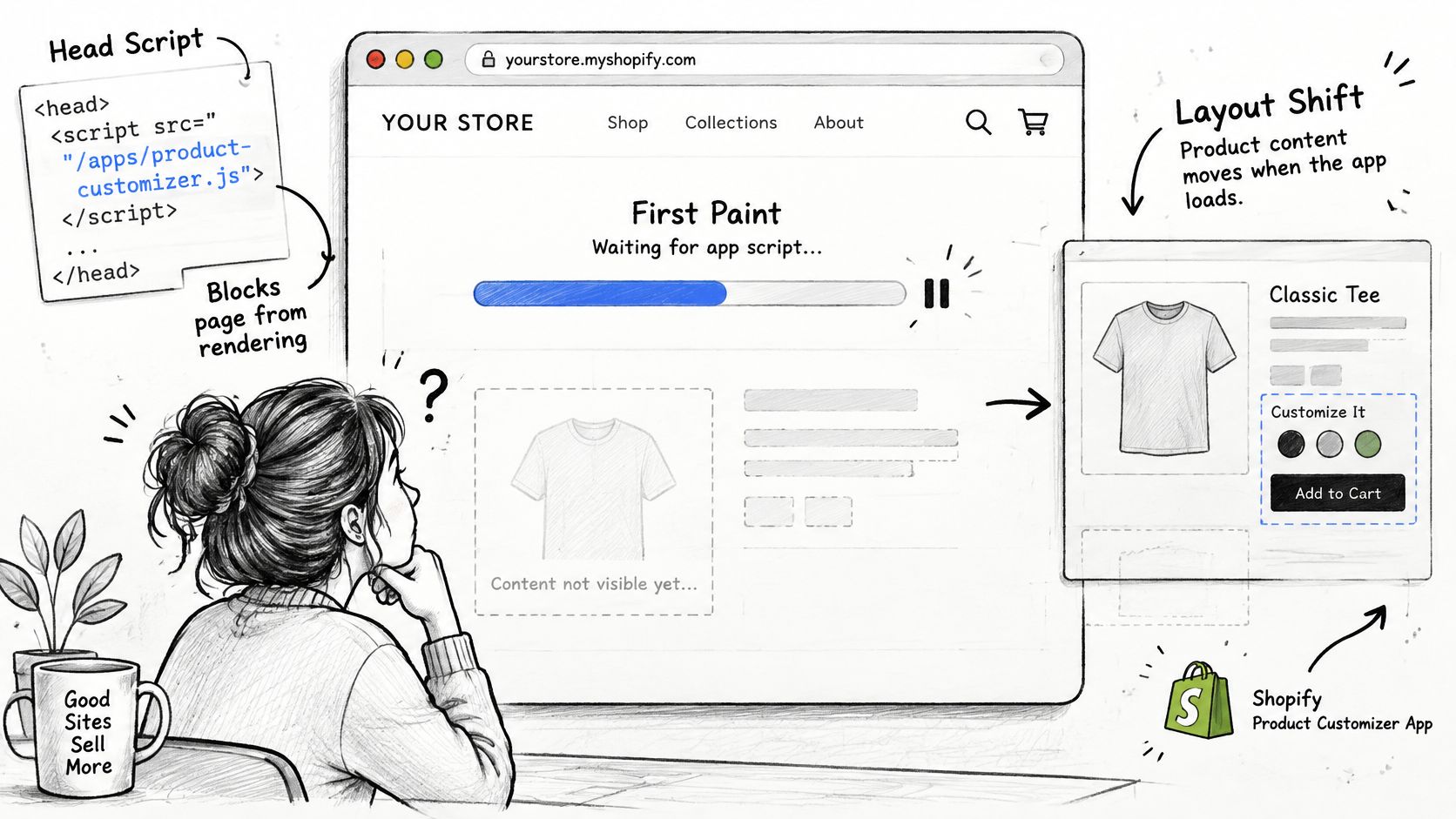
Render-blocking means a script in the page head holds back first paint. The shopper stares at a blank product area while the customizer's JavaScript downloads. Injected markup can also arrive late and shove the price, gallery, or buy button down the page after reading has started. That shift is a layout problem, not a design preference.
The architecture that avoids both problems does not edit your Liquid files. Shopify's theme app extension guidance treats an app block or app embed as the preferred way to load a customizer. An embed block can load the customizer's JavaScript and CSS only on the templates where the configurator is used, instead of on every storefront page. Those extension assets are served from Shopify's CDN, and Shopify checks file and content-size limits when the extension is deployed.
Older installs do the opposite. The same guidance notes that legacy Asset API and ScriptTag setups can leave "ghost code" in the theme. That leftover markup adds bloat and keeps hurting speed after the app is uninstalled. Theme app extensions skip direct theme-file edits, so a later theme upgrade does not have to hunt for orphaned snippets.
Run this before you roll it out
- Confirm the install type. In the theme editor, the customizer should be a block or an embed. If setup asked you to paste a script tag, stop.
- Scope the assets. Product and cart templates should load the configurator. The homepage, collection, and blog should not.
- Defer the heavy logic. Preview rendering, font lists, and upload widgets should wait until the shopper opens the customizer. The first paint does not need them.
- Measure two pages. Record Core Web Vitals on one customized product page and one product page that does not use the customizer.
- Set the gap before launch. Compare the two results and write down the largest LCP and CLS difference you will accept. If the gap is already too wide on a quiet staging theme, it will be worse on a campaign day.
A healthy result is specific. After install, the non-customized product page should show no measurable change. If that page got slower, the app is still loading where it is not used. For the wider storefront checks that sit next to this test, see how to speed up a Shopify store.
Evaluation Criteria Worth Testing Before You Install
Shopify's app block documentation draws a hard line. App blocks work only on Online Store 2.0 themes that use JSON templates and sections supporting the generic @app block. Merchants add, remove, reposition, and configure the block in the theme editor. App embeds reach more themes, including older ones, but they stay inactive until a person enables them. The app cannot turn an embed on by code.
Record five facts on every candidate before you talk about previews or fonts.
- OS 2.0 compatibility: Pass if the app offers a block on your live theme's product template. Fail if it only offers an embed and you need the UI inside the buy box.
- Placement control: Pass if you can put the configurator between the variant picker and the add-to-cart button, and it inherits the section's type and colors.
- Merchant setup steps: Pass if a non-developer can enable it in the theme editor without a code editor open.
- Legacy-theme fallback: Pass if the vendor states what happens on a vintage theme, even if that answer is "embed only, no form placement."
- Native flows: Pass if the theme's variant selector still changes price and image, and Add to cart still creates a normal line.
Three tests feature lists skip
Performance. Reuse the two-page Core Web Vitals check. Pass when the untouched product page does not move and the customized page stays inside the gap you wrote down.
Pricing UX. Change an option that should add money. Pass when the product-page total updates immediately and the cart line shows that same total. A price that only "corrects" at checkout is a fail, because the shopper already decided.
SKU management. For every option combination you stock, pass when the line's variant ID matches a real variant with its own inventory count. A dropdown labeled "Oak / Queen" that always adds the default variant will sell the wrong unit.
How to run the comparison
Duplicate the live theme. Install one candidate on that copy. Configure five products that represent the catalog: plain text, a file upload, a priced add-on, a multi-variant item, and one product you will edit in admin later. Place one test order for each. Read the order, not the storefront animation.
End the evaluation on any of these: the app edits theme files during setup, the variant selector stops responding once the customizer loads, or a price change appears only after checkout. Those are structural failures. More options will not repair them.
Variant, Price and SKU Handling Compared
A customizer stores a shopper's choice in one of two places. A variant is its own SKU, with its own inventory. A line item property is extra text attached to whatever variant is already on the line. Properties are how engraving, notes, and file links travel into the order. Shopify still decrements inventory only on the variant. A property-based size or material can sell a SKU that is not the one you counted, or leave the counted SKU untouched while the shelf is empty.
| Customization type | How data reaches the cart | Typical failure | Fix |
|---|---|---|---|
| Text engraving | Line item property on the variant | Property dropped during order edit | Store the property on the line and check it on an edited test order |
| Image upload | File URL stored as a line property | Oversize or unsupported file reaches production | Enforce file type and size limits before add to cart |
| Dropdown options such as size and color | Mapped to a variant ID per combination | Option maps to the wrong SKU | Map each combination to one variant and check its SKU |
| Dynamic price add-on | Surcharge line or variant price | Cart total differs from the configurator total | Compare the cart total with the configurator total before checkout |
| Subscription or bundle | Selling plan or bundle parent line | Customization lost on the recurring order | Run a recurring test order from a customized product |
The upload row is where stores lose money unnoticed. A preview can look fine while the file production receives is too large, too complex, or missing. Merchant reviews of a Shopify product designer describe backend trouble downloading high-quality or complicated customer files, and delays before anyone has a usable asset. Reject the file on the product page, before add to cart, not in the workshop.
Made-to-order catalogs have the same handoff problem in physical retail. The furniture customization advice from Stahl Home Center is a useful reminder that the approved spec, not the pretty preview, is what production builds.
Three rules that keep inventory honest
Map every purchasable combination to a variant when you track stock. Text and uploads can stay as properties. Size, finish, and anything you count cannot.
Show the customizer's total in the cart, then compare that cart with the invoice on a test order. If those two numbers differ, do not launch. A surcharge line that the cart drawer drops is a pricing bug, not a rounding quirk.
For subscriptions and bundles, place a customized product on a recurring or bundled test order and open the second charge. If the engraving or file URL exists only on the first order, the selling plan or the bundle parent is stripping properties. Line item properties are the field to inspect on both orders.
Which Customizer Setup Fits Your Store
Match the install to the store you run. A feature-heavy app on the wrong architecture creates more regression work than it removes.
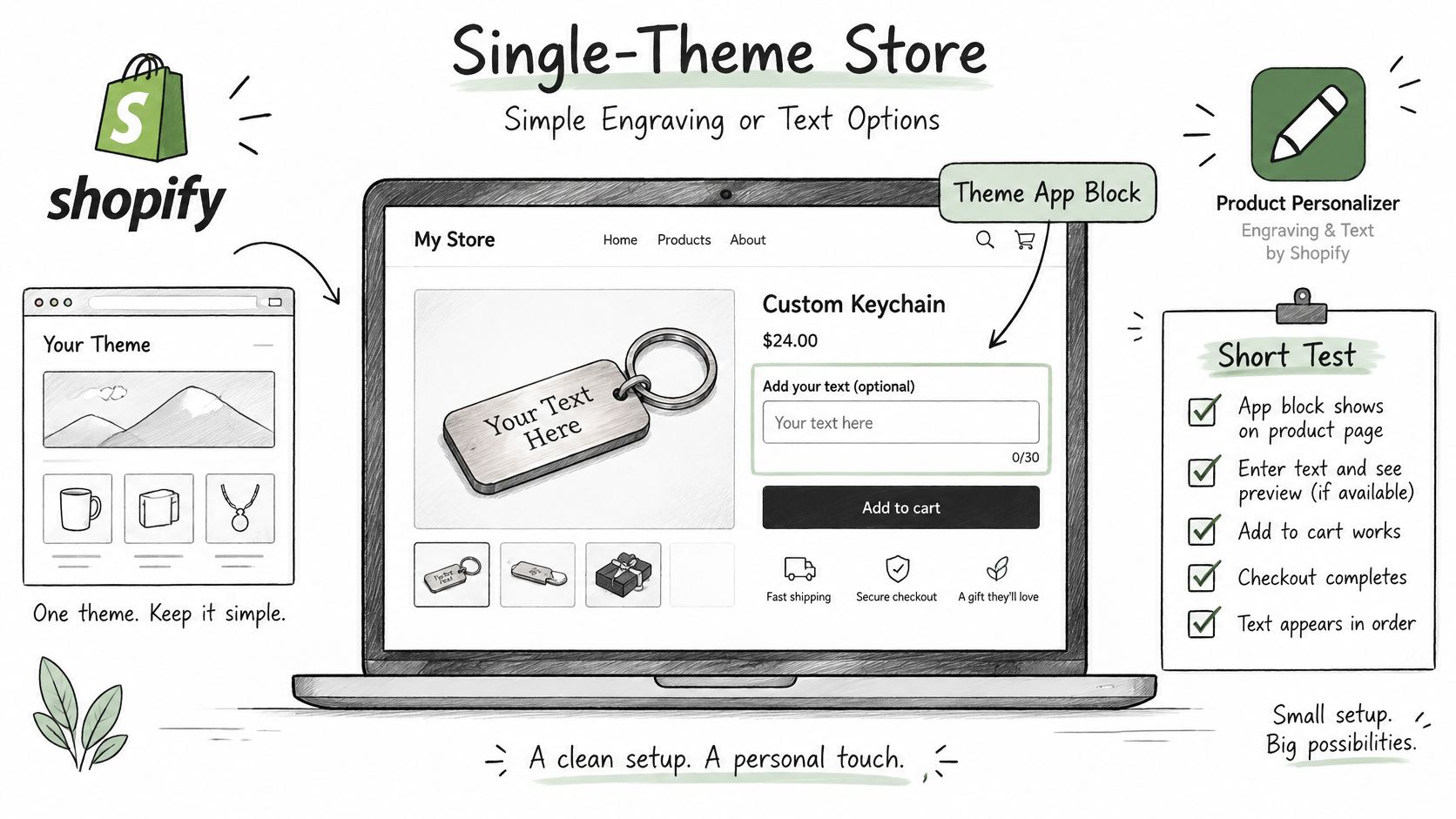
One theme, simple text or engraving. Use a theme app block inside the product form, one app, and a short matrix: each text field, one priced option, one order. Watch-out: do not add a second options app "just for swatches." Two scripts writing the same line is how properties get overwritten.
Several markets, several themes. Verify the block or embed on every theme you publish, including the unpublished market themes. Online Store 2.0 support is per theme version, not a store-level flag. Watch-out: a block that looks correct on Dawn can be missing on an older market theme that only accepts an embed.
An agency running many client stores. Pick an app with a written update history and a checklist a junior implementer can repeat after each client theme change. Watch-out: a visual demo on the vendor's demo store is not evidence. The passing run has to happen on the client's theme copy.
Shopify Plus, with choices at checkout. Get checkout-level support in writing before you scope the build. A product-page customizer does not automatically render in checkout. On Shopify Plus, upsells can also appear in the checkout, but that is a different job from capturing engraving.
If the actual objective is cart layout or an add-on offer, stop looking at customizers. A useful parallel is how shoppers personalize furniture for your home: the configuration belongs on the product, while the cart only has to display the result clearly.
ServeApps offers three Shopify apps for that neighboring work: SelfServe for post-purchase order edits, CartServe as a configurable cart drawer, and UpServe for popup upsells. They install on their own and follow the same Shopify-native pattern, so they belong on a separate shortlist from the customizer. I would not use an upsell popup to collect an engraving that production must manufacture.
How to Test a Customizer After Every Theme Update
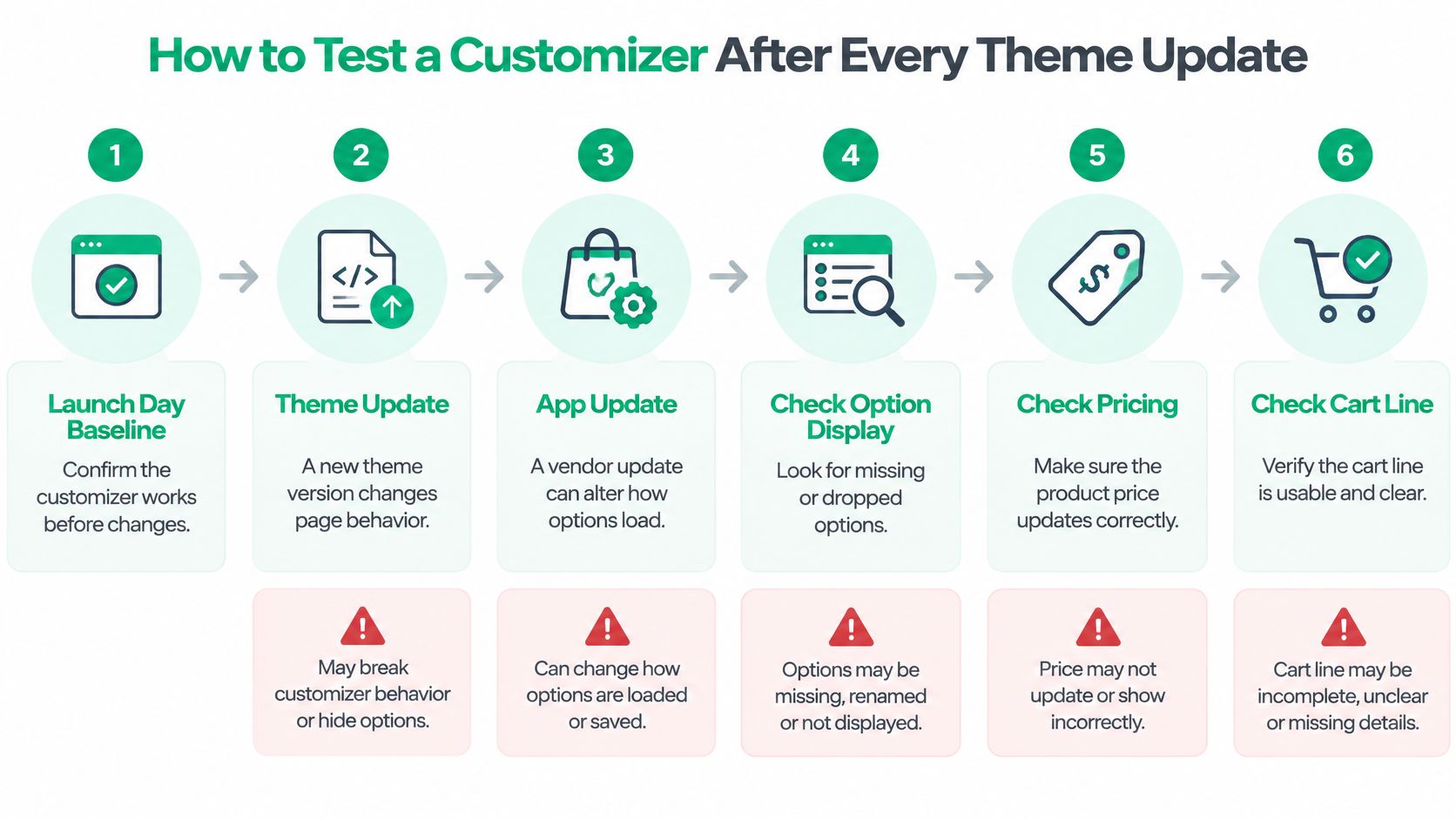
A customizer can pass every demo and then go quiet. After a theme update, an app update, or an App Embed change, an option disappears, a price sticks at the base variant, or the cart line arrives with no readable text. Merchant reviews on the Shopify App Store describe customizers breaking after App Embed integration changes and needing a developer to put them back. Shopify's own guidance is to test every input, including text fields, uploads, and dropdowns, across the full customer journey.
The useful question is operational: how do you catch a silent removal, a wrong price, or an unusable cart line before a customer does?
The regression procedure
- Write the matrix. List every input: each text field, upload, dropdown, and price-changing option. If it is not on the list, nobody will retest it.
- Run it on a staging copy first. Publish the new theme to an unpublished copy and complete the matrix there. A broken staging theme costs you an afternoon. A broken live theme costs orders.
- Walk the whole journey. For each row: select the option, add to cart, read the cart line, read the cart total, then finish checkout. Stopping at the preview misses the failures that matter.
- Open the order in admin. Confirm the customization text or file link is present and the SKU is the variant you mapped. A pretty cart line with the wrong variant is still a bad order.
- Repeat after app updates. Vendor releases change how options load. Theme-only testing leaves that gap open for weeks.
- Check one live product every week. Attempt add to cart on a single customized product and alert the team when it fails. Weekly is often enough to catch a Friday publish before Monday's ads spend.
- Log the versions. Record the app version and the theme version on every passing run. Without that pair, the next incident has no baseline.
Name one owner for the matrix. A shared doc with no owner is the usual reason the test never runs. Agencies should keep one checklist per store, because a pass on client A says nothing about client B's theme.
Treat the customizer as production infrastructure. The app with fewer options and a clean fallback beats the app with the longest settings screen if the second one cannot survive a theme publish.
Confirm Your Shortlist Before You Install
Choose the customizer that passes the most journey tests with the fewest structural risks. Do not choose the longest feature list.
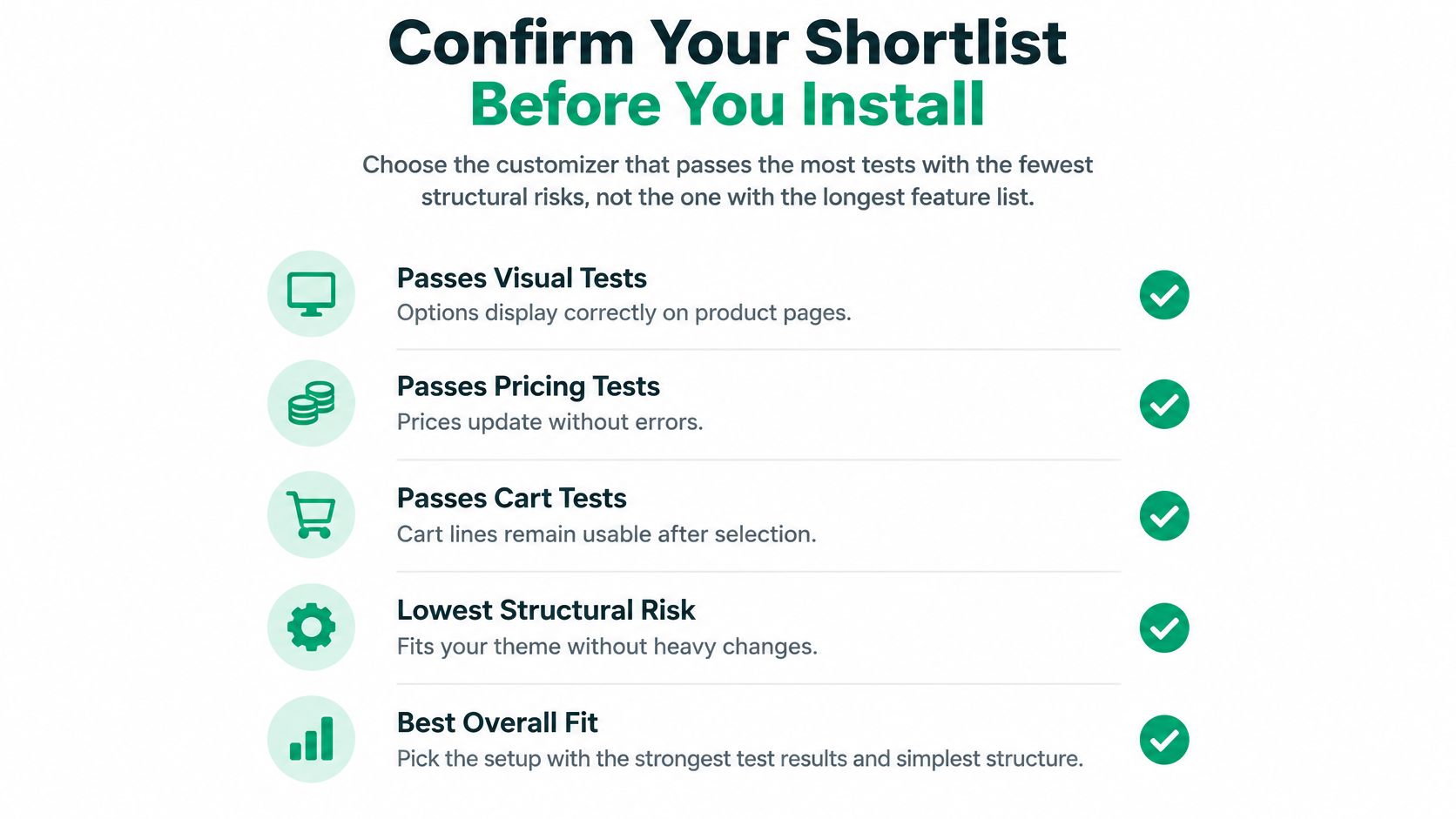
Work the shortlist in this order.
- Narrow to two or three extension-based apps. If the listing or the install flow depends on editing core theme files, or on injecting a script site-wide, drop it. That structural risk does not get better after onboarding.
- Confirm OS 2.0 support on the theme you publish. Check the product template, not the vendor's demo theme.
- Install each finalist on a duplicate theme. Leave the live theme alone until one app has a written pass.
- Run the matrix on five products. Include one with a dynamic price and one whose options map to real variant SKUs. The other three should cover text, a file, and a plain control product.
- Read the admin order. Pass means the correct SKU, the property text or file link, and the same total you saw in the cart.
- Compare speed. Customized page versus non-customized page. Keep the app only if the untouched page did not move.
- Count the failed rows. The winner is the app with the fewest failures, not the one whose settings screen looks busier.
If cart or post-purchase tools from ServeApps are already on your stack for a different job, reach us through the chat bubble inside any of our apps opened in the Shopify admin. That channel is for cart, upsell, and order-edit setup. It is not a substitute for the customizer's own regression matrix.
This week, duplicate the live theme and run the first product through the matrix. One complete order, read in the admin, tells you more than another vendor demo.
ServeApps builds Shopify-native apps for the work that sits beside personalization: SelfServe for customer order edits on the order status page, CartServe for a configurable cart drawer, and UpServe for add-to-cart upsells. They install independently, avoid site-wide script injection, and leave product configuration to a customizer you have already tested. If cart clarity or post-purchase edits are the gap after your shortlist is set, visit ServeApps and open the app that matches that job.
Shopify Store Credits: Issuing, Redeeming and Accounting
Learn what Shopify store credits are, how they differ from gift cards and refunds, and how to issue, redeem and account for them.
Read more →
Can You Have Multiple Stores on Shopify? Plans and Limits
Can you have multiple stores on Shopify? Yes, through organizations or Plus expansion stores. Compare plan limits, eligibility and setup tips.
Read more →
What Is a Partial Refund? How It Works on Shopify
Find out what is a partial refund, how Shopify calculates it, when to issue one, and how it affects inventory, taxes and payouts.
Read more →