
A customer replies to their confirmation email ten minutes after checkout. Their browser autofilled an old apartment number, or they mistyped a single letter in their email address, and now they want it fixed before the parcel leaves the warehouse. You open the Shopify admin, edit their profile, close the support ticket, and move on to the next queue item. Two days later, the carrier drops the package on the wrong porch anyway.
That failure happens because Shopify doesn't store customer details in one place, and changing a profile doesn't rewrite an open order or a printed carrier label. Treating every request to update customer information as routine clerical upkeep creates two operational traps: silent fulfillment errors when edits don't propagate, and account takeover exposure when an attacker uses a polite support email to redirect a paid shipment. Every edit to an address, email, or phone number needs to be handled as a risk event, ending with a concrete check across the customer record, the open order, and the carrier system.
Table of Contents
- Where Each Customer Detail Lives in Shopify
- How to Update Contact Details on a Customer Profile
- How to Change a Shipping Address on an Order
- Which Edits Need Verification Before You Save
- Choosing Who Makes the Change
- Keep an Audit Trail and Sync Every Other Copy
Where Each Customer Detail Lives in Shopify
In Shopify, the customer record and each individual order are completely separate copies, so editing one never rewrites the other.
Before touching a single field, confirm which screen holds the value you need to change. Customer-level attributes live under Customers in the Shopify admin. Name, email, and phone sit inside the Customer information card, while saved shipping locations live inside the Addresses card and populate future checkouts. Order-level details live under Orders, where edits to the shipping address, contact fields, shipping method, or unfulfilled line items apply strictly to that single transaction.
| Detail | Where to edit | What the change affects |
|---|---|---|
| Customer name, email or phone | Customers, then Customer information | Customer record and future notifications |
| Default saved address | Customers, then Addresses | Address used for future orders only |
| Email marketing consent | Customers, then customer record consent setting | Marketing emails only |
| Order shipping address | Orders, then Shipping address edit | That order only, while unfulfilled |
| Order contact email or phone | Orders, then Customer section | That order's notifications |
| Line items or quantities | Orders, then Edit order | That order only, while unfulfilled |
| Shipping method | Orders, then Shipping section | That order's rate and label |
Why profile edits leave open orders unchanged
A common mistake on busy support desks is fixing a buyer's email or marketing consent on their profile and assuming their missing tracking email will suddenly arrive. Email marketing consent on the customer record governs promotional campaigns only, not transactional shipping alerts. Likewise, replacing a default saved address under Customers leaves every unfulfilled order holding the snapshot captured at checkout.
That split compounds quickly because contact data decays on its own. A global Experian survey of 1,431 professionals across eight countries found that 94% of organizations experienced common data errors, estimating 17% of their organizational data was inaccurate on average. Respondents pointed to incomplete information (55%), outdated records (45%), duplicates (43%), and typos (32%), while 81% struggled to achieve a single customer view and 64% said bad data undermined their customer experience. Building disciplined customer profile management starts with knowing which copy feeds your warehouse versus your inbox.
Verification habit: After saving any profile edit, reopen both the customer record and every open order tied to that buyer to confirm the updated value appears on each screen.
How to Update Contact Details on a Customer Profile
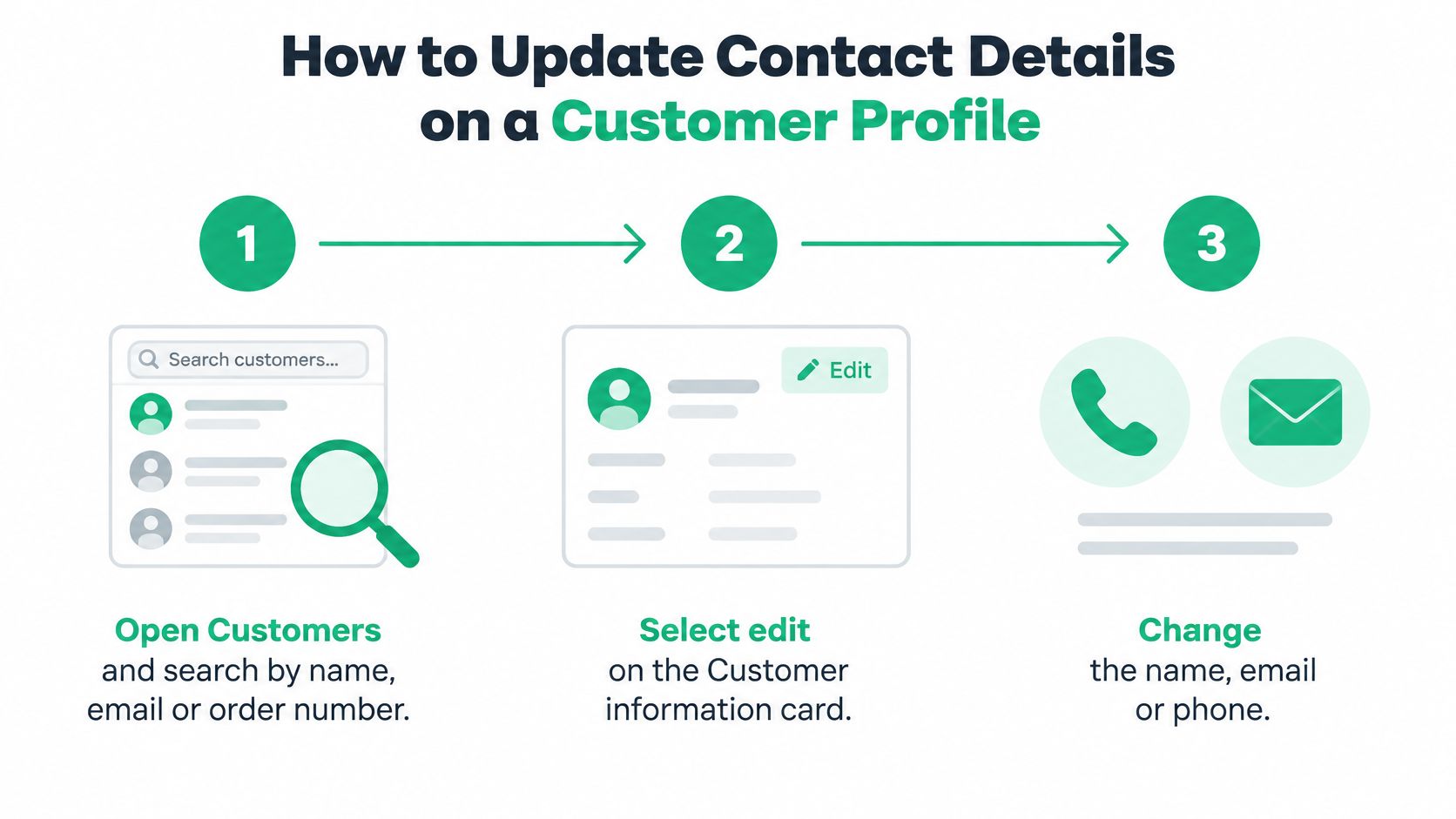
When a returning shopper changes their phone number, fixes a misspelled surname, or moves to a new home, start at the profile level so future checkouts inherit clean data. The graphic below maps the core navigation path before you run your post-save checks.
Follow these six steps to update customer information cleanly on a Shopify customer record, ending each step with the check that proves it worked.
- Locate the exact customer profile. In the Shopify admin, open Customers and search by full name, email address, or a recent order number so you don't land on a namesake account. Before opening any edit modal, confirm only one active profile matches the buyer rather than two split records.
- Open the Customer information card. Select the buyer's name, click the three-dot menu or edit control on the Customer information card, and review the existing name, email, and phone fields. Verify that the stored values match what the buyer referenced in their ticket before changing a character.
- Update the name, email, or phone number. Enter the corrected spelling or new email, and format every phone number with its full international country code (such as
+1or+44) so SMS shipping alerts and carrier delivery calls route reliably. Double-check the email domain and dialing prefix visually before you hit save. - Save and reload the record. Click Save inside the modal, then refresh the browser tab or exit and reopen the customer page rather than trusting the cached screen state. Confirm the newly saved email or phone number renders directly on the Customer information card.
- Update the default saved address. Scroll to the Addresses card, click Manage or edit on the primary entry, and check the postcode format against the destination country's postal rules. Verify the updated street carries the Default address label so Shopify pulls it into future checkouts.
- Log the reason in the internal note. Open the Notes card or timeline comment box and record why the detail changed (customer request, checkout typo, or relocation) so the next agent has full context. Confirm your note appears in the profile timeline with a visible timestamp and staff name.
Three profile slips that break downstream records
Even careful operators run into silent mismatches during profile edits, especially during peak ticket volume.
- Duplicate profiles from a new email: When a returning buyer checks out using a work email instead of their personal address, Shopify generates a second customer record. Edit the original profile and merge or consolidate history rather than creating a fresh record that splits lifetime value and order history.
- Unchanged open order contacts: Updating the email on the Customer information card does not rewrite the contact email attached to orders already placed. Open every unfulfilled order for that customer and update the Contact information field inside the order's Customer card separately.
- Marketing unsubscribes handled in the wrong field: Deleting or altering a customer's email won't cleanly honor an opt-out request and breaks order history lookup. Toggle the Email marketing or SMS marketing consent setting on the profile directly so transactional receipts still send while promotional campaigns stop.
A finished update passes three quick tests: the customer record displays the new contact values, creating a test Draft order for that buyer pre-fills the new default address automatically, and searching the old email address in Customers returns no active profile.
How to Change a Shipping Address on an Order
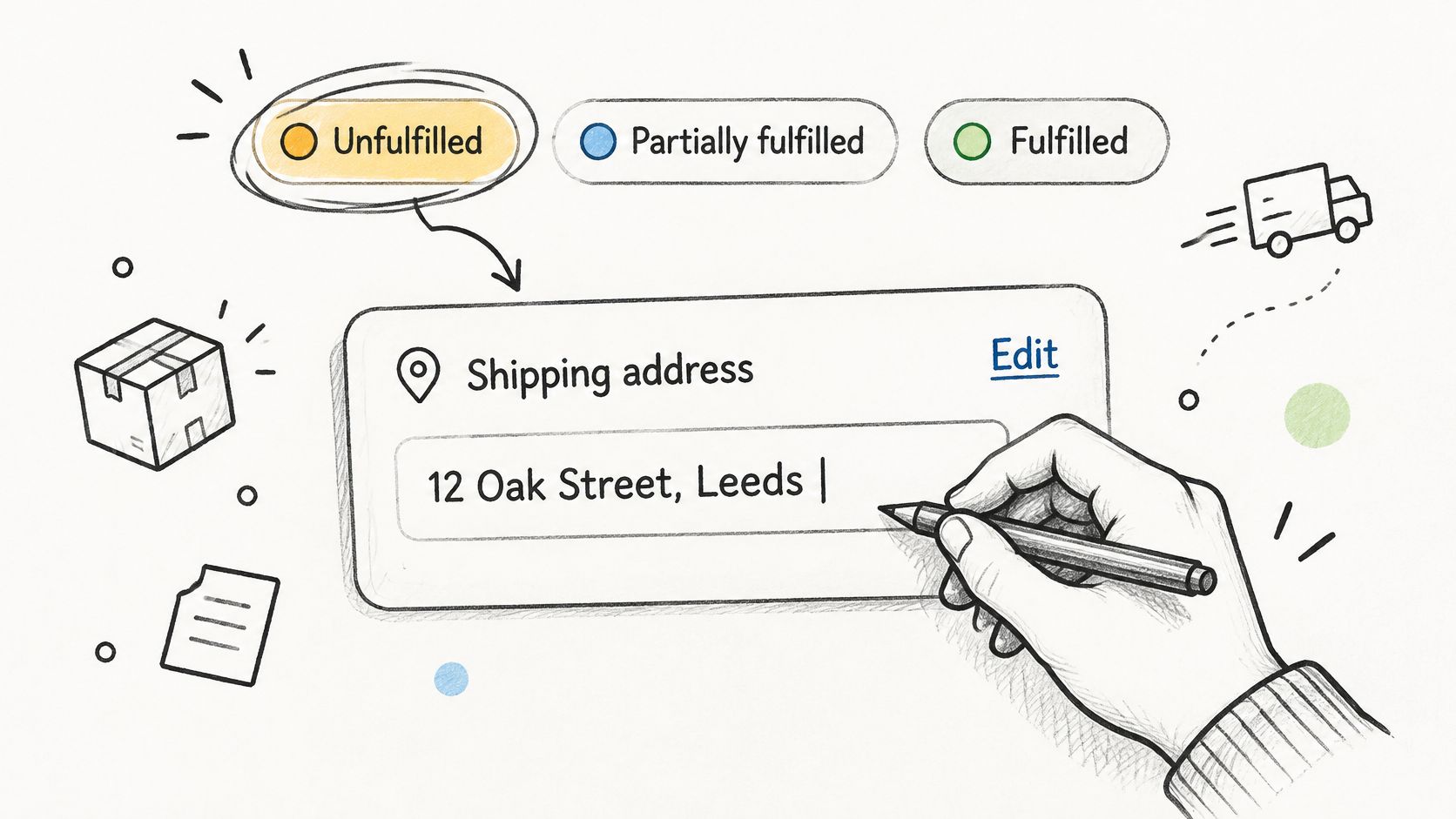
Check the order's fulfillment status first. Whether Shopify reads Unfulfilled, Partially fulfilled, or Fulfilled decides whether a two-minute admin edit fixes the parcel or whether you're already chasing a carrier truck.
Wrong-address deliveries aren't edge cases. In 2024, 15% of U.S. online orders were delivered to the wrong address, according to a survey of more than 1,000 shoppers reported by DC Velocity. Catching a bad street or apartment number before a label prints saves both reshipment cost and replacement inventory.
Step-by-step order address correction
- Inspect fulfillment status in Orders. Open Orders, locate the exact order number, and check the status badge at the top of the screen. Confirm whether the status is Unfulfilled, Partially fulfilled, or Fulfilled before promising the buyer a free redirect.
- Open the Shipping address card. Scroll to the Customer sidebar on the right side of the order screen and click the edit icon beside Shipping address. Verify you're editing the shipping address rather than the billing address, which stays tied to payment authorization.
- Enter the corrected destination and review validator prompts. Type the updated street, unit, city, region, and postcode carefully. Address validators help catch typos, yet Baymard's mobile checkout benchmark found that 39% of sites lacked a shipping-address validator, 18% of sites with one blocked users from proceeding when an address wasn't recognized, and 86% of validator error messages were overly generic, such as "Invalid field". Accept a normalized suggestion only when the street, city, and postcode match what the buyer confirmed; keep the customer's confirmed wording when a legitimate rural or new-build address confuses the validator. If the new destination crosses state, postal, or P.O. box boundaries, check whether carrier or product rules still allow delivery using guidance like Ship Restrict on Shopify restrictions, and confirm the saved address passes your shipping zone rules.
- Save and inspect the order timeline. Click Save and scroll down to the order Timeline immediately. Confirm a fresh timeline entry records the address edit along with the exact timestamp and the staff account that made it.
- Handle fulfilled orders at the carrier level. Once a shipping label is purchased or marked Fulfilled, editing the Shopify order card won't rewrite the label sitting in UPS, FedEx, USPS, or DHL systems. Contact the carrier directly to request a package intercept, redirect, or hold at location, then post the carrier case number and outcome in the order timeline as proof of the attempt.
- Confirm the update with the customer. Send a brief reply listing the complete updated shipping address and noting any rate increase or carrier intercept fee. Confirm the confirmation message sits inside the same support thread or order timeline so there's no ambiguity later.
If you want to see how the Shopify order screen behaves during an unfulfilled edit, walk through the admin flow in this short demonstration.
Verify multi-order buyers before closing the ticket
Before you mark the edit complete, run one three-point check: the order status, the timeline entry, and the carrier tracking record (once generated) must all agree on the same destination. If the shopper has more than one open order, filter Orders by that customer's name and repeat the shipping address edit on every unfulfilled order individually. Changing one order or updating the customer profile still leaves every other open order pointing at the old street.
Which Edits Need Verification Before You Save
Most support playbooks treat a shipping address, email, or phone edit as harmless housekeeping. That assumption costs stores real inventory. An attacker doesn't need stolen checkout credentials to steal merchandise if they can hijack a support conversation after a legitimate buyer completes payment and ask an agent to redirect the parcel.
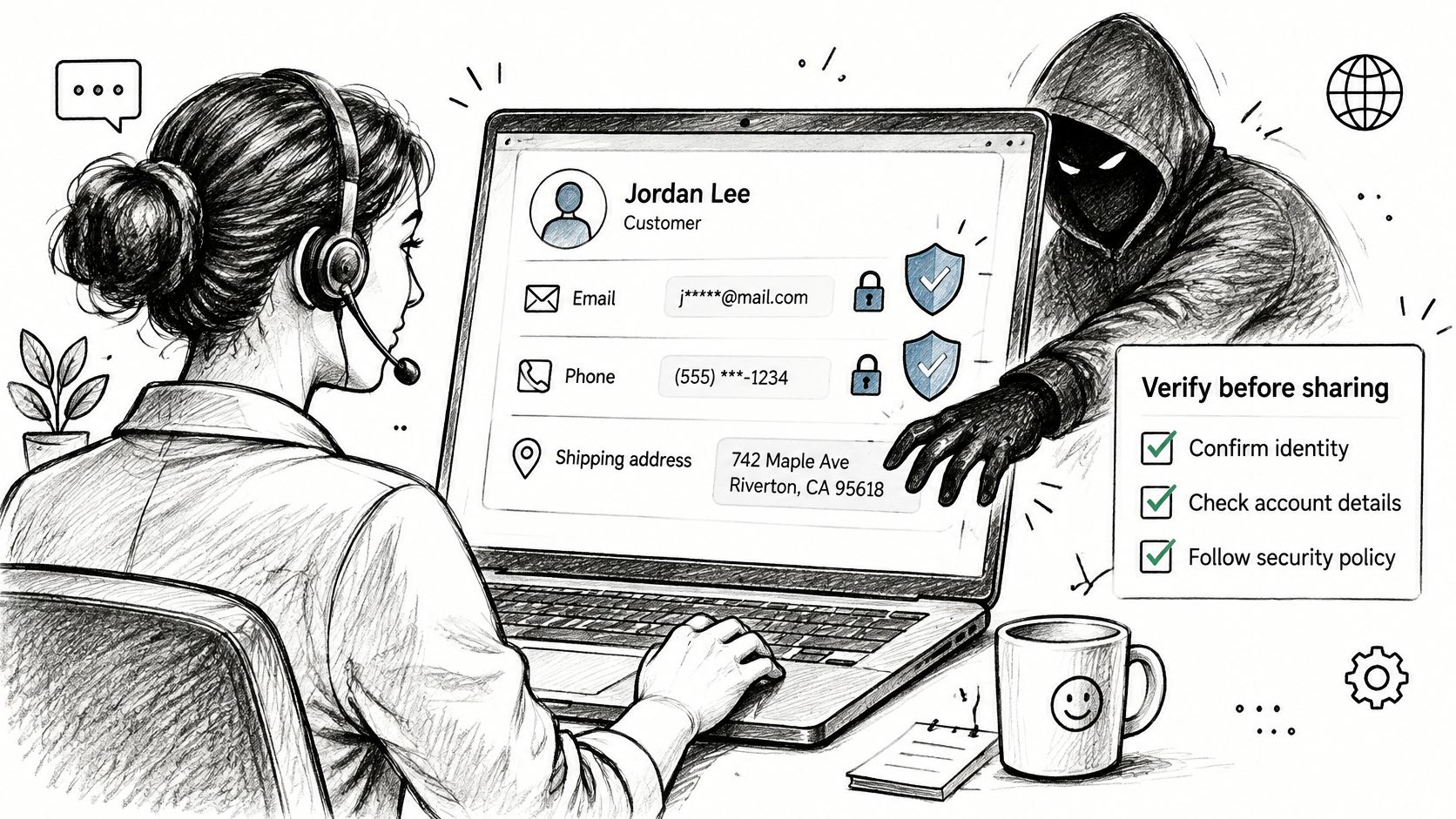
Account-manipulation fraud is rising fast. Risk insights compiled by SouthState Bank report a 78% year-over-year increase in attacks involving changes to account details such as email addresses, phone numbers, or delivery addresses. Even when the original billing address and payment card cleared fraud filters cleanly, one unverified admin edit turns a valid sale into a chargeback.
Match verification friction to edit risk
Maximum friction isn't the answer. Demanding photo ID for a gate code slows down honest shoppers and clogs your inbox, while rubber-stamping a post-purchase email swap invites account takeover. Following the control sequence outlined in NIST's identity-proofing model (collection, identity resolution, attribute validation, and verification, while minimizing personal data collected), sort every edit request into three risk tiers before saving anything.
| Change | Risk level | Control before saving |
|---|---|---|
| Delivery instructions or building notes | Low | Self-service with an audit entry |
| Corrected street name or postcode | Medium | Address validation with a confirm step |
| Shipping address after payment | High | Block once fulfillment starts, and notify the original email |
| Email address | High | Confirm on both the old and new address |
| Phone number | High | Verification code sent to the existing number |
| Payment-linked or billing details | High | Step-up verification or manual review |
Three operational guardrails prevent most social-engineering wins on a busy Shopify support team:
- Never swap email and phone in the same ticket without proof: Changing both recovery channels at once locks out the genuine buyer permanently. Verify the requester through an independent factor (such as confirming last order items and billing postcode) before touching either field.
- Alert the old inbox on every email change: Send a clear change of email address notice to the original email address whenever an email is updated so a real customer can flag an unauthorized change before fulfillment ships.
- Escalate fresh-order redirects from unfamiliar senders: If someone writes from a brand-new email address minutes after a high-value order asking to change the delivery city, hold fulfillment and run a manual review instead of editing the order immediately.
Balancing fraud checks with legal correction duties
Protecting the record sits right beside your legal duty to keep personal data accurate. Under Article 5(1)(d) of the UK General Data Protection Regulation, documented in the UK Information Commissioner's Office right to rectification guidance, organizations must keep personal data accurate and up to date and take reasonable steps to rectify inaccurate records without delay, while Article 16 gives individuals the explicit right to have inaccurate data corrected or incomplete records completed. Regulatory guidance also expects teams to maintain clear processes for accuracy challenges, run periodic data-quality reviews, and track metrics such as rectification request volume, resolution time, and the share of requests exposing bad data.
I would never park a verified correction in a multi-day back-office queue just to feel cautious. Verify the requester first, complete the confirmed edit in the same session, and record both the verification method and the field update in the same timeline entry so security and compliance reinforce each other.
Choosing Who Makes the Change
Deciding how to update customer information matters as much as knowing which Shopify screen to click. Store operations generally rely on three paths: manual staff edits in the admin, shopper-led updates inside Shopify customer accounts, or a post-purchase self-service order editing app. Comparing them across four operational criteria (who acts, how fast the update lands, what records it covers, and what controls govern it) makes the right mix obvious.
Direct Shopify admin edits by store staff
Store staff act on behalf of the shopper after reading an email, chat, or phone ticket. Because a human must triage the message, verify identity, and open the right screens, speed depends entirely on your ticket backlog. Staff edits cover everything Shopify allows (customer profiles, unfulfilled orders, notes, tags, and manual carrier intercepts), and human judgment serves as the control layer. That makes direct admin edits the right home for gray-area fraud reviews, high-value redirects, or post-fulfillment exceptions where a rigid rule would make the wrong call.
Customer account profile self-service
Shoppers act directly by signing into their storefront customer account page, so updates land in seconds with zero agent time. Coverage, however, is limited to profile upkeep: saved addresses, phone numbers, and contact preferences for future orders. It requires Shopify customer accounts to be enabled, forces the buyer to log in, and won't fix a shipping address on an order already sitting in your fulfillment queue. Login authentication acts as the primary control.
Post-purchase self-service order editing apps
A dedicated self-service order editing app lets the buyer act immediately from their order status page without emailing support. SelfServe, a Shopify app from ServeApps, embeds an editing portal right on the order status page so customers can fix shipping addresses, contact details, and shipping methods inside strict guardrails the merchant defines (such as time elapsed since purchase, order tags, or product types). Payment protection is built into the flow: if a customer makes changes but does not complete payment within 15 minutes, SelfServe automatically reverts the order to its original state. Setting tight rules of editing beforehand ensures self-service never touches orders that have already reached the packing table.
Use direct admin edits for changes that require human judgment, enable customer accounts for routine profile upkeep, and deploy a self-service order editing app once post-purchase correction tickets become a bottleneck for your support team.
The trade-off is straightforward: self-service clears repetitive address and contact tickets out of your inbox, yet it increases the total volume of customer-initiated edits you need to monitor. Define your cutoff windows, tag exclusions, and notification alerts before turning self-service on, not after a warehouse pick list gets disrupted.
Keep an Audit Trail and Sync Every Other Copy
Saving a field inside Shopify only closes the loop if you can prove what changed and confirm every downstream system received the new value. Shoppers expect that level of control over their records. The 2025 Thales Consumer Digital Trust Index found that 86% of consumers expect privacy rights from online companies, including 53% who specifically expect the right to have personal data erased alongside correction expectations. Updating a storefront screen while leaving stale copies scattered across connected tools erodes that trust quickly.
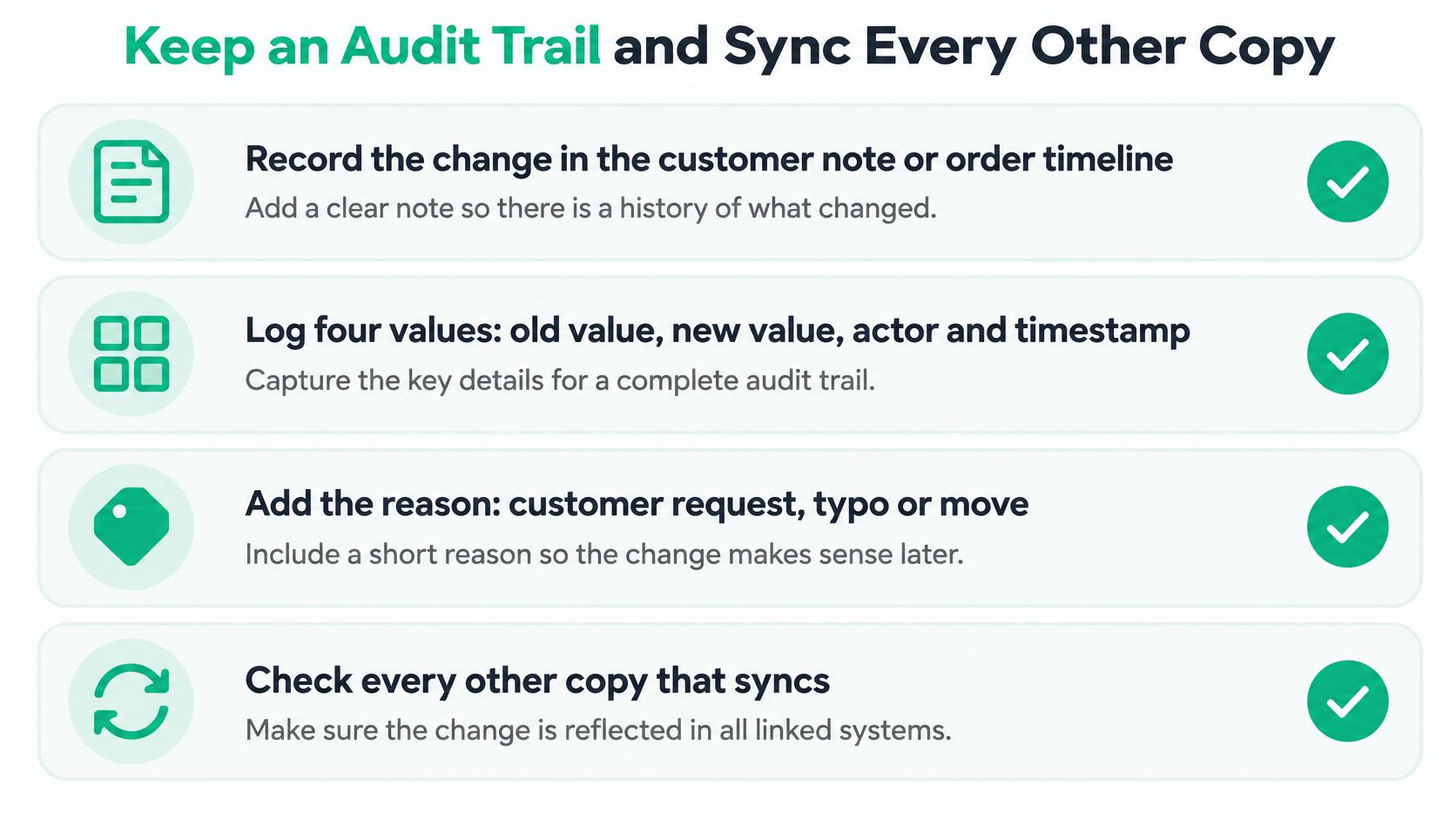
Build a four-value audit note
Every manual profile or order edit should leave behind a structured note in the customer record or order timeline containing four required values plus a reason code:
- Old value and new value: Record the exact previous string alongside the replacement so anyone reviewing a delivery dispute or compliance audit sees what changed without guessing.
- Actor and timestamp: Confirm the staff account name (or customer self-service tag) and the exact date and time appear on the entry.
- Reason for the edit: Label the change clearly as a customer request, checkout typo, or move, along with how you verified the requester.
Keeping that structured log gives you ready-made compliance evidence showing when a correction request arrived, how fast your team resolved it, and exactly which record was updated. Follow the note with a short confirmation email to the buyer so the ticket closes on a written record rather than an informal promise.
Sync the copies Shopify won't update automatically
Shopify won't push manual profile changes into every external tool by default. After any high-impact edit, audit the disconnected copies that continue keeping old values alive:
- Every other open order for that buyer sitting in your unfulfilled or pre-order queue.
- The carrier label or manifest if a shipping label already exists in your 3PL, ShipStation, or carrier portal.
- Your email marketing platform (such as Klaviyo or Mailchimp) where profile addresses or custom properties may store a separate copy.
- Subscription, accounting, and ERP records that bill or ship recurring orders using their own stored customer tables.
Where a self-service editing portal handles post-purchase updates, that sync burden drops sharply: after a customer edit, the order updates in the Shopify admin instantly, inventory adjusts, shipping recalculates, and tags are applied automatically, taking human memory out of the handoff to your warehouse.
Run one quick audit today to see where your workflow leaks. Open the last five shipping address changes in your Shopify admin, verify that every single one carries a complete timeline entry and a matching address inside your carrier portal, and fix any mismatch before the next warehouse dispatch rolls out.
If repetitive address typos, email corrections, and shipping swaps are eating up your support team's morning, we built ServeApps to give Shopify merchants rule-based post-purchase self-service, customizable cart drawers, and contextual upsells without slowing down your storefront. You define the editing windows, product rules, and tag safeguards, and your store updates inventory, shipping rates, and order records automatically while keeping risky edits out of fulfillment. Visit ServeApps to see how our Shopify-native apps streamline order changes and protect your operations team.

Rules of Editing: When Customers Can Change an Order
Rules of Editing for orders explained: eligibility windows, permitted changes, payment safeguards and when to hand off to support.
Read more →
Updating Address on Shopify Orders: How to Do It Safely
A practical guide to updating address on Shopify orders: what you can change, when edits lock, and how to avoid misdelivery and fraud.
Read more →
Best Bundle App for Shopify: 10 Tools Compared for 2026
Compare the best bundle app for Shopify by features, pricing, and integrations. Find which tool fits fixed kits, mix-and-match bundles, or upsells.
Read more →