
A support ticket lands ten minutes after checkout. The shopper just noticed their browser autofilled an old apartment from two moves ago, and they want the parcel sent across town instead. Meanwhile, your warehouse queue is already pulling morning orders, and nobody on the floor knows whether the shipping label is printed yet.
Most guides treat updating address details on a Shopify order like a simple text edit. In live operations, it's a status-dependent workflow where timing, carrier rules, sales tax zones, and customs paperwork decide whether a quick fix stays safe or turns into a lost shipment. Editing a typo on an unfulfilled order takes thirty seconds, while changing a street after a courier scans the box can cost you both the product and a reship fee.
You'll save your team hours of rework by treating every post-purchase address request as two decisions: first, whether the order's current stage still permits an in-store change, and second, what downstream systems that change touches.
Table of Contents
- Check Whether an Order Address Can Still Change
- How to Update a Shipping Address Step by Step
- Which Address Changes Need Extra Checks
- Validate Every Edit and Keep an Audit Trail
- Guard Against Fraud and Unauthorized Changes
- Handle Address Changes After the Parcel Ships
- Set Your Address Edit Rules Before the Next Order
Check Whether an Order Address Can Still Change
Before you touch a single field in Shopify, confirm whether the order is still eligible for an in-store edit. Address editing isn't a binary on-off feature, because the exact same request can be routine on Monday morning while the order sits in your unfulfilled queue and completely impossible by Tuesday afternoon once a carrier picks it up.
| Order stage | Who can edit | Address change allowed | What happens to the order |
|---|---|---|---|
| Unfulfilled, inside edit window | Customer or merchant | Yes | Address updates instantly and the order recalculates |
| Unfulfilled, edit window closed | Merchant only | Yes, after review | Change needs a manual check before the label is printed |
| Fulfillment started | Merchant only | Limited | Carrier may need a redirect or a reissued label |
| Shipped or in transit | No edit in store | No | Carrier redirect or return to sender only |
| Delivered | No edit in store | No | Handle through the carrier or a new order |
Two separate locks govern that first transition from open to closed. By default, self-service edits lock the moment fulfillment starts, and merchants can also set a fixed cutoff such as one hour after purchase, with whichever comes first taking effect. That same timing wall is why crowdfunding and pre-order operations build formal lock dates to collect corrected addresses before fulfillment before warehouse pick lists are generated.
Read the Shopify Order Before You Touch Any Field
Open the order screen and scan three details in sequence before approving any change:
- Fulfillment status on every line item: Confirm that every item still shows unfulfilled. If even one item on a multi-item order is fulfilled, treat the entire order as locked for address edits until your carrier confirms the remaining parcel can still be held or split.
- Label print history: Check the order timeline for a purchased or printed shipping label. A warehouse app can generate a label minutes before Shopify flips the status badge, so overwriting the address after print leaves a mismatch between the box and the admin record.
- Tracking number presence: Look for an assigned tracking number from ShipStation, Shopify Shipping, or your 3PL. Once tracking exists, your store record is no longer the system of record for routing.
If you manage individual exceptions manually, you can open or close self-service editing on a specific order by adding or removing the selfserve_canedit tag. Decide right now whether you're making the edit inside Shopify or handing the case to the carrier, and drop a quick note in the timeline so the next agent doesn't repeat the check.
How to Update a Shipping Address Step by Step
Once you've confirmed the order is unfulfilled and no label exists, follow a strict sequence so you don't overwrite valid customer details or break downstream warehouse syncing. The process flow below maps the exact order of operations from admin check to final log entry.
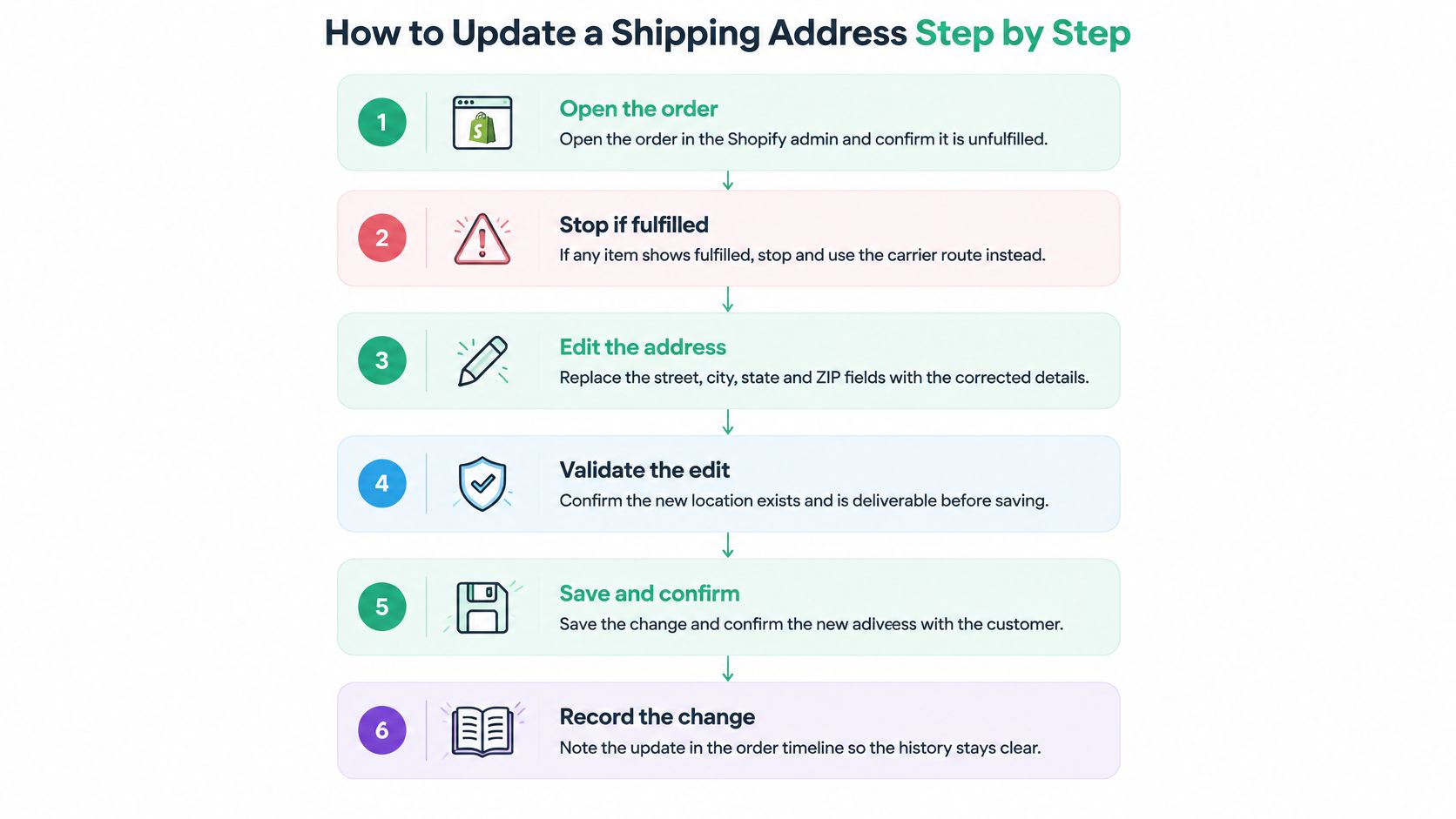
- Open the order and confirm it's unfulfilled. Check the status pill at the top of the Shopify admin page and scroll to the fulfillment cards. If any item already shows fulfilled, stop immediately and move to the carrier intercept route rather than altering a live dispatch record.
- Edit only the incorrect fields. Click the pencil icon next to the shipping address and leave valid fields untouched. Retyping the whole block from scratch is how support reps accidentally delete a company name or drop the recipient's phone number needed for courier delivery alerts.
- Separate unit numbers and access codes. Put apartment letters, suite numbers, and gate codes in the dedicated apartment or suite line instead of tacking them onto the street address. Carriers parse primary and secondary address lines separately, and customers juggling a move (while packing up with suppliers like Boxes for Moving House and living out of temporary quarters) frequently jam both into a single line.
- Verify the normalized suggestion before saving. Review the formatted address your validation tool proposes and compare it line by line against the customer's message. Accepting an auto-corrected ZIP code or directional prefix without checking can send a parcel to a real street on the wrong side of town.
- Save and inspect totals, tax, and tags. After clicking save, look at the order summary to confirm shipping rates and sales tax still match the destination, and verify that automated tags reflect the change. A silent tax mismatch here creates reconciliation headaches at month end.
- Confirm the update with the customer. Send a short reply quoting the exact corrected address and the updated dispatch window. Giving the buyer one last look catches transposed house numbers before the parcel leaves your dock.
How Customer Self-Service Edits Run in the Background
Manual admin edits work fine for one-off exceptions, though they break down fast during promotional spikes. When shoppers update their own shipping details directly from the Shopify order status page, the update doesn't sit in an inbox waiting for a rep. After a customer edit, the order updates in the Shopify admin instantly, inventory adjusts, shipping recalculates, and tags are applied.
Whether a staff member or a shopper makes the change, three slips cause almost every repeat support ticket: selecting the wrong country code from a dropdown, leaving an apartment number out of the secondary field, and saving an edit minutes after a warehouse worker printed the packing slip.
Clean-order check: A properly updated Shopify order displays the new destination on the shipping card, records a single clear entry in the timeline, and still reads unfulfilled until the corrected label is created.
Which Address Changes Need Extra Checks
I would never treat every post-checkout address request with the same approval rule. If a change alters the shipping rate, the tax zone, the carrier service, or customs treatment, it isn't a typo and needs a deliberate review before you approve it.
Precision on these details directly moves delivery performance. According to the Universal Postal Union's 2025 analysis, improving address accuracy can increase successful first delivery attempts by up to 23%, with a median improvement of 5.4% across postal operators, while poor address quality can reduce delivery success by as much as 14%.
| Change type | Example | Handling | Extra check |
|---|---|---|---|
| Typo or spelling fix | Maple St to Maple Street | Edit in place | Re-validate the postal code |
| Unit or access detail | Add apartment 4B or gate code | Edit in place | Confirm the unit field is captured |
| Different street, same city | Oak Ave to Pine Rd in Austin | Edit and recalculate shipping | Check the rate and tax zone |
| Different city or postal area | Move to another district | Treat as a new delivery | Recalculate shipping and inventory location |
| Business to residential | Office to home address | Edit with a note on the order | Confirm carrier type and delivery hours |
| Different country | US to Canada | Usually cancel and reorder | Customs, duties, tax and carrier availability |
Two Scenarios Where Simple Edits Break Fulfillment
Say a shopper orders a heavy ceramic set and moves across town two hours later. Even inside the same metro area, crossing a county or municipal boundary can change local sales tax rates and shift the shipment into a different courier zone. Before you approve that edit, recalculate the shipping charge and verify your store's tax engine reflects the new postal code.
Now consider a buyer who swaps a downtown office address for a residential house while the order is queued for packing. Commercial deliveries often skip residential surcharges and require weekday daytime signatures, whereas home deliveries may trigger an extra carrier fee and allow porch drop-off. Catching that switch early lets you adjust the service level and run proper shipping address verification before the label prints.
Cross-border edits sit in a category of their own. Changing a US order to Canada alters duties, harmonized tariff codes, tax collection, and eligible carriers, so cancelling and creating a clean replacement order almost always beats patching the original record. Classify what the edit touches before you open the form, not after a driver marks the package undeliverable.
Validate Every Edit and Keep an Audit Trail
Typing a fresh street name into an admin box doesn't mean a carrier can deliver to it. A workable post-purchase workflow runs four sequential controls before committing any change to the live order record, and each control maps to what the edit touches: the fields, the delivery point, the fulfillment state, and the paper trail.
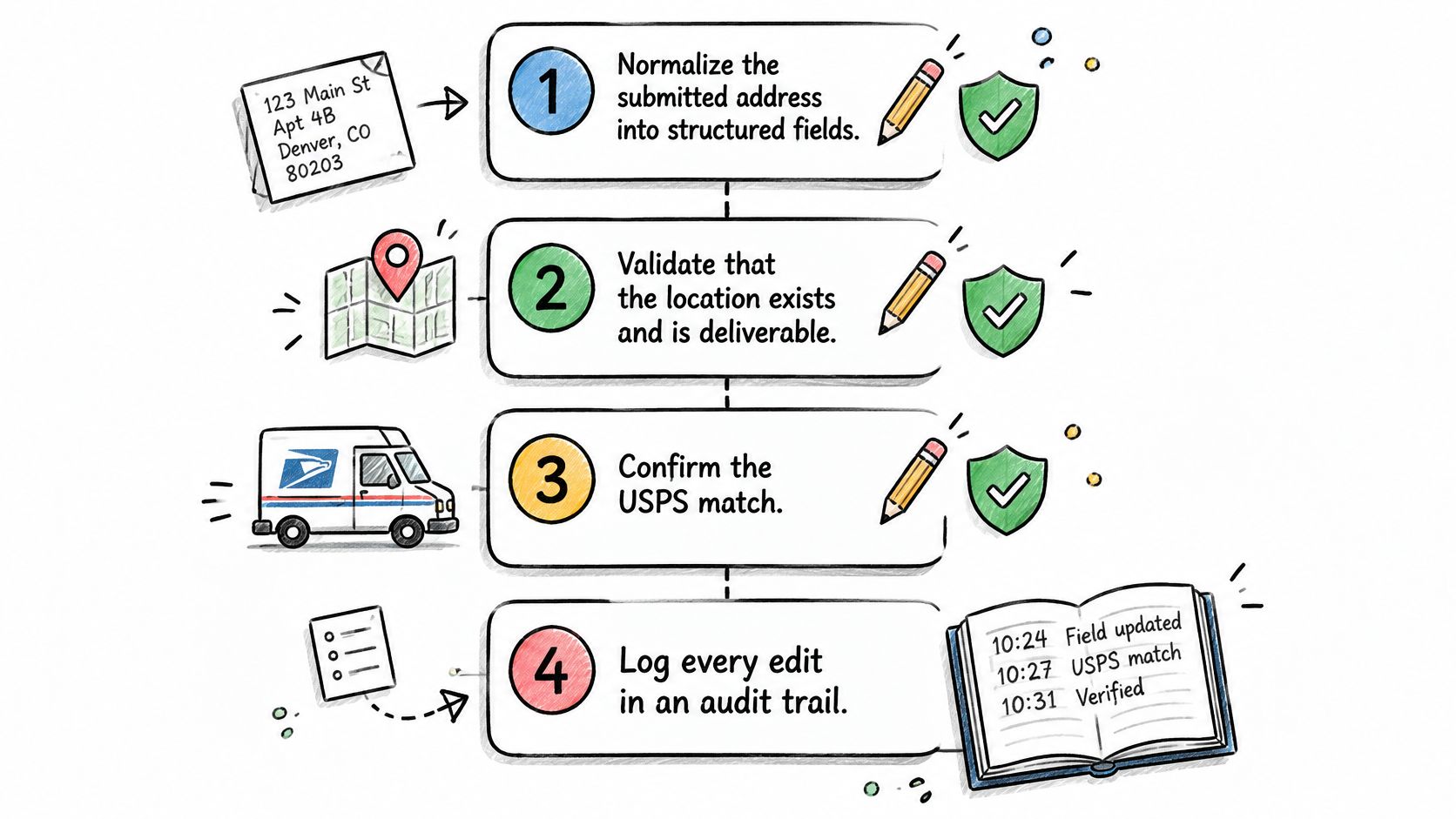
- Normalize the raw input into structured fields. Strip extra spaces, standardize street suffixes, and map street, unit, city, region, and postal code into clean fields so your WMS and carrier APIs read identical data.
- Validate that the delivery point exists. For US shipments, check the address using USPS Delivery Point Validation (DPV) paired with CASS-certified matching, as detailed in the USPS Publication 28 addressing standards, while change-of-address services such as NCOA flag outdated locations.
- Compare the proposed edit against live fulfillment state. Query your fulfillment status right before writing the update so an edit initiated five minutes ago cannot overwrite an order whose label printed thirty seconds ago.
- Write an immutable audit event. Log the old address, new address, actor (customer or staff member), timestamp, order status, and validation result so every dispute or chargeback has a clear paper trail.
One strict engineering rule governs the whole sequence: validate before persistence, not merely before display. An address can parse neatly into every field and still belong to a vacant lot, lack a required apartment number, or reject your chosen shipping method (such as a PO Box on a FedEx Ground label). Undeliverable-as-addressed mail remains a chronic source of failed delivery across the postal system, so a format check that never confirms the delivery point leaves real failure on the table.
When an order has already been released to a carrier, your workflow must branch instead of overwriting blindly. Allow the change only if your fulfillment system confirms the label and parcel can still be modified; otherwise cancel and reissue the shipment or route the ticket to merchant review. The audit log earns its keep precisely here, since it records which branch fired and why.
Practical Safeguards for Shopify Operations
Before you refine your admin rules, watch how structured address validation separates formatting checks from true deliverability verification in practice.
Round out your validation pipeline with five operational guardrails that stop repeat errors before they reach the packing table:
- Country-specific formatting rules: Adapt field order, state dropdowns, and postal code patterns to each market you ship to instead of forcing international buyers into US fields.
- Explicit unit prompts: Trigger a visible prompt whenever DPV flags a multi-unit building with no apartment or suite number entered.
- Normalized confirmation screens: Show the standardized output back to the customer before saving so they explicitly approve the cleaned address.
- Idempotent update requests: Guard your update endpoint against double clicks so two rapid submissions never generate duplicate audit entries or competing warehouse webhooks.
- Fulfillment-tied cutoffs: Anchor your edit lock to real fulfillment state rather than elapsed clock time alone, since a slow warehouse day and a flash sale move at completely different speeds.
Keeping structured logs alongside carrier receipts mirrors the audit-ready freight recordkeeping tips logistics teams use to resolve loss claims quickly. Before rolling any new validation rule out to live buyers, place one test order, run an edit through all four controls, and verify that the audit log captures every field cleanly.
Guard Against Fraud and Unauthorized Changes
Making address updates effortless cuts down on misdelivered packages, yet an unguarded self-service form hands account hijackers an easy way to divert high-value merchandise and harvest customer data. Treating security as an all-or-nothing choice (either letting anyone edit anything or forcing every typo through manual support) leaves either your fraud exposure or your ticket queue out of control.
In July 2025, the U.S. Postal Service underscored that principle in a Federal Register notice describing identity verification for change-of-address requests as a measure intended to prevent fraud and identity theft, while also using address data to verify account access and detect fraudulent transactions. Ecommerce teams should borrow that exact model: verify the person and the risk level rather than blindly trusting the submitted form.
Three Risk Tiers for Post-Checkout Edits
Match the friction to what the change can cost you:
- Low-risk self-service: Fixing a street spelling error or adding an apartment number before fulfillment runs smoothly through authenticated self-service on the order status page.
- Step-up verification: Swapping the destination country, editing an order above your high-value threshold, or submitting multiple address edits in one day triggers a one-time verification code or pauses for manual review.
- High-risk lock: Any address change requested after fulfillment begins bypasses self-service entirely and routes to manual review or a fresh order.
Train your team to spot takeover signals before approving manual exceptions. Watch for an address update submitted right after a password reset or unfamiliar device login, a new destination hundreds of miles from the billing address, or a street matching a known freight-forwarding warehouse. To separate a genuine household move from social engineering, compare whether the customer's account email and billing details remained intact, send an immediate notification to the original email whenever an address changes, and limit which staff accounts can override locked orders through permission-based access control.
Payment reconciliation also protects against half-finished redirects. If a customer makes changes that increase the order total and doesn't complete payment within 15 minutes, our system automatically reverts the order to its original state so unpaid edits never linger in your queue.
Never approve a manual destination change on a high-value order without confirming both the original account holder's identity and an intact billing match.
Handle Address Changes After the Parcel Ships
Once the carrier scans the barcode, Shopify can no longer steer the box. Your job shifts from database editing to carrier coordination, following the redirect path illustrated below.
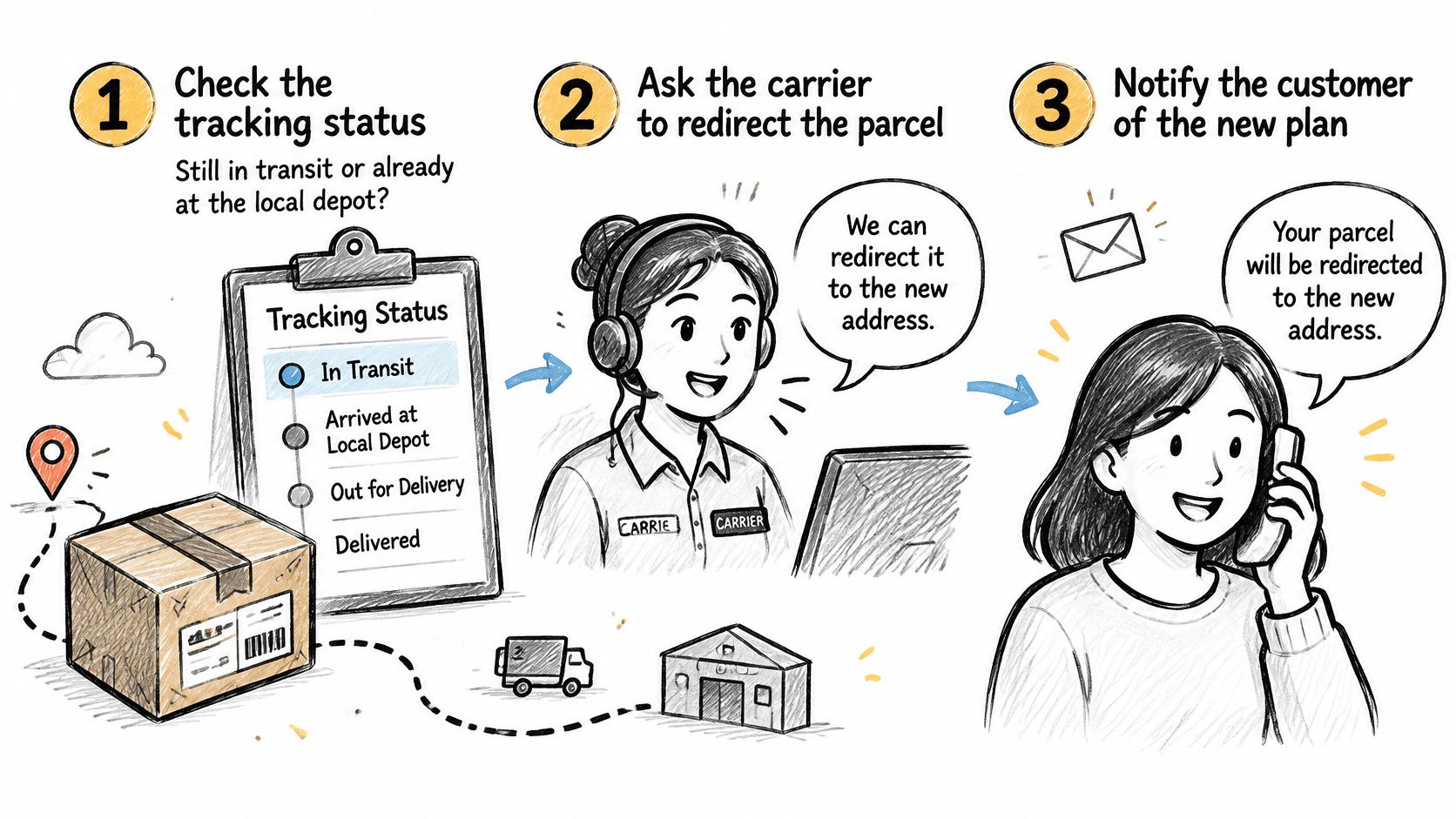
- Pull live tracking status first. Check whether the parcel is still moving between regional hubs or already scanned at the local delivery depot, because most carriers cut off intercepts once a driver loads the van.
- Submit a written carrier intercept. While the parcel is still in transit, contact the carrier with the tracking number and provide the corrected address in writing so there's a timestamped request on file.
- Loop in the recipient when carriers block merchant changes. Many couriers restrict holds and reroutes to the named recipient for security reasons. Ask the customer to log into their carrier account (such as UPS My Choice or FedEx Delivery Manager) to request a hold at a pickup point or a route update directly.
- Trigger your return-to-sender plan if rerouting fails. If the carrier can't intercept the box and it gets refused or returned to your warehouse, move straight to your standard reship procedure instead of inventing terms on the fly.
- Tag the order with the carrier outcome. Apply a clear tag such as
carrier-intercept-requestedorrts-reship-pendingin Shopify so support and warehouse staff don't duplicate carrier calls or accidentally ship a replacement early.
Never promise a customer that their package will arrive at the new address until the carrier confirms the intercept in writing. Carriers frequently reject reroute requests mid-transit, and setting false expectations turns one address mistake into a chargeback.
Deciding Who Covers Reship Costs
Write down your cost split before your first post-shipment ticket arrives so agents don't negotiate fees one by one. Say a shopper moves two days after their order leaves your warehouse and the box bounces back to your dock: a fair standard policy waives internal warehouse restocking fees while asking the customer to cover the carrier's intercept charge or fresh postage for the reshipment. Publish that rule on your shipping FAQ page so buyers see the boundary upfront.
Set Your Address Edit Rules Before the Next Order
Clean post-purchase operations start before a single typo hits your inbox. Work through this setup checklist this week to turn ad hoc ticket handling into a repeatable workflow:
- Set your edit window from warehouse reality: Measure how long orders sit unfulfilled before pick lists run, and base your cutoff window on that lead time instead of guessing.
- Lock edits automatically at fulfillment: Ensure every order stops accepting self-service changes the instant fulfillment starts or a label generates.
- Require cancel-and-reorder for country changes: Never patch a cross-border destination in place; build a standing rule that international switches require a fresh order.
- Enable validation and unit prompts everywhere: Turn on real-time address verification and apartment prompts at checkout and inside your post-purchase editing portal.
- Assign post-window override owners: Name exactly which support leads can edit a closed order and who signs off on high-value or high-risk changes.
- Run one full test order: Place a live test order, submit an address update, and inspect tax recalculation, shipping rates, timeline logs, and tags from end to end.
- Review address tickets monthly: Export address-related support tickets once a month and adjust your cutoff window or checkout prompts whenever the same failure pattern repeats.
You can enforce these exact guardrails automatically with SelfServe from ServeApps, which lets customers edit their Shopify orders after checkout from their order status page within merchant-defined windows and fulfillment locks. Because the SelfServe app includes order editing, order cancellations, post-purchase upsells, rule-based order editing, automated order tagging, address and contact editing, and notifications, one unified order change management policy covers address fixes, contact updates, and cancellations without custom code.
Start with the simplest validation step today: place one test order in your store, walk it through a complete address update, and verify every lock before your next fulfillment batch prints.
ServeApps builds Shopify-native post-purchase apps that let customers fix address typos, update shipping methods, and manage order changes directly from their order status page within rules you control. Visit ServeApps to see how rule-based self-service editing keeps your fulfillment queue accurate and cuts manual address tickets before labels print.

How to Update Customer Information in Shopify
Learn how to update customer information in Shopify: contact details, addresses, order changes and the checks that keep records accurate.
Read more →
Rules of Editing: When Customers Can Change an Order
Rules of Editing for orders explained: eligibility windows, permitted changes, payment safeguards and when to hand off to support.
Read more →
Best Bundle App for Shopify: 10 Tools Compared for 2026
Compare the best bundle app for Shopify by features, pricing, and integrations. Find which tool fits fixed kits, mix-and-match bundles, or upsells.
Read more →