
You've just watched a customer place an order, but the questions have already started. Did the address save correctly? What did I buy? When will it ship? Can I add the accessory I forgot? A default receipt answers only the first question, and often not especially well.
A well-built Shopify order confirmation email does more than confirm payment. It gives the buyer a reliable route back to order details, status, and tracking, while giving your team a controlled place to add brand context, support guidance, localization, and carefully chosen post-purchase actions.
Why the Shopify Order Confirmation Email Deserves Real Attention
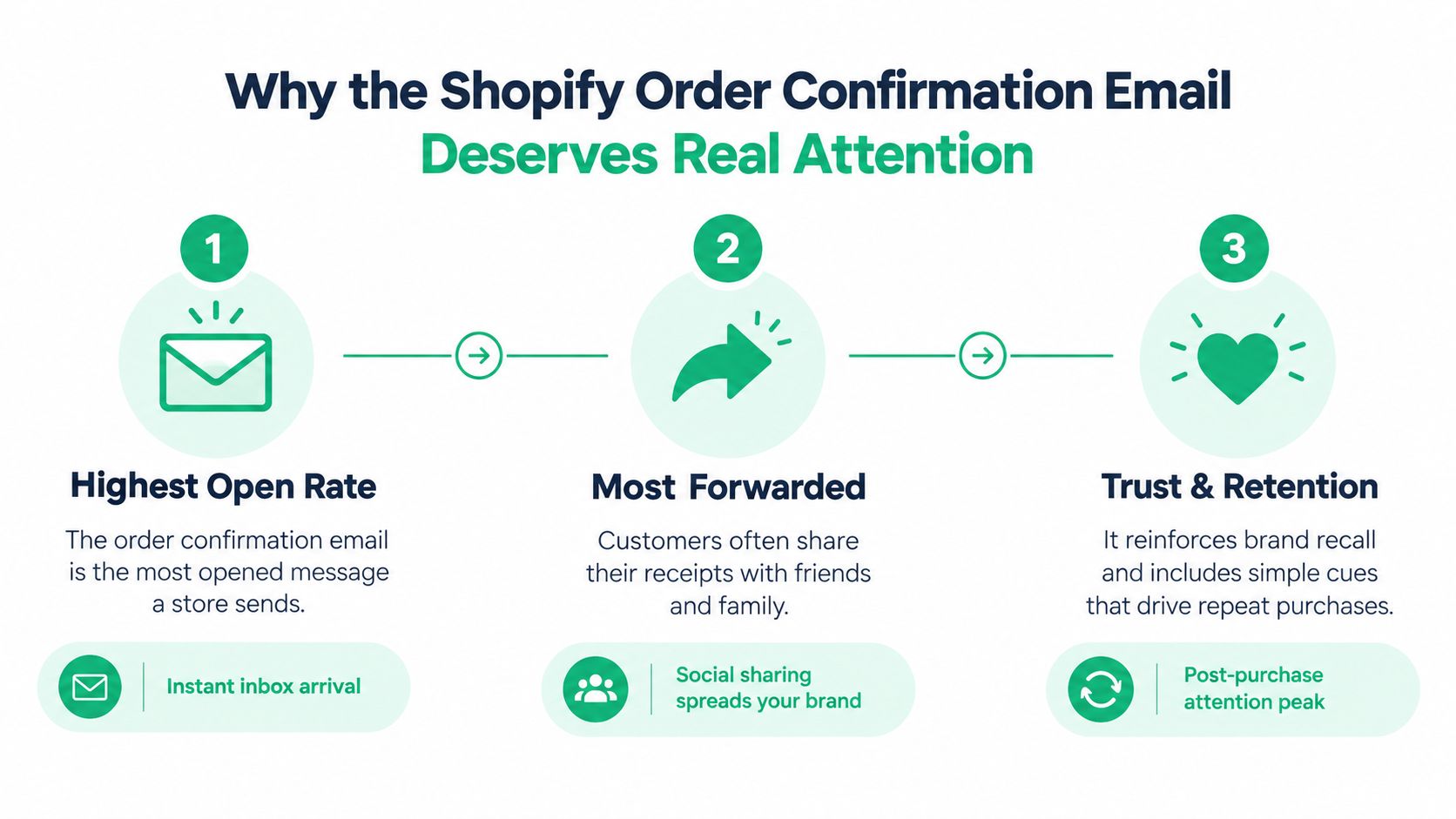
Shopify treats the order confirmation as a core transactional message that sends automatically when a customer places an order. The email contains the order number and a link to the order, and Shopify's documentation describes the linked order status page as remaining accessible without login for a limited period on the same or different browsers, across a limited number of browsers. That makes the message a long-lived gateway to post-purchase self-service, not a disposable receipt. Customers can return to order details, status, and tracking from the same message that confirmed the purchase. Shopify's order-management documentation also covers the ability to preview, resend, and test the notification from Shopify admin.
The email has three practical jobs:
- Proof of purchase: Buyers may need the order number and item details when they request a return, warranty service, or support.
- A deliverability anchor: Transactional mail establishes a distinct sending pattern. Mixing it carelessly with promotional traffic can create reputation problems.
- The first self-service doorway: The confirmation can direct customers toward address corrections, order status, tracking, support, or relevant add-ons.
Shopify recommends transactional emails that are automated, mobile-optimized, branded, and separate from shipping confirmation. It also recommends including the order number and a clear call to action. Those choices reduce uncertainty without forcing the confirmation to behave like a campaign email. Shopify's order confirmation guidance is a useful reference for the baseline structure.
A practical post-purchase flow should let the customer verify the purchase first, then take an action without searching through your site. For merchants mapping that experience, this guide on how to reduce support costs post-purchase offers useful operational context.
By the end, you'll have a confirmation email with safer Liquid personalization, clearer transactional content, stronger sending separation, multilingual considerations, and a deliberate connection to post-purchase self-service.
Opening and Backing Up the Default Template
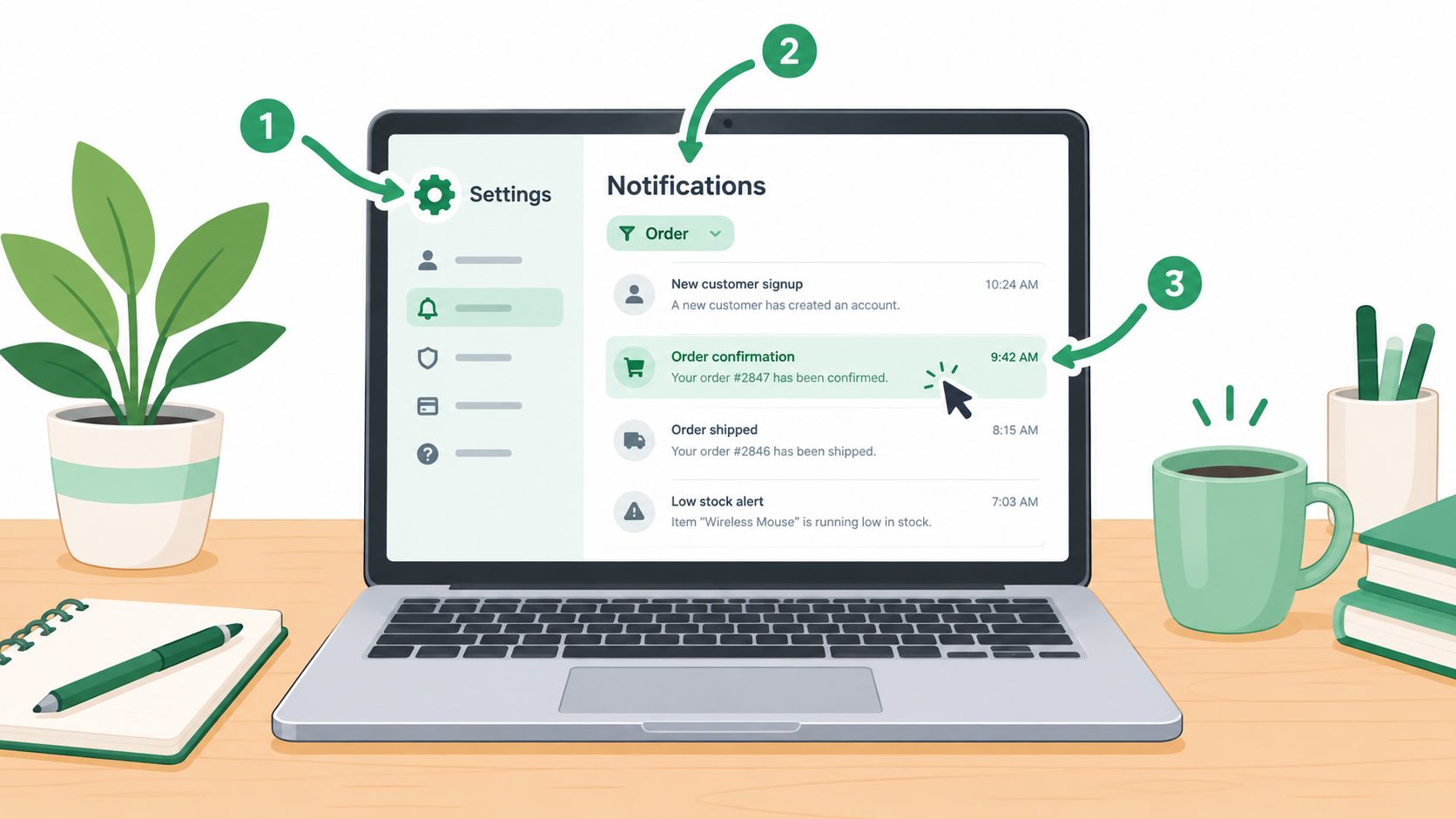
Start in Shopify admin, then open Settings, choose Notifications, and find the customer notification named Order confirmation. If your notification list is long, use the customer notification search or filter to locate it rather than opening templates at random.
The editor separates the email subject from the email body, which is usually an HTML template containing Liquid variables. The subject controls the line the recipient sees in the inbox. The body controls the rendered message, including order details, totals, links, and styling. Clicking Edit opens the template that can be sent for real orders, so treat the file as production code.
Before changing anything, copy the complete HTML and Liquid into a dated text file or a private Git gist. Capture the current subject line, sender name, and any visible settings in a screenshot. Shopify records confirmation numbers in the order timeline and lets merchants resend a confirmation from that timeline, so a broken edit can affect a message your support team may need to resend. Shopify's documentation on confirmation numbers and order timelines explains that operational relationship.
Use the editor's safety controls
The Preview link renders the template against a recent order. It's useful for checking spacing, variable output, and whether a conditional branch produces visible content. It isn't a substitute for sending test messages to actual inboxes, because email clients may rewrite HTML differently.
Keep Reset to default in mind as the recovery option. If a Liquid mistake disrupts the layout, restore the native template, then reapply changes in smaller, documented increments. For teams managing notification content across apps, SelfServe notification capabilities provide another reference point for how order-change communication can sit alongside the original confirmation.
After the backup, leave the original file open in another tab or repository. Edit one block at a time, preview after each meaningful change, and save only after the rendered output still contains the order number, items, totals, and customer-facing links.
Customizing the Core Email Content
The safest customization strategy is incremental. Keep Shopify's order data structure intact and improve the surrounding hierarchy, language, and utility. A confirmation should feel like your store, but it must still behave like a transactional document.
Start with the header and order summary
Replace a generic opening such as “Thanks for shopping with us” with a useful line that combines warmth and direction:
Your order is locked in, {{ customer.first_name }}. Here's what happens next.
That wording sets an expectation without promising a fulfillment event that hasn't happened. Match the accent color to the storefront, but keep contrast high and the heading readable on a phone.
In the order details block, don't casually rewrite the {{ line_items }} output. That variable is responsible for rendering the purchased products and should remain in the template unless you're deliberately rebuilding the item loop. If the default text-only presentation feels too sparse, add a thumbnail column through the existing item data or a carefully tested loop, rather than replacing the order summary with static product content.
Line-item properties can add operational context. A gift message, engraving instruction, or selected personalization can appear beneath the relevant item, provided the property exists and the output is escaped and tested.
Make shipping and totals unambiguous
Confirm that the template includes the selected shipping method and the localized total, for example:
{{ shipping_method.title }}
{{ total_price | money_with_currency }}
An estimated delivery window can sit beside the shipping method when your store has reliable data for it. Don't display a precise date if the value is only a broad internal assumption. A clear statement such as “You'll receive a shipping update when your order leaves our warehouse” is safer than an inaccurate promise.
Use a compact content hierarchy:
- Order identity: Order number, date, and customer name.
- Purchase record: Products, quantities, variants, and prices.
- Fulfillment context: Shipping method, delivery guidance, and address.
- Next action: Order status, support, or a permitted post-purchase change.
The footer should answer the question customers ask when something looks wrong. Replace a vague “Questions? Contact us” with a support address, help-center URL, and a tracking expectation. If you include an unsubscribe link, make clear that it applies to marketing communications, not the transactional order record. Keep transactional and promotional purposes separate, which aligns with Shopify's guidance on distinct shipping and confirmation messages.
Using Liquid for Personalization and Smart Upsells
Liquid can make the confirmation feel specific without turning it into a fragile application. Keep the logic shallow, use fallbacks, and make sure every conditional closes before you save.
A dependable greeting starts with a customer field and a neutral fallback:
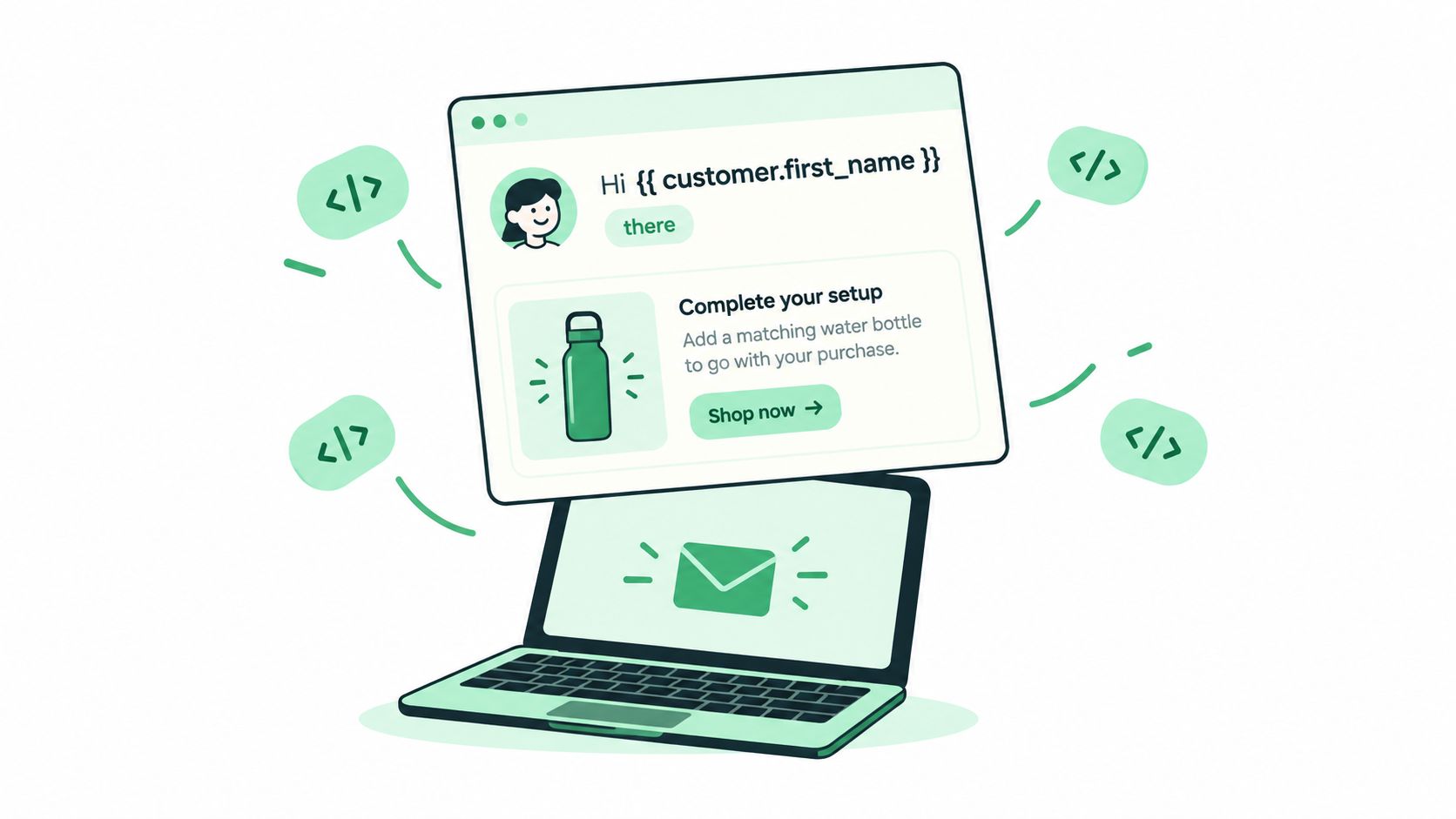
{% if customer.first_name != blank %}<p>Hello {{ customer.first_name }},</p>{% else %}<p>Hello there, friend.</p>{% endif %}
The fallback matters because guest checkouts and incomplete customer profiles are normal. A blank greeting is worse than a plain one.
Surface useful line-item details
Line-item properties can expose details the buyer entered during checkout, such as a gift note or personalization choice. Render only properties that exist:
{% for line in line_items %}<p><strong>{{ line.title }}</strong> × {{ line.quantity }}</p>{% for property in line.properties %}{% if property.last != blank %}<p>{{ property.first }}: {{ property.last }}</p>{% endif %}{% endfor %}{% endfor %}
Your store's available object fields can vary by notification context, so preview the output with an order that contains actual properties. Don't assume a property exists because the checkout UI displays a label.
For relevant add-ons, use product metadata rather than hard-coded handles. A product tag or metafield such as upsell.confirmation can identify a curated item, while conditional logic can decide whether the module appears for a particular order. The confirmation should show a small number of highly related choices, not a generic catalog grid.
The discount condition supplied for this pattern is:
{% if order.subtotal_price >= 5000 %}<p>Use code AGAIN10 for 10% off your next purchase.</p>{% endif %}
Treat discount eligibility as a business rule, not just a design element. Confirm that the code's terms, currency assumptions, and customer eligibility match the actual promotion before putting it into a transactional message.
Common Liquid failures are predictable:
- Unclosed branches: A missing
{% endif %}can break the rendering of everything below it. - Wrong editor syntax: Use Liquid delimiters inside the template editor, not escaped or typographic curly braces copied from a document.
- Rotating handles: Hard-coded product handles become stale when merchandising changes. Tags or metafields give the team a maintainable control point.
The email can link to the same post-purchase experience that appears after checkout. For an operational approach to relevant add-ons, Shopify post-purchase upsells provides context on extending the offer beyond the email itself.
Setting Up a Dedicated Sending Subdomain
A default Shopify sending identity is convenient, but it gives your transactional messages less separation from the rest of your email program. A branded subdomain such as orders.brand.com or receipts.brand.com creates a clearer boundary between receipts and marketing campaigns.
Shopify partner deliverability guidance recommends sending transactional messages from a separate email subdomain because sharing infrastructure with marketing mail can hurt inbox placement. The same guidance cites 80–90% average open rates for transactional emails compared with 20–30% for marketing email, which makes sender-reputation segmentation a technical control rather than a cosmetic preference. Shopify's partner deliverability guidance contains those figures and the subdomain recommendation.
Compare the practical trade-offs
| Factor | Default shopifymail.com | Branded subdomain, for example orders.brand.com |
|---|---|---|
| Setup effort | Minimal, with less DNS work | Requires DNS records and platform verification |
| Brand alignment | Shopify-associated sender identity | Sender domain matches the store brand |
| Reputation separation | Limited separation from other sending activity | Transactional reputation can be managed separately |
| Troubleshooting | Fewer merchant-controlled signals | More control, but more authentication checks |
| Operational ownership | Simple for small teams | Better suited to teams with email or technical ownership |
Set up the subdomain through the sending platform's instructions, then publish the requested authentication records in your DNS provider. In Shopify admin, validate the relevant DKIM settings under Settings, Notifications, and the email configuration area. Keep DMARC at a monitoring posture while you verify alignment, then tighten enforcement only after legitimate transactional sources have been identified.
Inspect a delivered message in Gmail's Show original view. Confirm that the visible sender uses the intended subdomain and that SPF, DKIM, and DMARC results align with the domain you control. Repeat the check in another mailbox provider, because one successful Gmail result doesn't prove universal delivery.
The trade-off is isolation. A marketing-domain incident is less likely to directly contaminate the transactional stream, but the subdomain now needs its own monitoring and documentation. If you use Klaviyo for lifecycle messaging, map the roles carefully rather than creating duplicate confirmations. This Klaviyo integration reference can help when coordinating email automation with post-purchase actions.
Adding Multilingual Support for International Buyers
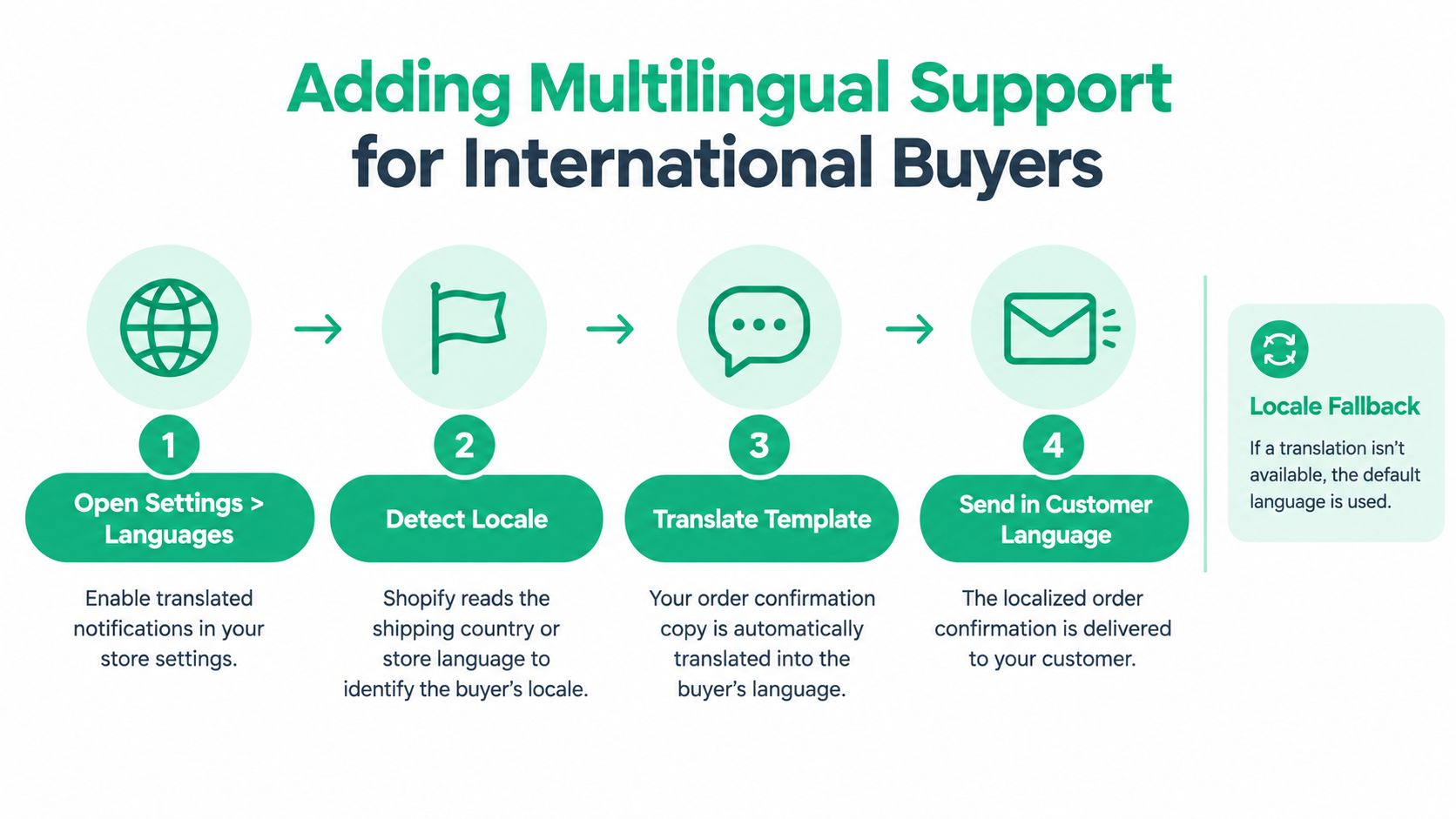
International customers shouldn't receive a confirmation that begins in one language and switches to another at the first operational instruction. Shopify supports multilingual customer notifications and customizable customer emails, while its best-practice guidance emphasizes mobile optimization and accessibility. The useful implementation question is which strings Shopify translates automatically and which ones your team must maintain.
Open Settings, then Languages, and configure the languages your store publishes. Enable translated customer notifications where available, publish the language resources, and review the result with a test order associated with the relevant market or store language.
Separate platform strings from custom copy
Shopify-managed strings may include elements such as subject text, totals, and shipping labels, depending on your notification and translation setup. Custom headline copy, branded footer text, support instructions, and upsell disclaimers often need manual review in the translation editor.
Create a translation inventory before editing:
- Subject line: Make the promise recognizable in the buyer's language.
- Order labels: Check product, quantity, subtotal, shipping, and total terminology.
- Operational instructions: Translate tracking, address, support, and return guidance.
- Promotional text: Localize offer conditions instead of translating only the headline.
- Accessibility text: Review button labels, image alternatives, and reading order.
Don't expect Liquid to call a translation API in the middle of a notification template. For important short strings, use explicit conditionals:
{% if shop.locale == 'fr' %}<p>Merci pour votre commande.</p>{% else %}<p>Thanks for your order.</p>{% endif %}
This approach is practical for a small number of high-value messages, but it becomes difficult to maintain as languages multiply. For larger catalogs, keep translated copy in a controlled translation workflow and avoid scattering long paragraphs across Liquid branches.
Carry the language into post-purchase actions
Localization shouldn't stop when the buyer clicks the order-status link. The customer may need to correct an address, review an order, or contact support, and switching back to English at that point creates avoidable friction.
A widget such as SelfServe can mirror the localized experience on the Thank You and Order Status pages, with multilingual order editing and post-purchase add-on modules. Keep the utility layer ahead of the promotional layer, especially when shipping rules, address formats, and delivery expectations differ by market.
Accessibility deserves the same operational attention as translation. Use readable contrast, descriptive links, sufficient button labels, logical headings, and a layout that remains understandable when images are blocked. Test the email with a screen reader or accessibility checker, then inspect the same journey on a narrow mobile viewport.
Testing, Sending, and Monitoring Confirmation Emails
A notification isn't finished when the editor shows a clean preview. It's finished when the data, markup, authentication, and post-purchase path survive realistic orders.
Start with the native preview in Settings, Notifications, and Order confirmation. Check the subject, sender name, greeting fallback, line items, thumbnails, shipping method, totals, address, order-status link, and footer. Preview a recent order that exercises the variables you changed, not just an empty or unusually simple order.
Use real inboxes and real order states
Send test messages to Gmail, Outlook, and iCloud addresses. Review each one on desktop and mobile, with images blocked as well as enabled. Look for clipped content, broken buttons, poor contrast, unexpected font substitutions, and links that wrap incorrectly.
In Gmail, open the message menu and choose Show original. Check:
- Sending identity: The From address and return path use the intended domain.
- Authentication: SPF, DKIM, and DMARC pass and align with the sending identity.
- Rendering: The message doesn't depend on unsupported client-side behavior.
- Link destination: Order-status and support links resolve correctly.
Run manual storefront orders that cover the branches your template contains. Use Shopify's Bogus Gateway in a controlled test environment or with a suitable test transaction process, and exercise both shipping and pickup variants. Include an order with line-item properties, an order without a customer first name, and an order that qualifies for the conditional offer.
Keep a change checklist beside the template:
- Greeting: Named customer and blank-name fallback both render.
- Items: Product title, variant, quantity, image fallback, and properties appear correctly.
- Totals: Currency formatting and discounts match the order record.
- Shipping: Method, address, and status destination are accurate.
- Links: Support, tracking, and order-status buttons open the intended pages.
- Marketing boundary: Any unsubscribe control is clearly separate from the transactional content.
- Inbox placement: Authentication and mailbox rendering remain healthy after the change.
Operational rule: Never test only the happy path. Every Liquid branch is a separate template that needs an order capable of reaching it.
Post-purchase changes also need verification. If your order-status experience includes address editing or add-ons, confirm that an address update produces the expected customer notification, that the order reflects the new value, and that any added item creates the correct receipt or order-change message. Check the permissions and fulfillment timing as well, because a customer-facing button is only useful when the underlying order state can accept the change.
Shopify lets merchants preview, resend, and test order confirmations from notification settings, and support teams can resend a confirmation from the order timeline. Document who can use those controls, which template version is live, and where the backup is stored. That simple record prevents an emergency resend from becoming an untracked template change.
SelfServe adds a controlled post-purchase layer around the Shopify order confirmation email, including customer-managed order changes, multilingual workflows, validated address updates, and upsell modules on the Thank You and Order Status pages. Review the workflow and decide whether it fits your store by visiting SelfServe.
Merchandising for Ecommerce: Tactics, Metrics and Tools
Learn merchandising for ecommerce: collection pages, cart drawers, personalized banners, the metrics that prove lift, and tools to run them.
Read more →
Order Confirmation Screen: What to Include and Templates
Learn what to include on an order confirmation screen, in what order, with tracking, cross-sell and support templates you can copy for your Shopify store.
Read more →
Best Up Sell App Picks for Shopify in 2026
Compare 10 Shopify up sell app options for 2026, with features, pricing, placements, and honest limitations to help you choose the right fit.
Read more →