
Shopify accepts product images up to 5,000 × 5,000 pixels, and a 2,048 × 2,048 pixel square master is the practical baseline for high-quality zoom and responsive delivery across most themes. The mistake most merchants make is treating that upload size as the size customers download.
The upload file and the delivered browser asset are not the same thing. Shopify's CDN resizes and serves responsive versions, so the key job is to upload a strong master image, then make sure the browser only gets the size it needs.
Table of Contents
- The Upload Versus Delivery Misconception
- Product and Collection Image Dimensions
- Understanding Shopify CDN Limits and Processing
- Hero Banners and Slideshow Sizing Strategies
- Choosing the Right File Format for Every Asset
- Implementing Responsive Images with Liquid
- How Image Payloads Impact Store Performance
- Social Sharing and Open Graph Dimensions
- Auditing Delivered Images in the Browser
- Quick Reference Checklist for Image Uploads
The Upload Versus Delivery Misconception
The wrong question is, “What size should I upload?” The better question is, “What size does the browser fetch for this slot?”
A 5,000-pixel file does not mean a phone downloads a 5,000-pixel asset. Shopify's CDN creates responsive variants from the master upload and can serve modern formats such as WebP or AVIF to supported browsers, so upload size, rendered size, and transferred size have to be treated as separate decisions Shopify web performance guidance. Oversized originals still add processing and storage overhead, even if the storefront never shows them at full size.
The right mental model
Keep a high-quality master in the store, not a single final asset that has to fit every use case. For square catalog photography, Shopify's 2,048 × 2,048 recommendation is a solid baseline, while the delivery layer handles the responsive versions Shopify image guidance.
Practical rule: upload for the largest legitimate display need, then verify what the browser downloads.
Small uploads create their own problems. They may look acceptable in a tight grid, then break down in zoom, on high-density screens, or when the same image is reused in a gallery, slideshow, or marketplace feed. For Shopify image sizes, the winning approach is neither “largest possible” nor “smallest possible.” It is large enough to preserve detail, and small enough to keep production manageable.
Product and Collection Image Dimensions
Square images still win for most catalogs because they keep cards aligned and galleries predictable. Shopify states that product and collection images can go up to 5,000 × 5,000 pixels, with a 20 MB file-size ceiling, and identifies 2,048 × 2,048 pixels as a practical square product-image size that generally displays well Shopify product media types.
Use one square standard across the catalog
If your products are shot on white backgrounds or simple studio setups, build every primary image to 1:1. That gives collection grids the cleanest possible baseline and reduces the odds of one product card stretching taller than the next.
A consistent ratio matters more than people expect. When neighboring images have different height-to-width ratios, cards can look uneven, crop differently, and make the whole collection page feel sloppy. Shopify themes can request standardized dimensions through the CDN, but the theme can only do so much if the source uploads are all over the place.
For practical workflow, create your master asset at 2,048 × 2,048, keep the product inside a consistent safe area, and apply that same ratio to variant images where possible. If you want a good external reference for catalog standardization, how MerchLoom standardizes product images is a useful example of the same discipline in action.
When square is not enough
Some products need a different crop, especially apparel on models, furniture in room sets, or packaging with vertical label emphasis. In those cases, keep the ratio deliberate and keep it consistent within the product family.
For a broader theme-level view of how product-page structure and imagery work together, the Shopify-specific notes in Shopify product page optimization are worth pairing with your image standards.
Understanding Shopify CDN Limits and Processing
Shopify's media pipeline has clear boundaries. Product and collection images support uploads up to 5,000 × 5,000 pixels, or 25 megapixels, with a maximum file size of 20 MB Shopify product media types. Those are hard limits, not targets.
Bigger files are not automatically better
Uploading a huge original only makes sense when the source detail is needed. That might be a luxury product with deep zoom expectations, detailed print textures, or artwork that needs to survive close inspection. Outside those cases, oversize masters mostly create extra processing and storage overhead.
The important distinction is this, Shopify can resize and optimize delivery, but it still has to ingest the original first. A bloated source file can slow the upload workflow and expose theme-specific image handling problems even when the storefront ultimately serves a much smaller variant.
Use larger sources selectively
Larger source files are justified when they preserve real merchandising value. They are not justified because “bigger is safer.” If the rendered component is small, or if the image is only ever shown in a narrow card, a massive upload just adds friction.
A strong upload standard keeps the master large enough for reuse, but never so large that it becomes the default habit for every asset.
The cleanest operational rule is simple. Match the source to the largest legitimate display requirement, then let Shopify do the responsive delivery work. That keeps the store flexible without turning the media library into a storage problem.
Hero Banners and Slideshow Sizing Strategies
Hero banners need to survive two very different environments. On desktop, they have to feel expansive and polished. On mobile, they need to preserve the message without relying on a wide crop that cuts the subject in half.

A practical starting point for wide hero work is a 16:9 composition. Shopify's broader image guidance also points to wide formats for banners and background-style assets, with responsive delivery handling the final fit Shopify image size guidance. In real stores, that means you should compose the image for the crop, not hope the crop behaves nicely after the fact.
Keep the focal point centered
The safest banner workflow is to keep the critical product, face, or headline-safe visual within the middle portion of the frame. If your theme crops aggressively on mobile, side elements are the first things to disappear.
That does not mean every banner needs to be boringly centered. It means you should decide what can be cut away without breaking the message. If the banner relies on text baked into the image, the crop has to protect that text or the creative will fail on smaller screens.
Separate assets can be worth it
If your theme supports different desktop and mobile banner images, use them. Separate assets are often cleaner than one oversized compromise image, especially when the desktop version needs a wide composition and the mobile version needs tighter vertical emphasis.
If the theme only supports one hero asset, design the master to survive the narrowest crop you expect. That usually means less clutter, more breathing room, and a stronger focal point than marketers initially want.
Choosing the Right File Format for Every Asset
Format choice affects file weight and visual quality. For Shopify image sizes, the file type should match the asset, not a rule of thumb.
JPEG, PNG, WebP, and AVIF each have a job
JPEG is the practical choice for photographic product images and slideshows. It handles color and texture well, and it stays efficient for most merchandising work. PNG fits line drawings, text overlays, and transparent graphics, where sharp edges and transparency matter more than file size.
Shopify's theme image documentation notes that supported formats can be delivered through the CDN, with modern formats available where browsers support them Shopify theme image documentation. That lets merchants keep a clean source file without hand-managing separate format variants for every use case.
A simple format selection table
| Format | Best Use Case | Transparency Support | Shopify CDN Behavior |
|---|---|---|---|
| JPEG | Photographic products, slideshows | No | Common source format, CDN may deliver optimized variants |
| PNG | Logos, text, line art, transparent graphics | Yes | Good source format for transparency and sharp edges |
| WebP | General web images where supported | Yes | Can be served to compatible browsers |
| AVIF | High-efficiency delivery for supported browsers | Yes | Can be served to compatible browsers with fallback support |
Don't overthink the source library
A practical workflow is to upload the best source format for the content, then let Shopify handle delivery optimization. A photo editor can export JPEG cleanly. A logo can stay PNG if it needs transparency. Pushing every asset into one format usually adds work without improving the storefront.
The decision is simple. Use the format that preserves the asset cleanly, then check what the browser downloads before assuming the upload file is what shoppers see.
Implementing Responsive Images with Liquid
Responsive delivery is where a lot of themes waste bandwidth. Shopify recommends using Liquid's image_url with image_tag so the theme can generate responsive srcset candidates, while the sizes attribute tells the browser the image's actual display width at each breakpoint Shopify image optimization tips.
The sizes attribute has to reflect reality
If a product card is displayed at 300 CSS pixels, the browser should usually receive a source around 600 pixels on a 2× density screen. That's enough to look sharp without defaulting to a giant hero-sized asset for a tiny thumbnail slot.
When sizes is missing or wrong, browsers often assume the image spans the full viewport. That pushes them toward downloading much larger candidates than the layout needs, which is exactly the kind of hidden bloat that makes mobile pages feel slow.
{{ product.featured_image
  | image_url: width: 1200
  | image_tag:
    widths: '300, 600, 900, 1200',
    sizes: '(min-width: 990px) 300px, 50vw',
    alt: product.title
}}
Match the markup to the layout
The sizes value should mirror real CSS width, including grid columns, gaps, and padding. If your card spans half the viewport on mobile and 300 pixels on desktop, the browser needs to know that. If the image changes crop between breakpoints, use <picture>, but don't use it just because you want different resolutions.
If you're working inside a theme and want a broader mobile tuning checklist, mobile optimization tips for Shopify store owners pairs well with this markup work.
How Image Payloads Impact Store Performance
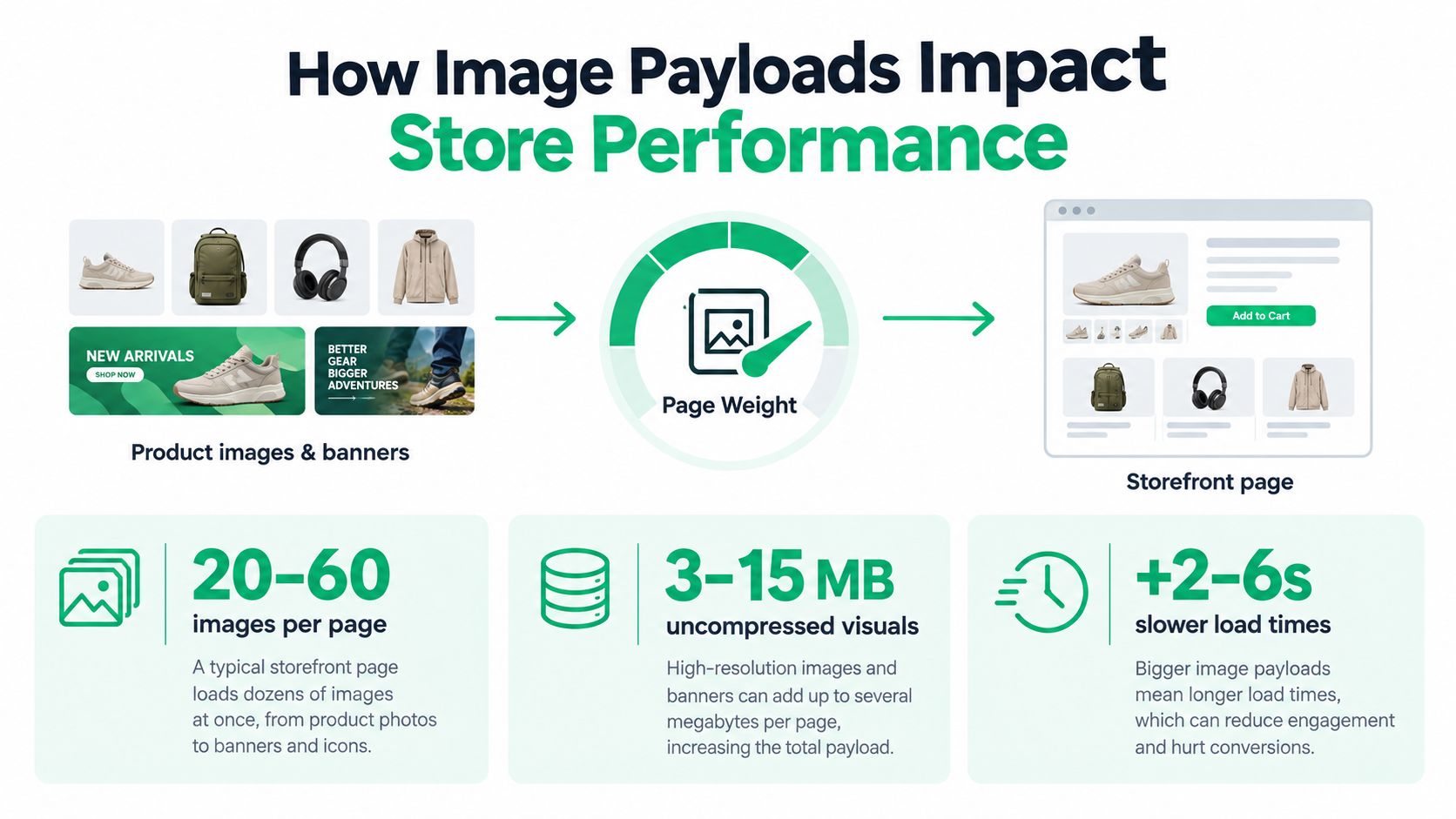
Image payloads usually dominate ecommerce page weight. The HTTP Archive Web Almanac shows how wide the gap can be, with median ecommerce pages carrying dozens of images and well over a megabyte of image data, while the lightest and heaviest pages sit at very different extremes. Those spreads matter because a theme can look tidy in design comps and still force the browser to download far more than the layout can show.
Why the payload matters
Image sizing is performance work, not decoration. A storefront can push several megabytes of image data before scripts, stylesheets, or fonts become part of the conversation. On a merchant site, that load stacks up quickly when collection grids, homepage banners, badges, and thumbnails all arrive together.
Responsive sizing and compression are the baseline. They affect how fast the largest visible image appears, how much memory the browser uses, and how much extra work mobile devices do before a shopper can move through the page comfortably.
Performance work starts with the visible frame
The useful question is not whether the master file looks sharp in your media library. It is what the browser downloads in the viewport. A 2,400 pixel upload can still become a 300 pixel delivery if the markup is honest, and the reverse is exactly how oversized assets slip into production.
Focus on the visible frame first. Tighten source dimensions, clean up crops, and trim delivery candidates that never match the layout. That usually produces a bigger speed gain than polishing the last few percent of compression.
If you are profiling store speed, the image layer is one of the first places to inspect, and how to speed up your Shopify store and improve conversion rates is a useful companion for the broader tuning process.
Social Sharing and Open Graph Dimensions
The image on a shared link often decides whether the preview looks intentional or broken. A 1,200 × 630 pixel master is a solid Open Graph baseline because it follows the common wide social-preview ratio and avoids awkward cropping on most platforms.
Build one clean social master
Use one image that reads clearly when reduced. Keep the product, title treatment, and any brand mark away from the edges so messaging apps and social platforms don't trim important details.
That same image can usually do double duty for Facebook, LinkedIn, and X-style card previews, as long as the composition is clean. If you're also creating Pinterest-ready assets, the standard Pin dimensions explained resource is helpful because Pinterest rewards a different visual shape than a typical OG card.
Set the tags in the theme head
Shopify themes can expose social sharing image settings, and custom themes can place OG tags in the head section. The point is to make the preview image deliberate, not whatever random product crop the platform guesses first.
A clean OG asset protects brand presentation when links get passed around in messages, email forwards, and social feeds. It's small work, but it prevents a lot of ugly previews.
Auditing Delivered Images in the Browser
The only image size that matters is the one the browser downloads. Developer tools make that easy to verify, and they expose the gap between a well-intentioned upload and a bloated delivery chain.
Check the Network tab first
Open the page, launch DevTools, and filter the Network tab to image assets. Then inspect the transferred bytes and the intrinsic dimensions separately. Those are not the same thing, and confusing them leads to bad conclusions.
A thumbnail slot that requests a 2,000-pixel file is a theme issue, not a photography issue. A product card that receives a correctly sized asset but still feels heavy points to a different problem, usually markup, lazy loading, or too many visible images at once.
Compare what you uploaded with what gets delivered
Look at the source file in the media library, then compare it against the browser's actual request. If the browser is pulling a much larger candidate than the CSS layout needs, the sizes attribute is probably off. If the browser is pulling a surprisingly small candidate, the theme may be under-serving high-density screens.
For ecommerce teams that inspect competitor catalogs or scrape storefront structure for benchmarking, WebscrapingHQ for ecommerce data can be useful context when paired with your own browser audits.
If the delivered asset is wrong, fix the theme logic before blaming the upload.
Quick Reference Checklist for Image Uploads
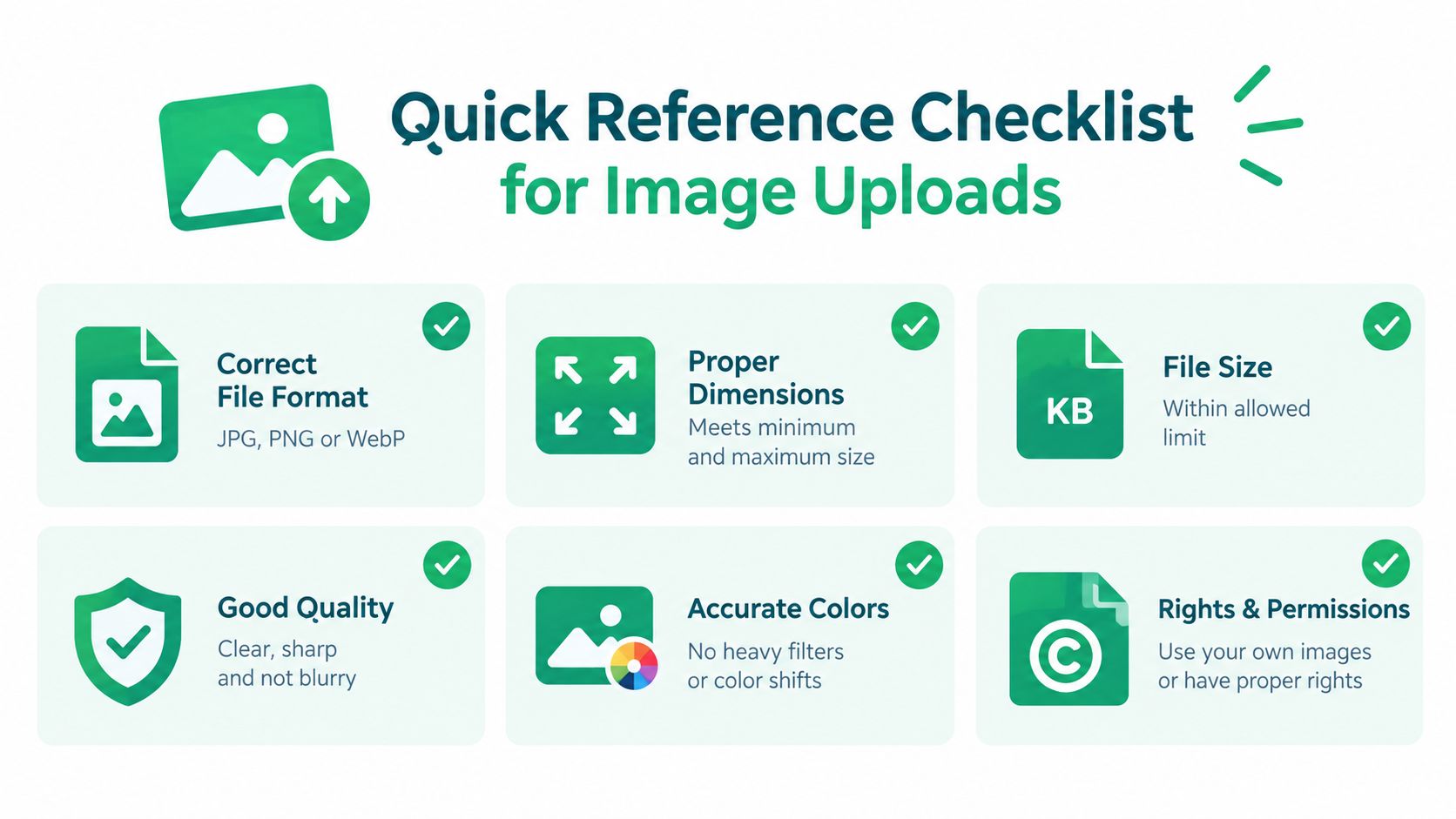
Use this checklist before a product launch, collection refresh, or homepage redesign:
- Product masters: keep square catalog images at 2,048 × 2,048 pixels when that ratio fits the product.
- Upload ceiling: stay under Shopify's 5,000 × 5,000 pixel and 20 MB limits.
- Aspect ratios: keep images in the same family on the same ratio so collection grids don't wobble.
- File formats: use JPEG for photos, PNG for transparency or line art, and let Shopify handle modern delivery formats when supported.
- Responsive markup: make sure
sizesmatches the actual CSS slot, not a guessed full-width value. - Browser audit: check the Network tab and confirm the delivered asset is the one you want shoppers to download.
The strongest Shopify image workflow is boring in the right way. Upload a clean master, keep the ratio consistent, serve a sensible delivery size, and verify the browser request instead of trusting the media library alone.
ServeApps helps Shopify merchants tighten the parts of the store that drive operational load and conversion, including post-purchase edits, cart drawers, and upsell popups. If you want help aligning theme behavior, storefront UX, and performance-sensitive implementation details, visit ServeApps and review the tools in context.

Order Confirmation Screen: What to Include and Templates
Learn what to include on an order confirmation screen, in what order, with tracking, cross-sell and support templates you can copy for your Shopify store.
Read more →
Best Up Sell App Picks for Shopify in 2026
Compare 10 Shopify up sell app options for 2026, with features, pricing, placements, and honest limitations to help you choose the right fit.
Read more →
Best Checkout Page: 7 Examples That Convert in 2026
Discover 7 best checkout page tools and examples for Shopify with pros, cons, and conversion tips to boost AOV without rebuilding checkout.
Read more →