
The popular advice is simple: add a coupon field to the Shopify cart and let shoppers apply their code before checkout. That sounds customer-friendly, but it can create the exact behavior merchants want to avoid. A visible coupon prompt may encourage shoppers to leave the store and search for a better offer, while Shopify's native discount flow keeps code entry inside checkout for a deliberate operational reason.
A better approach starts with the platform constraint. Use automatic discounts when the offer should appear before checkout, promotional links when the code is tied to a campaign, and post-purchase tools when customers forget to apply a discount. The right Shopify discount code before checkout strategy isn't always a text field. Often, it's a promotion that requires no manual entry at all.
Why Shopify Hides Discount Codes Until Checkout
A coupon field on the cart page isn't automatically better UX. Checkout research summarized by Zuko's analysis of discount coupon codes says 27% of people would abandon a cart to look for a voucher code, while 85% of online shoppers search for a discount coupon before purchasing. Those behaviors create a difficult trade-off: the field can reassure shoppers who already have a code, but it can also remind everyone else to go hunting.
Shopify's native architecture separates cart-stage merchandising from checkout-stage discount redemption. Its official documentation on discount codes says customers enter discount codes during checkout, not on the cart page. Shopify treats automatic discounts differently. Those can be visible before checkout on the cart page, while code-based discounts require the customer to reach checkout and enter the code manually.
That distinction explains why the standard theme editor doesn't offer a simple “show coupon field in cart” setting. Shopify isn't treating the cart as a partial checkout. The cart is where customers review products, quantities, shipping signals, and merchandising messages. Checkout is where the platform applies the code within its payment and order calculation flow.
The platform boundary merchants keep encountering
Shopify also documents that discounts are applied before tax and that merchants can monitor usage through the Sales by discount report. This makes redemption a measurable event in the platform's analytics, rather than a visual cart interaction that a theme can freely reproduce.
The limitation has existed for years. A Shopify Community discussion about applying discount codes before checkout records workarounds involving discount cookies and discount parameters passed into checkout URLs. The same discussion describes multiple discounts being handed off through a checkout permalink, showing that merchants solved the problem by routing discount information into checkout rather than adding native cart-page validation.
Practical rule: Treat cart-page code entry as a custom workflow, not as a missing theme setting.
That distinction matters operationally. A custom field needs to validate eligibility, communicate errors, preserve the discount through checkout, handle cart changes, and remain compatible with the store's theme and apps. If the implementation fails at any point, customers may believe they received a discount when Shopify hasn't recorded one.
For most brands, the cleaner question isn't “How do we force code entry earlier?” It's “Does this promotion need a code?” If the answer is no, automatic discounts remove the manual step. If the answer is yes, a campaign link can pass the customer into checkout with the promotion attached.
Native Workarounds and Automatic Discount Setup
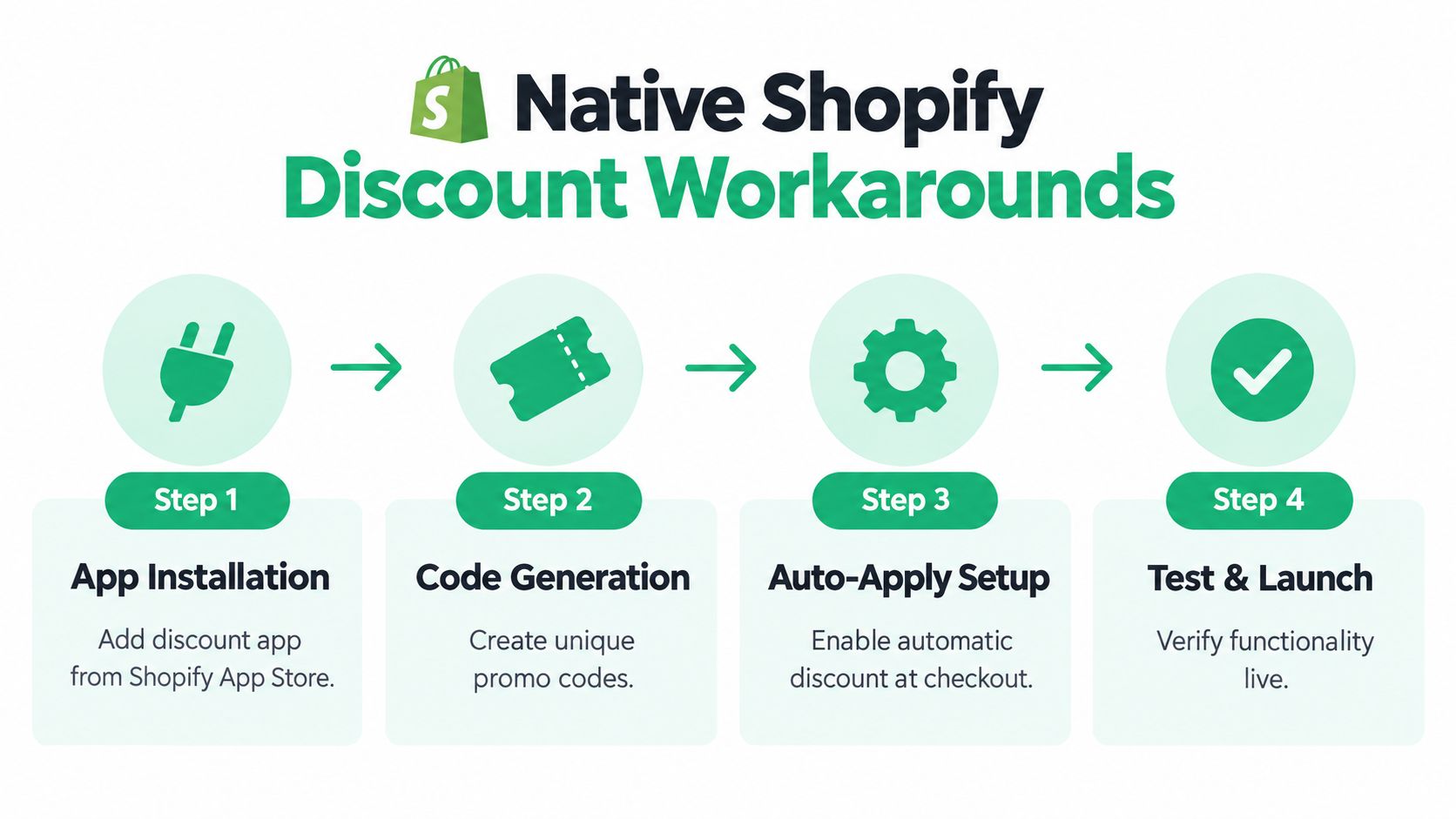
Shopify gives merchants two practical native routes for a pre-checkout promotion experience. The first uses a promotional URL that carries the discount into checkout. The second uses an automatic discount, which can be reflected in the cart before the customer pays.
Use a campaign link when the code has a purpose
Create the discount in Shopify Admin, define its eligibility rules, and use the resulting discount URL in email, paid campaigns, affiliate placements, or creator posts. The customer should click the link from the promotion rather than copy a code from one page and paste it into another.
Test the complete path in a private browser session:
- Open the campaign link: Confirm that the intended products or collection load correctly.
- Add eligible products: Check that the promotion applies only when its conditions are met.
- Continue to checkout: Verify that the discount remains attached through the handoff.
- Test an ineligible cart: Make sure Shopify gives a clear result when the cart doesn't qualify.
- Review the order record: Confirm that the discount appears in Shopify's reporting rather than existing only as a front-end message.
This approach doesn't create a native coupon input on the cart page. It solves a different problem, removing manual entry for customers who arrive through a controlled campaign.
Use automatic discounts for visible cart savings
Automatic discounts are the closest native option to a true “discount before checkout” experience. In Shopify Admin, create an automatic discount, choose the products or collections it applies to, and define the qualifying conditions. If the offer depends on a minimum order value or a product combination, configure those rules directly in Shopify rather than trying to reproduce them in theme code.
Keep the customer-facing message precise. Say what qualifies, whether the saving is already applied, and what the shopper needs to add or remove. Avoid displaying a generic “coupon available” message that sends customers searching for a code they don't need.
You can also use SelfServe's Shopify order workflow guide when mapping promotional links, order changes, and post-purchase actions around the native checkout boundary. The important distinction is that an automatic discount changes the promotion logic, while an app may change where and how customers interact with that logic.
Finally, review the Sales by discount report after launch. Shopify's documentation identifies that report as the place to track discount usage, so use it to compare campaign activity with actual redemption. Don't judge a promotion by the number of clicks or the presence of a cart message alone. The recorded order behavior is what tells you whether the offer worked.
Evaluating Cart Drawer Apps and Shopify Plus Scripts
Some brands need a coupon input in a cart drawer. A loyalty member may arrive with a code, a sales associate may direct a customer to a promotion, or a campaign may require shoppers to validate eligibility before continuing. In those cases, a third-party cart app can inject a field into the drawer and send the code to Shopify through an asynchronous request.
That convenience comes with dependencies. The app must understand the theme's cart events, update the drawer without stale totals, preserve the discount when the shopper changes quantity, and handle conflicts with subscriptions, bundles, shipping protection, and other cart extensions. A field that looks correct but fails to refresh the total is worse than no field at all.
Standard-plan app versus Plus customization
A cart drawer app is usually the practical choice for a standard Shopify store with limited development capacity. It can provide a ready-made interface, but the merchant still needs to test theme compatibility, mobile behavior, error states, and checkout persistence. App fees and another vendor dependency also become part of the operating model.
Shopify Plus merchants can consider more custom checkout customization, including Checkout UI extensions and discount logic built around the Plus toolset. Historically, Plus Scripts were used for discount and checkout behavior, but merchants should confirm which capabilities are supported in their current Shopify setup before committing to a legacy implementation. Custom work offers control, but it also creates a maintenance obligation whenever the theme, checkout, or promotion rules change.
| Method | Best For | Theme Impact |
|---|---|---|
| Automatic discount | Offers that don't require a code | Low, because Shopify handles the promotion natively |
| Promotional checkout link | Email, creator, affiliate, and campaign traffic | Low, but the link path needs testing |
| Cart drawer app | Stores that require visible manual code entry | Medium to high, depending on AJAX and theme integration |
| Custom Plus implementation | High-volume brands with development resources | High during development, with ongoing maintenance |
A cart code field is a product decision, not just a design element. It changes the shopper's path, the store's error handling, and the team's testing workload.
Choose the app route when speed and broad compatibility matter more than complete control. Choose custom Plus work when the promotion logic is strategically important, the team can own the maintenance, and the store has enough checkout complexity to justify bespoke behavior. In both cases, test discount stacking, expired codes, minimum thresholds, cart updates, accelerated checkout buttons, and mobile drawer behavior before launch.
Don't install an app solely because the theme editor lacks a field. First confirm that manual entry solves a real customer problem without increasing coupon hunting. If most shoppers arrive through controlled campaigns, a promotional link may deliver the same commercial outcome with less interface risk.
Managing Checkout Friction and Coupon Hunting
Coupon fields create a psychological question before they create a technical one: “Am I paying too much?” A shopper who wasn't looking for a discount may now assume that a code exists somewhere. If the store doesn't provide one immediately, the customer has a reason to open another tab, search a coupon site, or postpone the purchase.

The Zuko summary puts numbers around that risk. It reports that 27% of people would abandon a cart to look for a voucher code, and that 85% of online shoppers search for a discount coupon before purchasing. Those figures don't mean every visible field causes abandonment, but they do show why coupon discovery deserves deliberate UX treatment rather than automatic placement.
Choose the least distracting pattern
Use an automatic discount when the customer qualifies without choosing a code. Show the saving in the cart summary and explain the qualifying condition beside it. The customer sees the benefit without being asked to leave the site or remember a string of characters.
If a code is essential, use a compact disclosure rather than a dominant input. A subdued “Have a code?” link can reveal the field only when needed. An explicit Apply button is safer than applying on every keystroke because it lets the shopper confirm the action and gives the interface a clear place to display success or failure.
Make the outcome unambiguous:
- Successful application: Show the code, discount amount, and updated total.
- Invalid code: Explain whether the code is expired, ineligible, or mistyped.
- Unmet condition: Tell the shopper what product or cart requirement is missing.
- Existing promotion: State whether the new code replaced or conflicted with another discount.
- No code needed: Tell customers when an automatic promotion is already active.
Audit the broader journey with this Shopify checkout experience guide, especially if the store uses a drawer, accelerated checkout, or several promotion types. The field should support completion, not compete with the product value, delivery promise, or payment action.
There is another risk beyond conversion. Coupon pages can intercept customers who arrived through a partner or affiliate and redirect the final click through a different referral path. For a useful explanation of those affiliate revenue risks from coupon pages, review how promotion discovery can affect attribution and partner economics.
A simple message such as “Your eligible discount is already applied” can prevent unnecessary searching. It reassures customers without advertising an open invitation to find a larger offer.
Measure the complete funnel, not just code usage. Watch whether shoppers open the field, submit invalid codes, return from external searches, or abandon after seeing the prompt. A promotion that generates redemptions but distracts many full-price shoppers may need a different presentation, eligibility rule, or acquisition channel.
Recovering Margin with Post-Purchase Upsells
A discount can acquire the order without needing to carry the entire revenue burden by itself. Once payment is complete, the customer is no longer deciding whether to trust the store. That makes the Thank You page and Order Status page useful places to present a relevant addition without putting the original transaction back at risk.
The offer should complement what the customer bought. A compatible accessory, replenishment item, upgraded quantity, or curated collection is more credible than an unrelated product. The principles in this cross sell strategy for e-commerce brands are useful here because the recommendation needs to feel like a practical extension of the first purchase, not a second attempt to force a discount.
Design the offer around the existing order
Start with product restrictions. Exclude items that cannot ship with the original order, products with fulfillment constraints, and offers that would create confusing delivery expectations. If an added physical product changes the shipping destination, real-time address validation can prevent an upsell from creating a new operational problem.
A post-purchase module should answer four questions immediately:
- What is being offered?
- Why does it belong with the original purchase?
- What will the customer pay?
- When and how will it ship?
Don't hide the order relationship. Explain that the customer is adding to an existing order, show the revised item list, and state whether the addition affects fulfillment timing. Clear information protects trust better than aggressive urgency.
SelfServe is one option for this workflow. It lets merchants place upsell modules on Thank You and Order Status pages, restrict available products or collections, validate addresses, and allow customers to manage selected post-purchase changes within merchant-defined rules. Its Shopify post-purchase upsell guide covers the operational model in more detail.
Turn the promotion into a controlled test
If the initial order used a discount, avoid stacking another broad discount on every upsell. Use a focused offer with clear eligibility, or apply the saving automatically to a complementary item. This keeps the post-purchase recommendation understandable and limits accidental margin leakage.
Track the added revenue separately from the original promotion. Review which products customers add, where the offer appears, whether address or inventory rules reject additions, and whether the warehouse can process the combined order cleanly. The purpose isn't to hide the cost of the first discount. It's to make the entire customer journey commercially coherent.
Post-purchase upsells also give support teams a safer answer when a customer says they forgot a code. Instead of encouraging every shopper to delay checkout while searching, the store can provide a defined post-purchase resolution path, subject to its discount rules and fulfillment window.
Building a Frictionless Promotion Strategy
A strong promotion strategy assigns each offer to the point in the journey where it creates the least friction.
Use an automatic discount when every eligible shopper should see the saving without entering anything. Use a promotional checkout link when the offer belongs to a campaign, partner, or audience that already has a controlled entry point. Use a cart app or custom Plus implementation only when manual pre-checkout validation is strictly necessary.
Then add operational safeguards:
- Test the handoff: Confirm that campaign links preserve the intended discount through checkout.
- Test the edge cases: Check expired codes, ineligible products, minimum conditions, and competing promotions.
- Review the cart message: Tell customers whether the saving is automatic or requires an action.
- Protect attribution: Make sure coupon discovery doesn't overwrite partner or affiliate referral paths.
- Plan the recovery path: Define what happens when a customer forgets a code after payment.
- Use post-purchase offers carefully: Recommend compatible products and validate the delivery address before adding physical items.
The most effective before-checkout experience is often invisible. Customers click the right campaign link, see an automatic saving, or complete checkout without being prompted to search for a code. Brands can preserve that simplicity while still creating a controlled post-purchase opportunity for relevant additions.
Review your current flow from a customer's phone, a private browser, and an ineligible cart. If the promotion needs a long explanation, repeated code entry, or support intervention, redesign the journey before adding another app.
SelfServe helps Shopify teams manage defined post-purchase order changes, validate delivery details, and present relevant upsells after checkout, so forgotten discount requests don't have to interrupt the initial purchase. Visit SelfServe to see how its order editing and upsell workflows can fit your promotion strategy.
How to Create Bundle on Shopify: Step-by-Step Guide 2026
How to create bundle on Shopify: free Bundles app, SKU mapping, inventory checks and pre-launch testing for fixed and multipack bundles.
Read more →
10 Best Upsell Apps for Shopify in 2026, Compared
Compare the best upsell apps for Shopify by features, pricing, pros and cons, and ideal use cases, with picks for different merchant types in 2026.
Read more →
Post Purchase Upsell on Shopify: Placements and ROI
Post Purchase Upsell explained: where to place offers on Shopify, realistic conversion benchmarks, setup steps and how to measure ROI safely.
Read more →